Tips
Where a tip can come from, what it does to the payment and the job balance, how to pull the tip report, and how a tip shows up in the payroll breakdown.
Written By Sean MacCourtney
Last updated About 3 hours ago
A tip in Rotor rides along with a payment. It is not a line item, it does not change the price of the work, and it never counts as payment toward what the job owes. Everything downstream — the tip report, the tech's notification, the job breakdown on payroll — reads off that one payment record.
Which means the whole thing hinges on the tip actually making it onto a payment in Rotor. A $20 bill handed to a tech at the door and pocketed is invisible to every report on this page.
Collecting the payment a tip is attached to
Before a tip can exist, there has to be a payment. On the job side that means one thing:
Marking the job complete — not just finishing the visit — is what opens up billing. A job with a finished visit that was never completed will not invoice and will not auto-charge, so there is nothing for a customer to tip on.
Once the job is Completed, the card at the top of the job page answers one question — what is owed, and what should I do about it:
A red dollar sign on the schedule means that job needs money collected.
The three routes a tip comes in on
1. The customer pays the invoice link themselves. You send the invoice; the customer opens the link and pays by card or bank. Stripe processes it, and the tip is captured as part of that payment.
2. A tech takes it on site. On a completed job with a balance, Collect now charges the card on file or takes payment however the customer is paying, right there at the door. This is where most tips happen, because it is the moment the customer is standing in front of the person who did the work.
3. The office records it. A payment taken over the phone, or a cash, check, or e-transfer payment logged manually. Manual payments never touch a card network, so there is no processing fee — but they also only exist in Rotor if someone types them in.
Cash tips. If a cash tip is not recorded as part of a payment in Rotor, it will not appear on the tip report and it will not appear in the job breakdown on payroll. Decide as a business whether cash tips get logged, and tell your crew which way it is — a half-logged system is worse than either.
Get a card on file first
From a customer's Payments tab you can send a Client Portal Link so the customer adds their own payment method, rather than a tech reading a card number over the phone. It is also the step to do before turning on billing cycles, which need a card on file to charge automatically.
What a Tip Does — and Doesn't — Do
A tip is not credit toward the work. Tips and taxes are never counted as payment toward a job's own balance. A customer who pays $500 on a $450 job with a $50 tip has paid for the work in full and tipped $50 — the tip does not buy down anything, and it will not show up as an overpayment to be applied elsewhere.
The processing fee is charged on the whole amount, including the tip. A $450 job with a $50 tip is a $500 charge. On a Visa that is 2.9% + $0.30 = $14.80, and $485.20 lands in your bank.
That means if you pay the tip out at face value, the business absorbs the fee on it — about $1.45 on a $50 tip. Small per job, not nothing across a season. Worth knowing before you promise crews that they get 100% of tips.
Everyone finds out. Two notifications cover tips, both in Settings → Notifications:
Tip received (owner) — a customer left a tip
Tip received (member) — technicians assigned to the job are notified when a tip is received
Refunds take the tip with them. Refunding a payment refunds what was charged, and the tip was part of that charge.
The Tip Report
Financials → Payments → Tip Report.
The report shows tips collected and who received them, over a date range you choose. Before you generate it, you pick the basis:
Why the choice matters. A visit on September 29 that the customer pays on October 2 is a September tip on the visit-date basis and an October tip on the paid-date basis. Pick one basis for payroll and stay on it, or a tip gets paid twice at a month boundary — or never.
Use Visit date for payroll. Payroll applies commissions based on the scheduled visit date, so a tip report on the visit-date basis lines up with the payroll period you are already running. Save Paid date for reconciliation, where what matters is when the cash arrived.
Export it. The export is what you hand to whoever runs payroll. Confirm your filter is right before you export — the wrong date range produces a report that looks complete and is not.
A second source for cross-checking. The invoice export (Financials → Invoices → Export) carries a Tips column alongside gross collected, processing fees, and net payout. If a tip total looks wrong, compare the two.
Tips on the Payroll Report
Payroll → select a date range. Hourly employees show hours worked in the period; commission employees show commissions based on the scheduled visit date. Expand any team member to see their individual payroll lines.
Each line shows how that person earned pay on a job — salesman commission, upsell commission, technician commission. Click the Info button on any line to see the full job breakdown: total job amount, technician pay, salesman pay, upsells, tips, and company retained.
That breakdown is the clearest picture of where a job's money went:
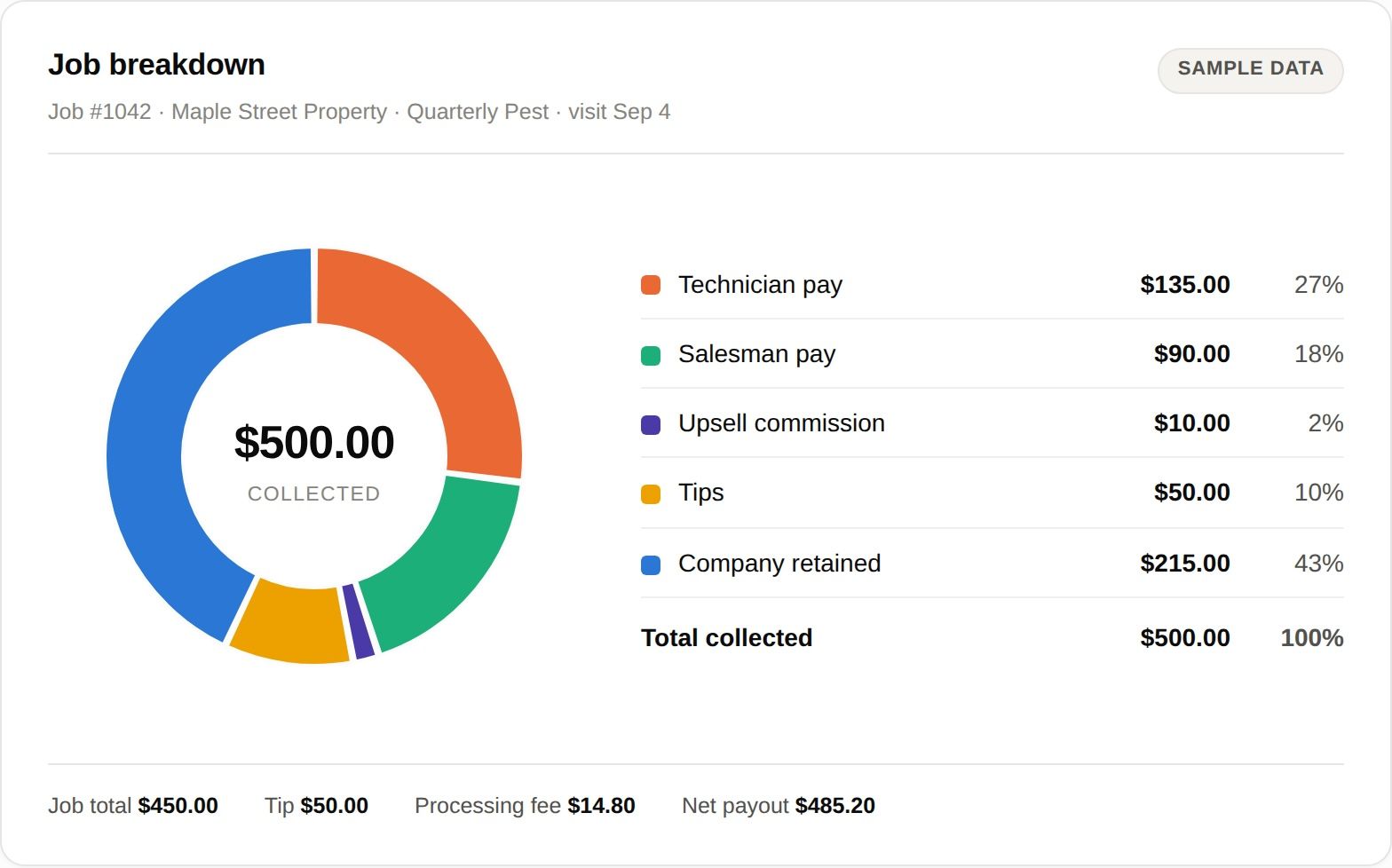
Reading it slice by slice:
Does the tip get paid through payroll, or separately?
If tips are a payable payroll line: the tip appears as its own line in the run, and Run Payroll marks it paid along with everything else, so it cannot be paid twice.
If the breakdown is report-only: the Info panel tells you the tip exists, but paying it out is on you. Use the exported Tip Report as the source and pay it however you pay tips — and keep your own record, because Rotor is not marking it paid.
Tips and the commission base. Commissions are calculated on the job total and on upsell values. A tip is neither, so a tip should not move any commission figure — it should only ever change the tip line.
A Routine That Works
On the job, same day. Mark jobs complete, and collect before you leave the driveway. A tip is a moment-of-service thing — it does not happen three days later from an emailed link.
Weekly. Work the Overdue, Partially paid, and Sent invoice filters, and clear failed payments. A failed payment is a failed tip too.
Every payroll period. Pull the Tip Report on Visit date for the period you are paying, export it, and pay tips off that one file. Spot-check two or three jobs against the Info breakdown on their payroll lines.
Monthly. Reconcile the Tip Report on Paid date against your Payouts tab, so tips collected and money received agree.
Tips
Add upsells before completing the job so they land on the first invoice — the tip is calculated on what the customer is actually shown.
Pick one basis for payroll and never switch mid-season. Visit date is the one that matches how commissions are applied.
The fee applies to the tip. Budget for it if you pay tips out at face value.
Two part-payments mean two flat fees. A customer who pays half now and tips later costs an extra $0.30 plus the percentage.
Check the filter before exporting. Most tip complaints start with a report run on the wrong date range.
Congratulations! You can now track, report, and pay out tips in Rotor.
Have additional questions? Our team is ready to help you succeed. Contact us through the chat or drop us an email at support@getrotor.com.
Related articles
Financials: Invoices, Payments, and Payouts — the tab the Tip Report lives in
Payroll — commission types, rate settings, and running payroll
Stripe Fees — what every card and bank payment costs
Notifications — turning on Tip received for owners and technicians
Was this helpful?
Still need help? Ask the team