Developers: API Keys, Webhooks & Logs
Create and manage API keys, set up webhooks, and see every API call in Settings → Developers. Covers access levels, API versions, and when you don't need the API (Zapier, MCP).
Written By Sean MacCourtney
Last updated 6 days ago
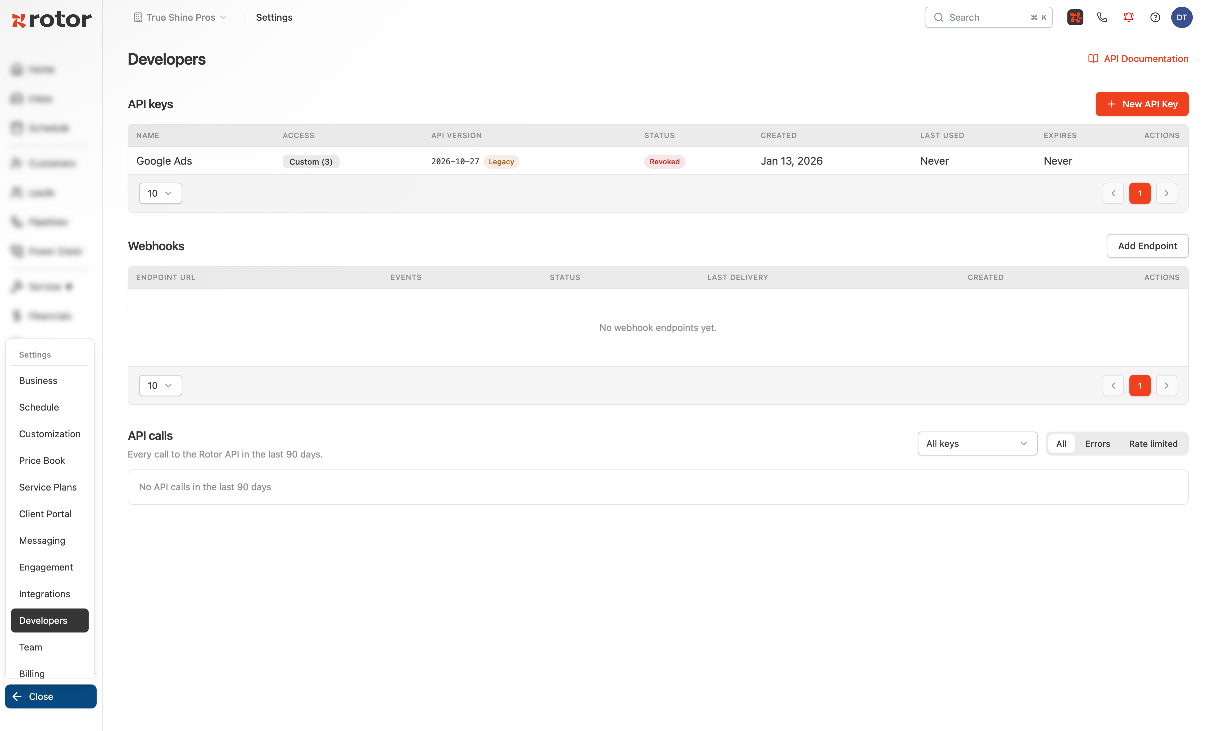
The Developers tab is where you manage everything API in Rotor: your API keys, your webhooks, and a log of every API call. Find it under Settings → Developers.
Full API documentation now lives at helpcenter.getrotor.com/api-reference. The old docs link no longer works.
Who has the Developers tab?
API access is a paid add-on. Open a support ticket or message us in chat and we can coordinate enabling your access.
Using Zapier? You don't need the Developers tab or an API key anymore. Zapier now has a simple connection from Settings → Integrations, with updated triggers and actions. Triggers: New Lead, New Customer, Job Completed, New Inbound Text, New Job, New Quote and New Request. Actions: create or update leads and customers, add tags, append notes, create one-time jobs, create and send quotes, create or update requests, and book or move assessments. Rotor still shows as Invite Only on Zapier for now; the Zapier link on your Integrations page invites you automatically. See the Zapier guide.
API keys
The API keys table shows each key's name, access, API version, status, created date, last used date and expiration.
Create a key
Go to Settings → Developers and click New API Key.
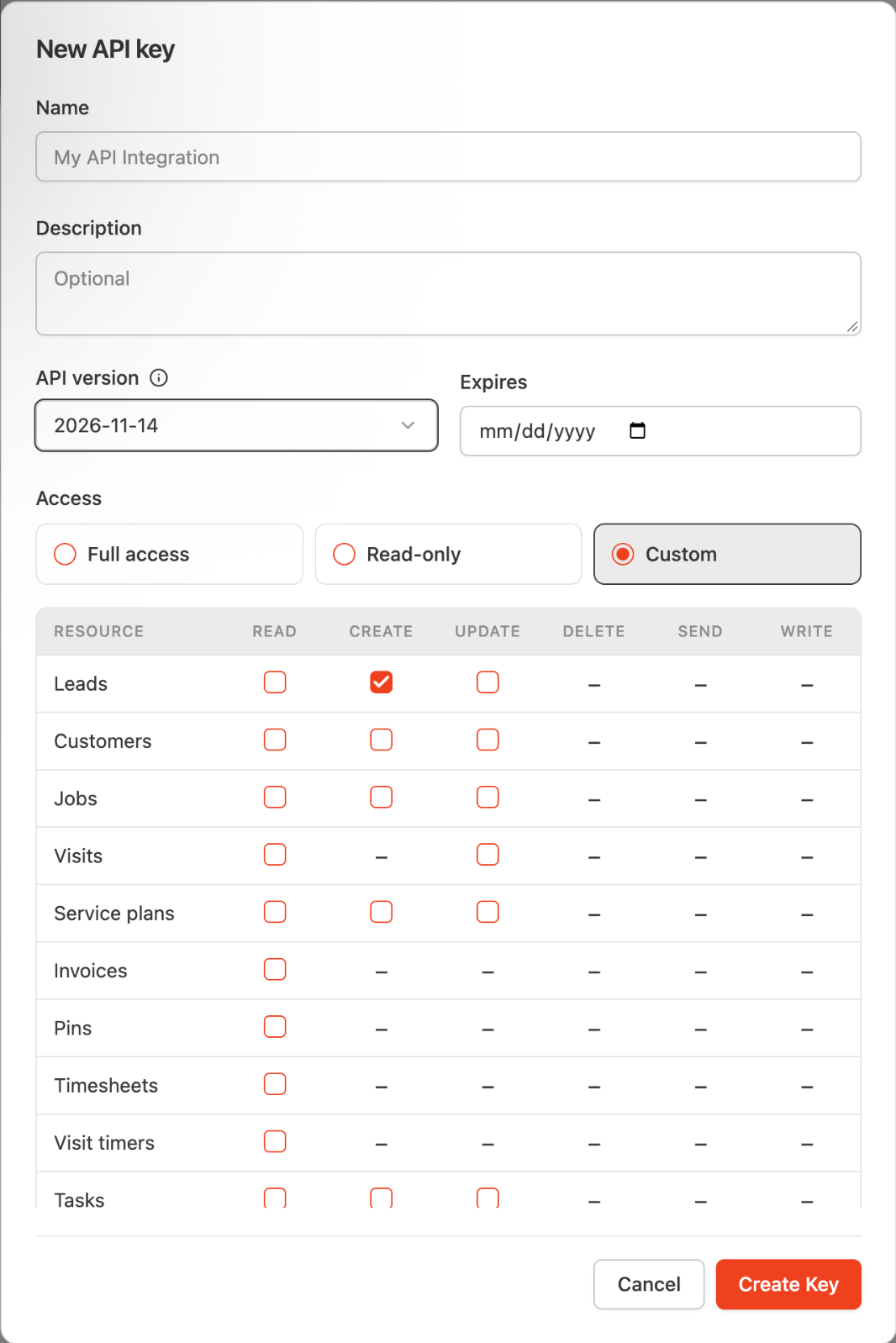
Give it a Name (like "Website leads") and an optional Description.
Pick the API version. Use the newest version unless your developer says otherwise.
Set an Expires date if you want the key to stop working on its own. Leave it blank for no expiration.
Choose the Access level (see below) and click Create Key.
Copy the key and store it somewhere safe, like a password manager.
Access levels
Full access: the key gets every scope automatically. No boxes to check.
Read-only: the key can read data but can't create, change or send anything.
Custom: pick exactly what the key can do for each resource (Leads, Customers, Jobs, Visits, Service plans, Invoices, Pins, Timesheets, Visit timers, Tasks and more). Options include Read, Create, Update, Delete, Send and Write, where they apply.
Tip: give each tool its own key with only the access it needs. For example, a lead form only needs Leads → Create.
Legacy keys
Keys made before this update are pinned to API version 2026-10-27 and show a Legacy tag. They keep working on that version, but they can't be moved to a newer one. To use the latest API, create a new key and swap it into your tool. See the API Changelog for what changed.
Webhooks
Webhooks send data from Rotor to another tool the moment something happens, so you don't have to keep checking for changes.
Click Add Endpoint.
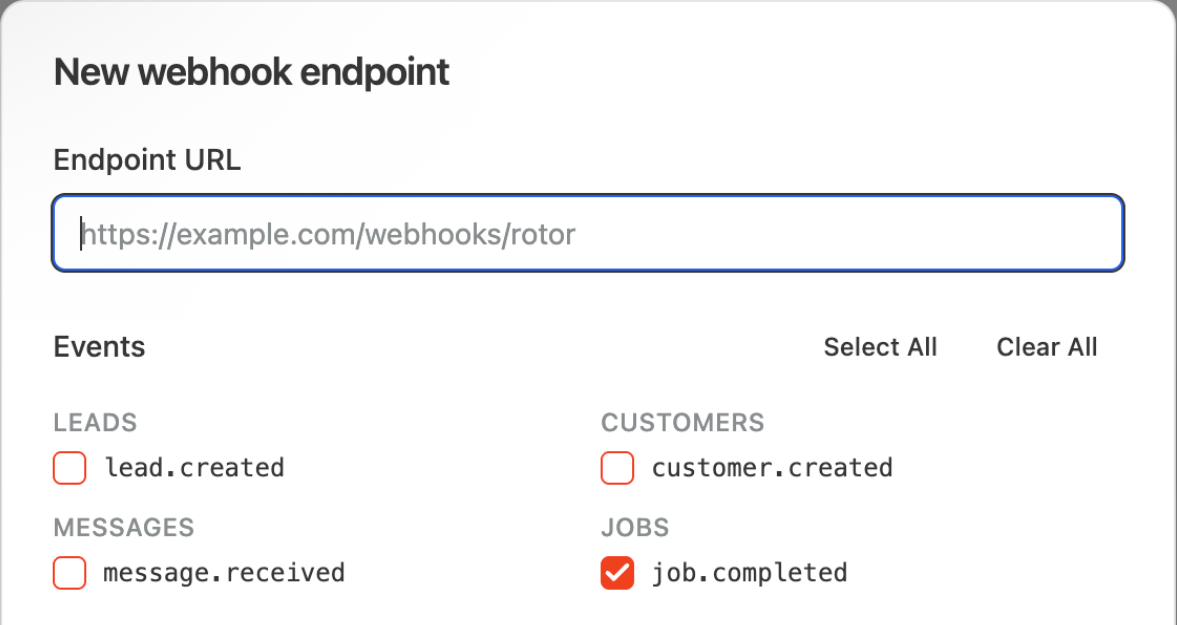
Paste your Endpoint URL (the address your tool gave you).
Pick the events to send, or click Select All.
Click Add Endpoint.
There are 4 events you can subscribe to:
lead.created: a new lead is addedcustomer.created: a new customer is addedmessage.received: a customer texts youjob.completed: a job is marked complete
The Webhooks table shows each endpoint's events, status and last delivery. For payloads and signature checks, see Webhook events.
API calls (logs)
The API calls section lists every call to the Rotor API from the last 90 days.
Use the All keys dropdown to see calls from one key.
Switch between All, Errors and Rate limited to find problems fast.
If an integration stops working, check here first. Errors usually point to a missing scope, an expired or revoked key, or a key on the wrong API version.
You may not need the API
Zapier: connect from Settings → Integrations, no API key needed. See Zapier.
Claude, Grok or another AI assistant: use the Rotor MCP.
Leads from your website: use Rotor Web Forms.
Facebook and Instagram lead ads: use the built-in Meta integration.
Need a scope or endpoint that isn't there?
Post it on the Feature Request board with what you're building, so others can vote on it.
Related articles
Was this helpful?
Still need help? Ask the team