Service Plans
This article walks through how service plans work and how to set them up confidently so you can use them on desktop and, more importantly, on your mobile device while working in the field—especially for door-to-door workflows.
Written By Jeffrey Rose
Last updated 3 days ago
Before You Get Started
To set yourself up for success before creating service plans, make sure the following are already in place:
Your price book is set up
Line items are created in settings
If service plans are enabled on your account, at least one agreement template exists that can be generated and signed
An agreement setup tutorial is available
Once those steps are complete, you’re ready to begin working with service plans.
Viewing and Creating Service Plans
When you navigate to a customer account, you’ll see a running list of all their active and inactive service plans. The display may change in the future, but there will always be a clear distinction between active and inactive plans.
Click New Plan to begin configuring a service plan.
If service plans are enabled on your Rotor account, you’ll see the following steps:
Service
Agreement
Schedule
If service plans are not enabled, you’ll only see Service and Schedule, since agreements are part of the service plan feature.
Service Configuration
Plan Start Date
Start by choosing when the service plan begins. This could be immediately or later in the year, such as closer to spring/fall.
Service Type
Select the service type for the plan. This is tied directly to the service types you’ve created in settings.
Frequency
Choose how often the service repeats. Options depend on your settings and may include:
One-Time
Annual
Quarterly
Other recurring frequencies
Tip: One-Time services occur once, while Annual services repeat once per year
If there are frequencies you don’t offer, you can disable them in Settings → Service Plans.
Custom Frequency
If none of the presets fit, choose Custom and build your own cadence on the web app. Enter a number in the Every field and pick Day(s), Week(s), or Month(s) — for example, every 6 weeks.
Choosing Days of the Week
On daily cadences, click the calendar icon next to the frequency to open Customize schedule. Under Customize days, select which days of the week the plan should run. You can select up to 7 days.
Note: Day selection does not affect the first job — it applies to the recurring jobs that follow. Month-based cadences use the Customize months tab in the same window.
Auto-Renew and Plan Duration
Once a frequency other than One-Time is selected, the auto-renew toggle appears (if the Service Plans feature is enabled on your account).
Auto-renew means the plan duplicates itself once completed so the customer is automatically added back to the schedule.
Plan Duration Options
You’ll see duration options up to 36 months. One option that can be confusing is 13 months. For example, with a quarterly plan:
Services may occur in March, June, September, and December
The 13-month option adds an additional service the following March
Adding Line Items and Pricing
Line items are pulled from your price book, so the items shown may differ depending on your setup.
Examples might include:
Exterior window cleaning
Interior window cleaning
Screen cleaning
Applying Line Items to Specific Jobs
Each line item includes an Apply to All Jobs toggle.
This allows you to build more dynamic service plans. For example, you can charge more for the first clean if it requires extra work by adding separate line items that apply only to certain jobs within the plan.
Discounts and Promotions
You can add discounts to incentivize customers to sign up for recurring plans, such as:
A flat discount on the initial job
A percentage discount
Billing Configuration
Next, configure how the customer will be billed.
Standard Billing
Standard billing invoices the customer after each job is completed. This is the most common option.
Monthly Billing
With monthly billing:
The first job is paid in full following the job being completed
Future jobs are prepaid month by month
You can choose on what day follow-up charges occur
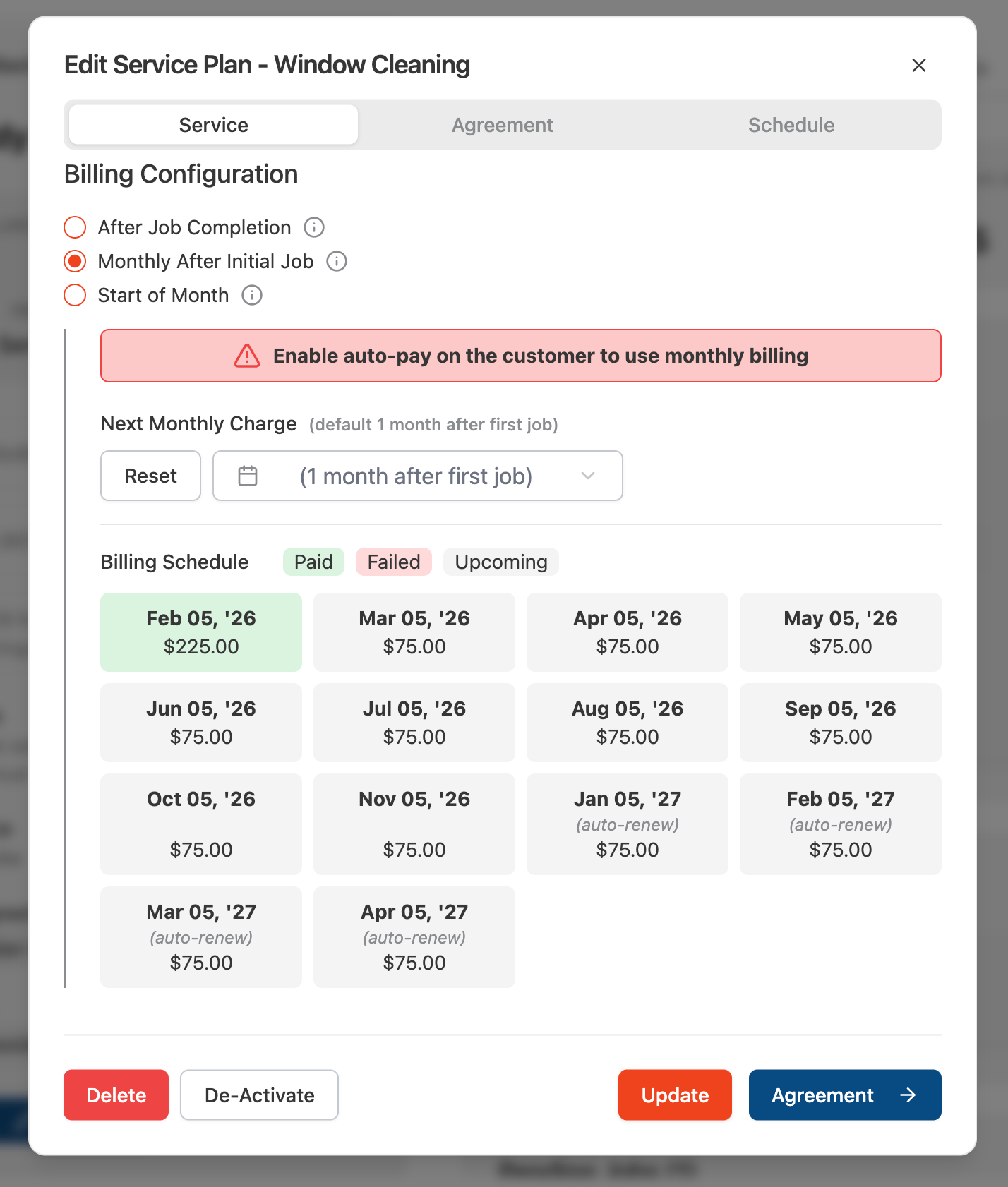
Start of Month Billing
With start of month billing:
The first jobs is paid in full following the job being completed
Future jobs are prepaid in full on the 1st of month the service is to be performed
Note: A card must be on file for the customer in order to enable this monthly billing workflow.

Within the service plan, the outlined service schedule shows:
The months when services actually occur (Initial vs. Ongoing)
The months where only a monthly billing payment occurs with no physical service
Notes and Sales Attribution
You can add internal notes to the service plan.
By default, the plan is attributed to the signed-in user, but you can assign credit to another team member if necessary.
Generating and Signing the Agreement
In the agreement step, click Generate Agreement.
This automatically pulls in:
Customer information
Business information
A breakdown of services and pricing
Once finalized, the agreement can be:
Signed in person on a mobile device
Saved as a link and sent via email or text
Scheduling Jobs in the Service Plan
After the agreement step, you move into scheduling.
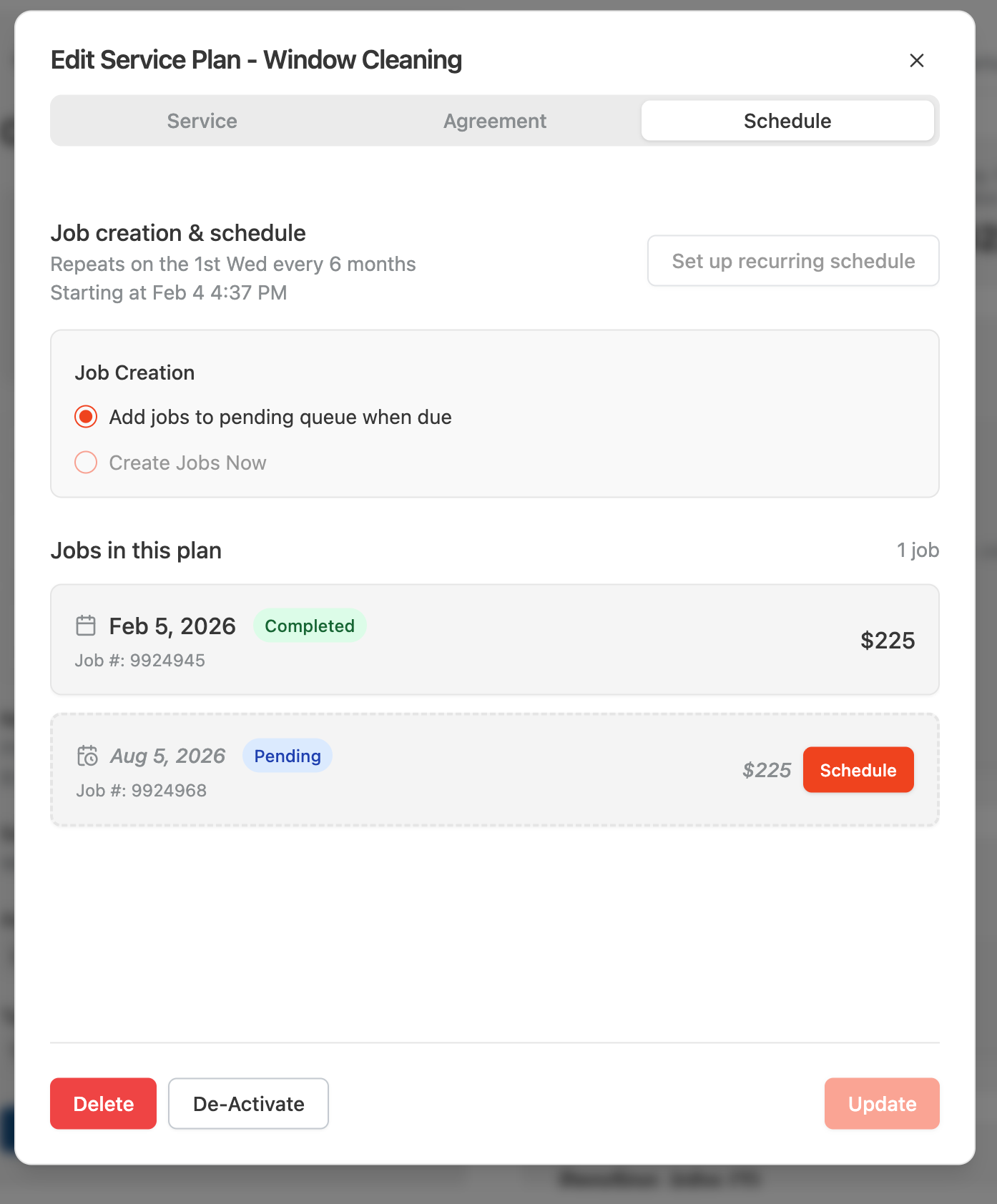
Add Jobs to Pending Queue When Due
Pending jobs recognize when services are due but do not immediately place them on the schedule.
Note: If Routes are enabled, the system will not create jobs automatically and will instead place them into a pending list for later routing.
Create Jobs Now
This option places all jobs directly on the schedule. You can configure:
Start time
Duration
Recurring schedule

Click Set up recurring schedule to access the calendar and choose which specific days of the month the service should occur (for example, the 3rd Tuesday).
Once saved, the Job creation & schedule section will reflect your recurring logic, showing exactly when upcoming jobs are due to be created or scheduled.
Managing Existing Service Plans
After creation, you can:
Edit service plan details
Deactivate a service plan
Manage agreements
Once an agreement is signed, it appears in Attachments along with all related links.
Final Thoughts
Service plans are the foundation of predictable revenue and efficient scheduling in Rotor, especially for teams working in the field. Once configured, service plans guide you step by step—from service selection and pricing to agreements, billing, and scheduling—so nothing is missed during signup. Plans work seamlessly on both desktop and mobile, making them ideal for door-to-door workflows. Additional training resources are available for advanced topics like scheduling pending jobs and reviewing service plan analytics, and the Rotor team is always available to help you walk through specific scenarios.
Tips for Using Service Plans Effectively
Set up your price book, line items, and agreements before creating service plans to avoid interruptions during signup
Use auto-renew and plan duration options carefully to control how and when plans repeat
Apply line items to specific jobs to account for first-time cleans or special pricing scenarios
Offer discounts strategically to increase conversion on recurring plans
Use monthly billing only when a payment method is on file to ensure smooth billing
Review the outlined service schedule to confirm billing-only months versus service months
Add internal notes and confirm sales attribution to keep reporting accurate
Congratulations! Your team is now ready to confidently create, manage, and sell service plans in Rotor—whether in the office or out in the field. With service plans in place, you can streamline enrollments, automate billing, and keep schedules running smoothly.
Have additional questions? Our team is ready to help you succeed. Contact us through the chat or drop us an email at support@getrotor.com.