Jobs Page - Web
The Jobs page gives you a full list of every job in your account, along with quick metrics and filtering tools to help you stay on top of your schedule and collections.
Written By Anton Alley
Last updated 4 days ago
What You Can Do Here
View all jobs — see a complete list with key details at a glance
Quick metrics — a summary at the top shows stats for both past and upcoming scheduled jobs
Select & export — select individual jobs or all of them and export the data as needed
Quick actions — start a job or mark it complete directly from the list without opening it
Filtering Jobs
You can filter the jobs list by:
Date range — narrow down to a specific time period
Assigned user — see jobs for a specific team member
Job status — scheduled, completed, etc.
Payment status — paid, unpaid, or partially paid
Most Common Use Case: Catching Unpaid Jobs
The most practical use of this page is making sure completed jobs haven't been left unpaid. Filter by Job Status: Completed and Payment Status: Unpaid or Partially Paid to quickly surface any outstanding balances that need follow-up.
Combining this with a date range (e.g., last month or two months ago) is a good habit to make sure no invoices slip through the cracks over time.
Inside a Job
Click any job in the list to open it. Everything about the job is on one page.
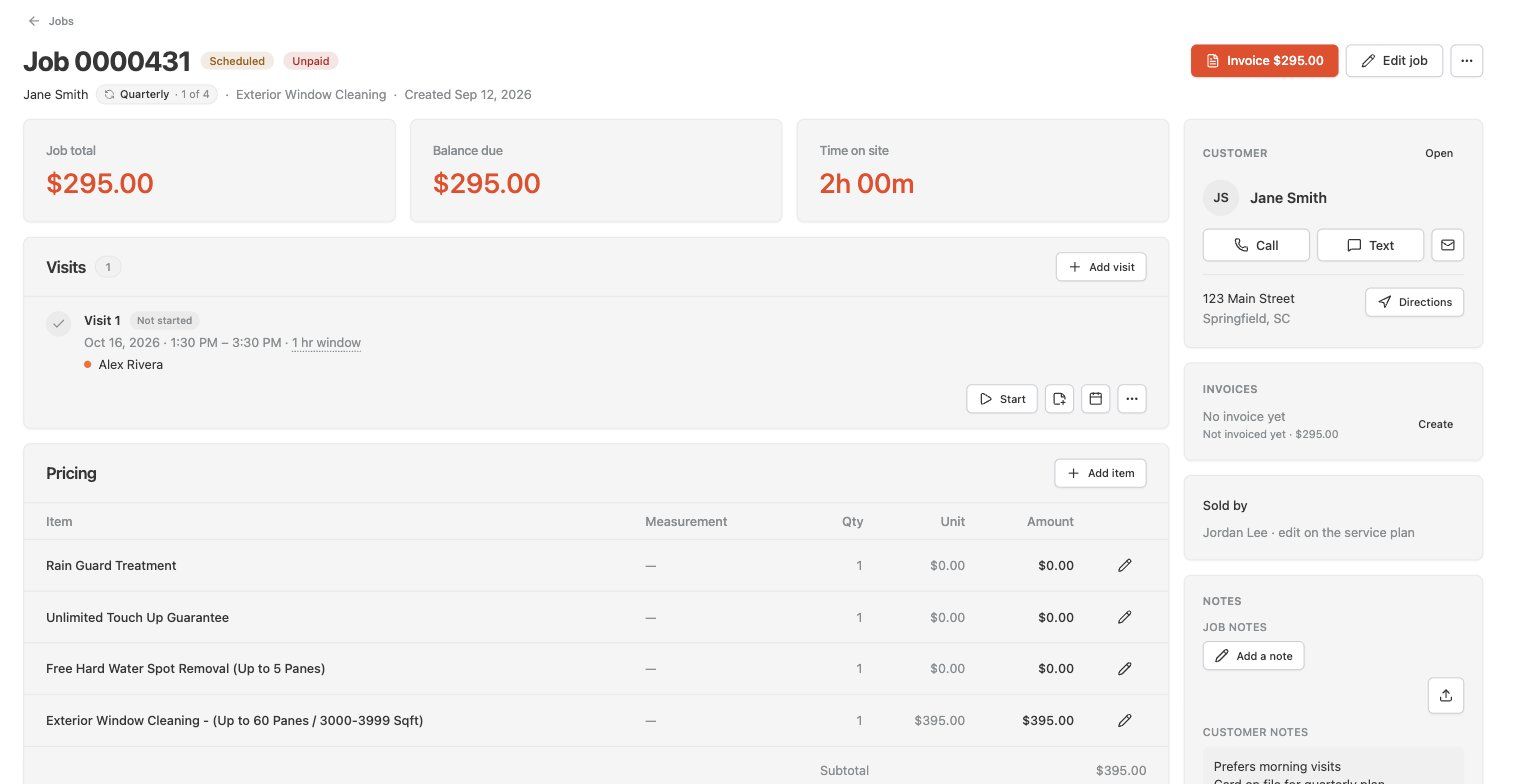
Top of the page
Job status and payment status — shown next to the job number (e.g. Scheduled, Unpaid).
Service plan link — if the job is part of a plan, the badge shows the frequency and which visit this is (e.g. Quarterly · 1 of 4).
Invoice — create an invoice for the balance due.
Edit job — change the customer, add or remove line items, and edit prices and descriptions.
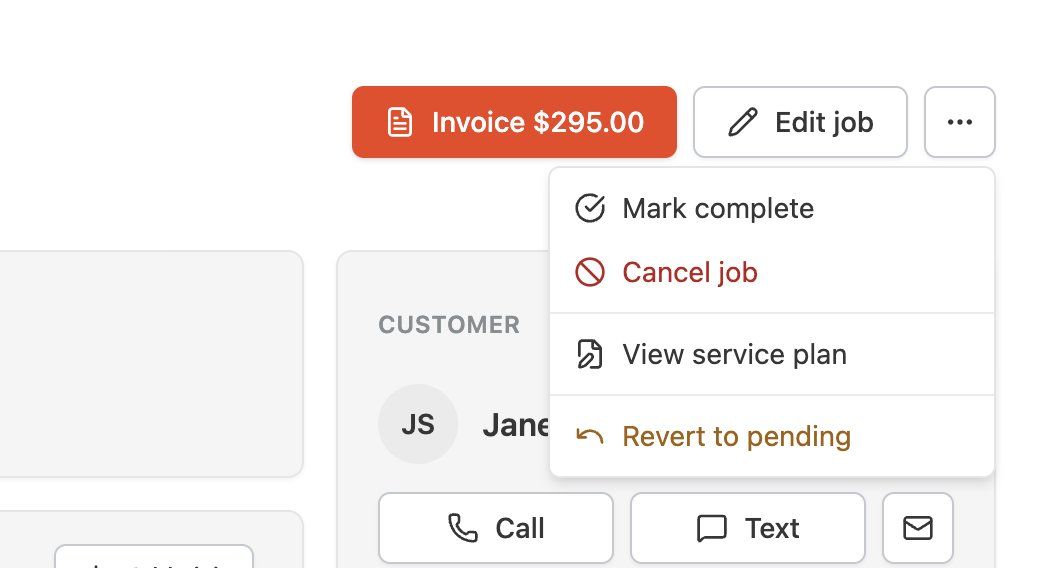
… menu — Mark complete, Cancel job, View service plan, or Revert to pending.
Summary cards — job total, balance due and time on site.
Visits
Add visit — add another trip to the same job.
Start — start the visit from the office.
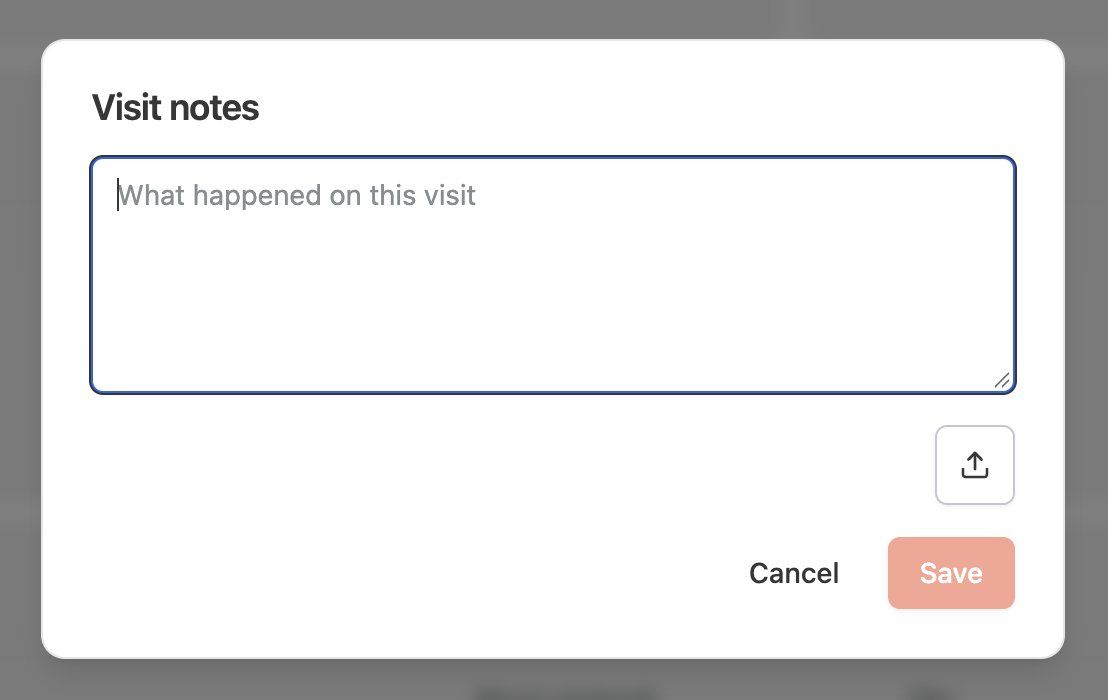
Note icon — add a visit note about what happened on that visit. You can attach photos too.
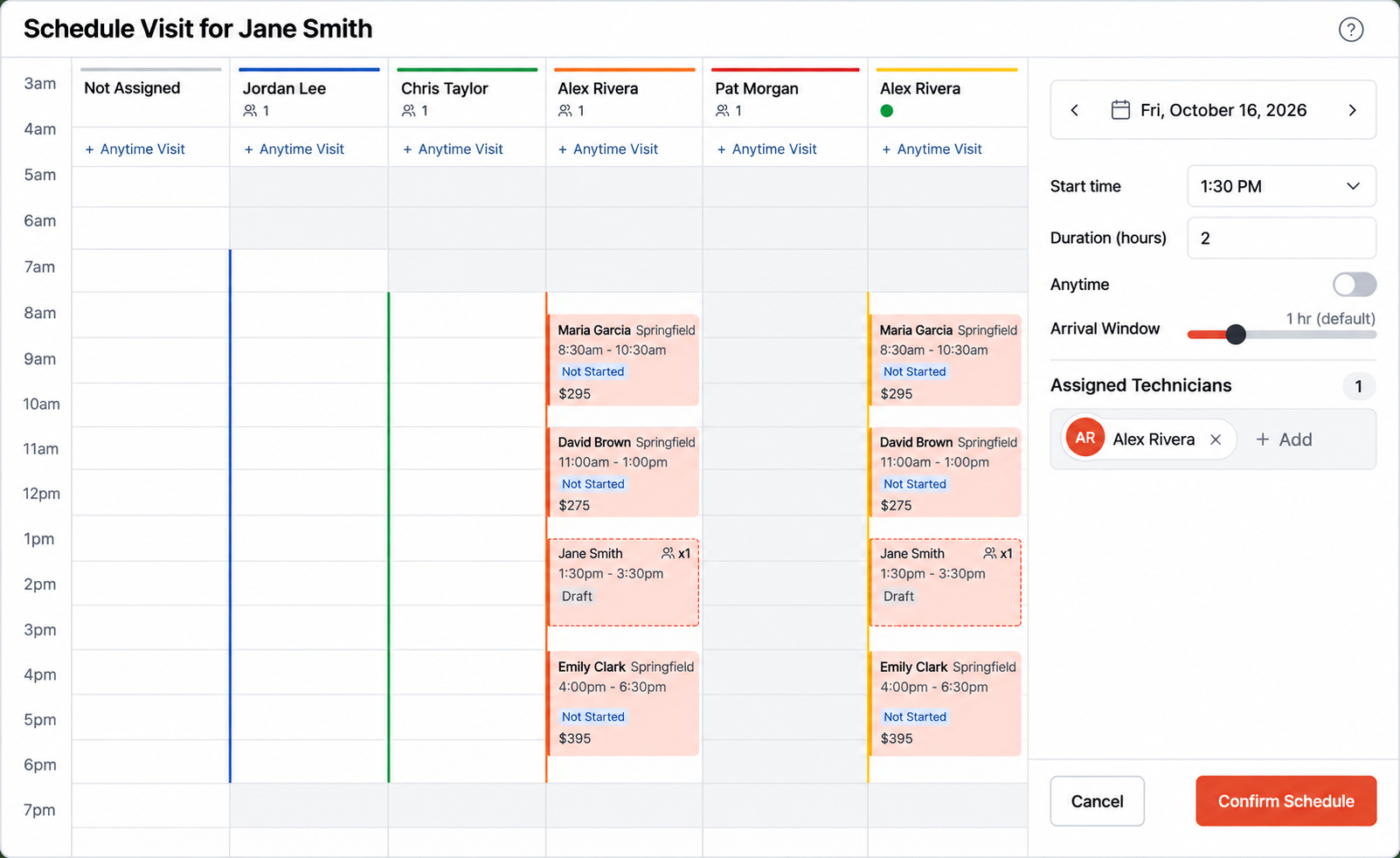
Calendar icon — reschedule the visit. A calendar opens with each technician's day side by side, so you can see who is free. Set the date, start time, duration and arrival window (or turn on Anytime), change assigned technicians, then click Confirm Schedule.
… menu — edit the arrival window.
Pricing
Add item — add a line item (upsell) to the job.
Pencil icon — edit an existing line item.
Subtotal, discount and total are shown underneath.
Checklists and activity
Checklists — see how far the tech got and every answer or photo added in the field.
Activity — a timeline of what changed on the job and when (visits scheduled, items added, job created).
Right-hand panel
Customer — open the customer record, or call, text or email them. Directions opens the address in maps.
Invoices — see invoices for this job, or click Create to make one.
Sold by — who gets credit for the sale (edited on the service plan for plan jobs).
Notes — click Add a note for job notes, or the upload button to attach photos and files. Customer notes are shown here too.
For managing jobs that haven't been scheduled yet, see the Pending Jobs article.