Anytime Visits: Time of Day & Scheduling
Put anytime visits on the schedule, pick Morning, Afternoon or Evening, and control what customers are told about timing.
Written By Sean MacCourtney
Last updated 3 days ago
An anytime visit is a visit booked for a day, not an exact time. Rotor now lets you place anytime visits right on the schedule, give them a time of day (Morning, Afternoon or Evening), and choose exactly what your customers are told about when you'll arrive.
Step 1: Set Up Visit Timing
Go to Settings → Business → Visit Timing.
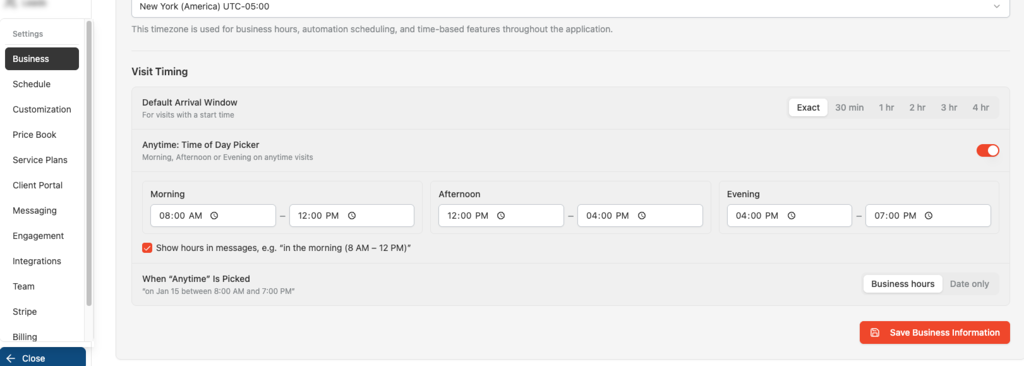
Anytime: Time of Day Picker
Turn this on to offer Morning, Afternoon and Evening on anytime visits. Set the hours for each one. For example:
Morning: 8:00 AM – 12:00 PM
Afternoon: 12:00 PM – 4:00 PM
Evening: 4:00 PM – 7:00 PM
Show Hours in Messages
When checked, customer messages include the hours, like "in the morning (8 AM – 12 PM)". Uncheck it to just say "in the morning".
When "Anytime" Is Picked
Choose what customers see when a visit is set to plain Anytime:
Business hours: shows your full business hours, like "on Jan 15 between 8:00 AM and 7:00 PM".
Date only: shows just the date.
Default Arrival Window
For visits with a start time, choose how wide the arrival window is: Exact, 30 min, or 1–4 hr.
Click Save Business Information when you're done.
Step 2: Schedule an Anytime Visit (Web)
You have two options:
Keep it in the Anytime row: click + Anytime Visit at the top of a tech or crew column. It stays off the timeline.
Put it on the schedule: place the visit on a time slot, then turn on the Anytime toggle in the side panel.
In the side panel:
Set the Start time and Duration. This is for your team's planning.
Turn on Anytime.
Pick a Time of day: Anytime, Morning, Afternoon or Evening.
Add or confirm Assigned Technicians.
Click Confirm Schedule.
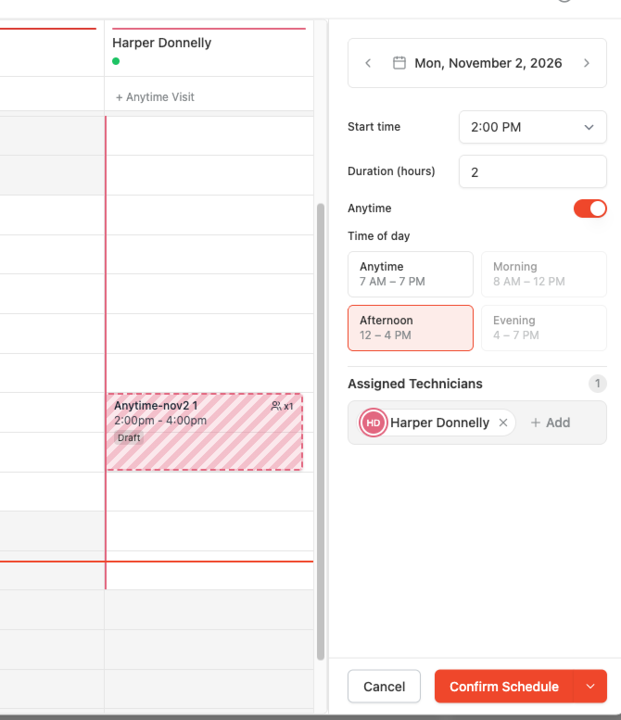
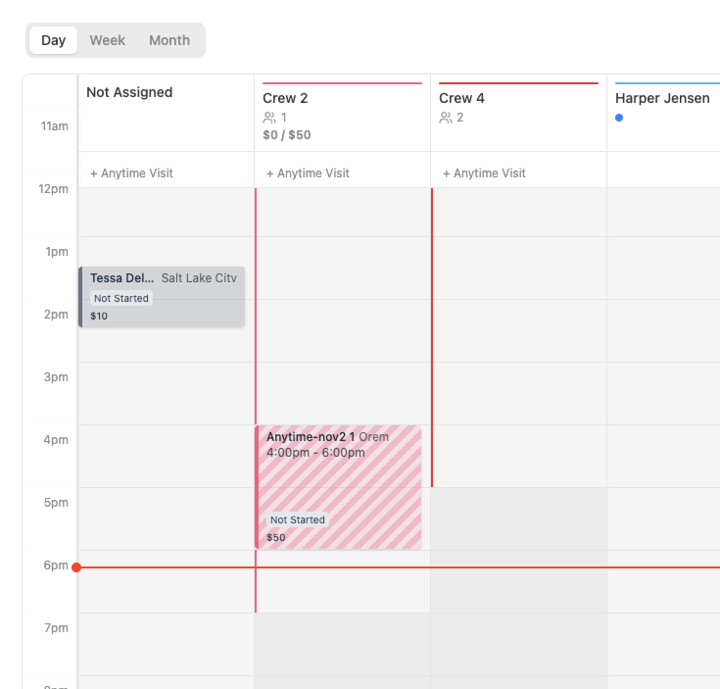
Zebra Stripes = Anytime
Anytime visits on the schedule show with diagonal stripes, so you can tell them apart from visits with a set start time at a glance.
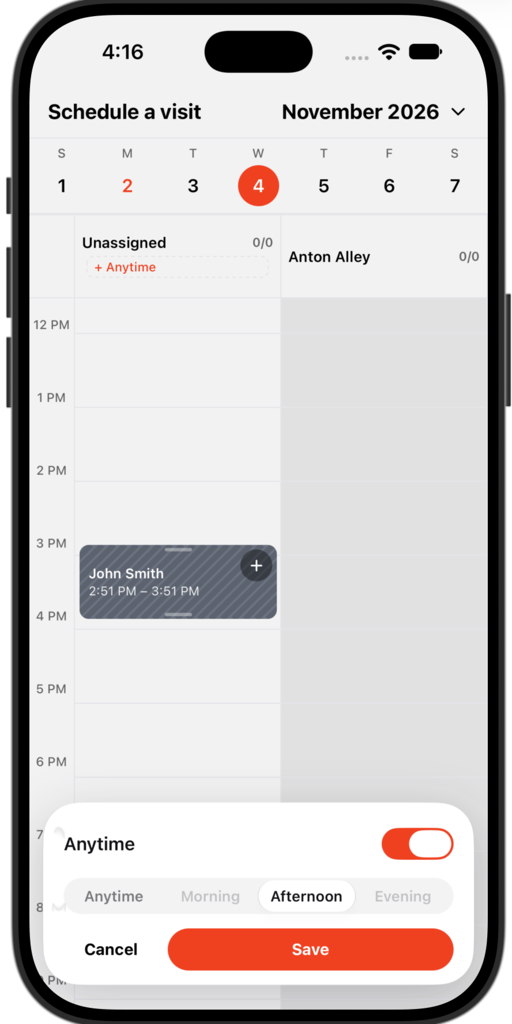
Step 3: Schedule an Anytime Visit (Mobile)
On Schedule a visit, pick the day.
Tap + Anytime, or place the visit on a time slot.
Turn on Anytime and pick Anytime, Morning, Afternoon or Evening.
Tap Save.
FAQ
Do I have to put anytime visits on the schedule?
No. It's optional. You can keep using the Anytime row the same way you do today.
What does the customer see?
The time of day you picked (and hours, if Show hours in messages is on), not the exact start time on your schedule.
I don't see Morning, Afternoon or Evening.
Make sure Anytime: Time of Day Picker is turned on in Settings → Business → Visit Timing.
Questions? Reach out through in-app chat or email support@getrotor.com.
Was this helpful?
Still need help? Ask the team