Pipelines and Workflows Basics
Step-by-step setup for automatic follow-up in Rotor: create a pipeline, add new leads automatically, send follow-up texts, stop texts when they reply, and ask for reviews. Plus fixes for workflows that don't fire.
Written By Sean MacCourtney
Last updated About 2 hours ago
Set up automatic follow-up texts that start when a lead comes in and stop when they reply. It takes about 15 minutes. Each step has a short recording from Rotor.
The basics
Leads (left menu): everyone who might buy. Meta, website and form leads land here first.
Pipeline (left menu): a board with columns (stages). Cards move left to right as people progress.
Opportunity: one card on a pipeline board. The same person can have cards on several boards.
Workflow (Marketing → Workflows): a combination of one trigger (when this happens) and one or more actions (do this).
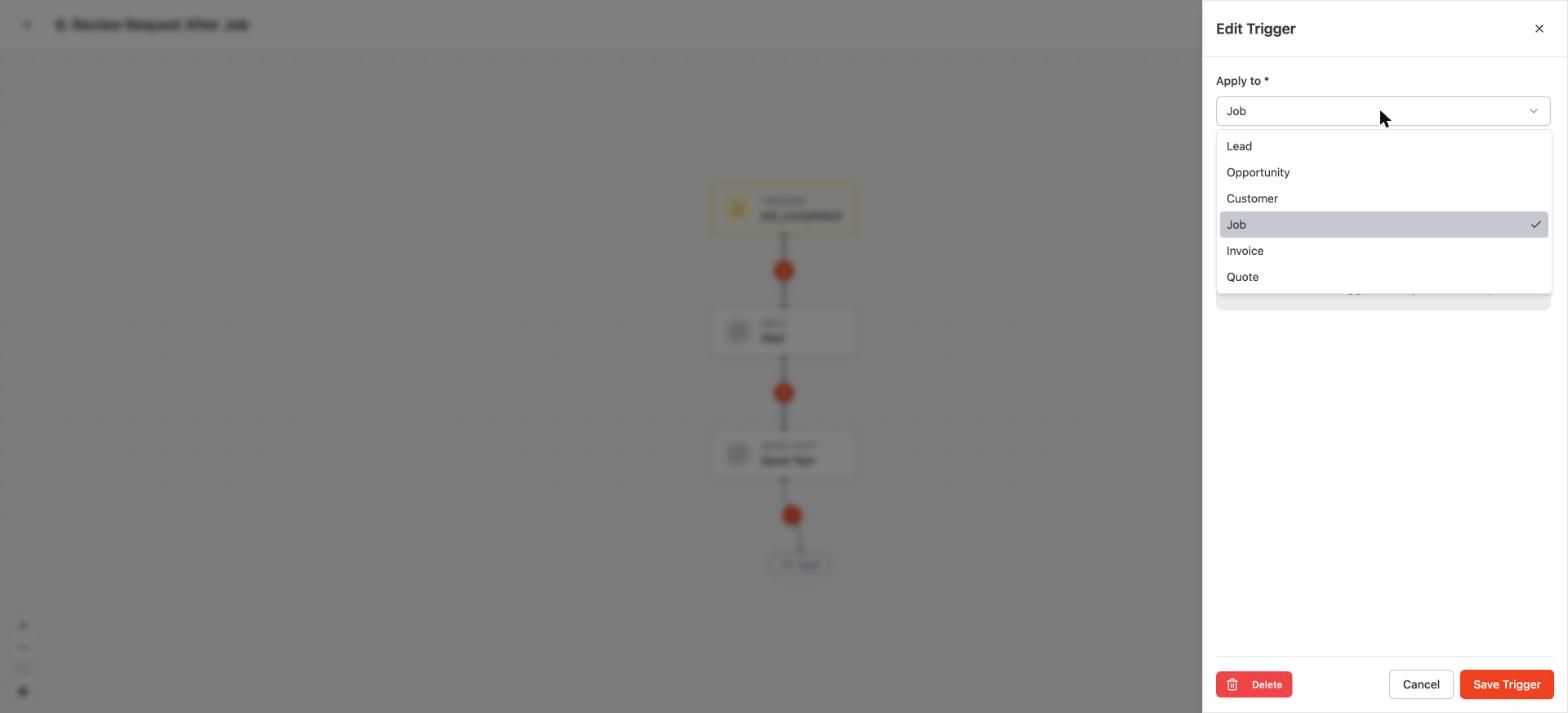
Every trigger starts with Apply to: the kind of entity the workflow is based on (Lead, Opportunity, Customer, Job, Invoice or Quote).
Step 1. Create a pipeline
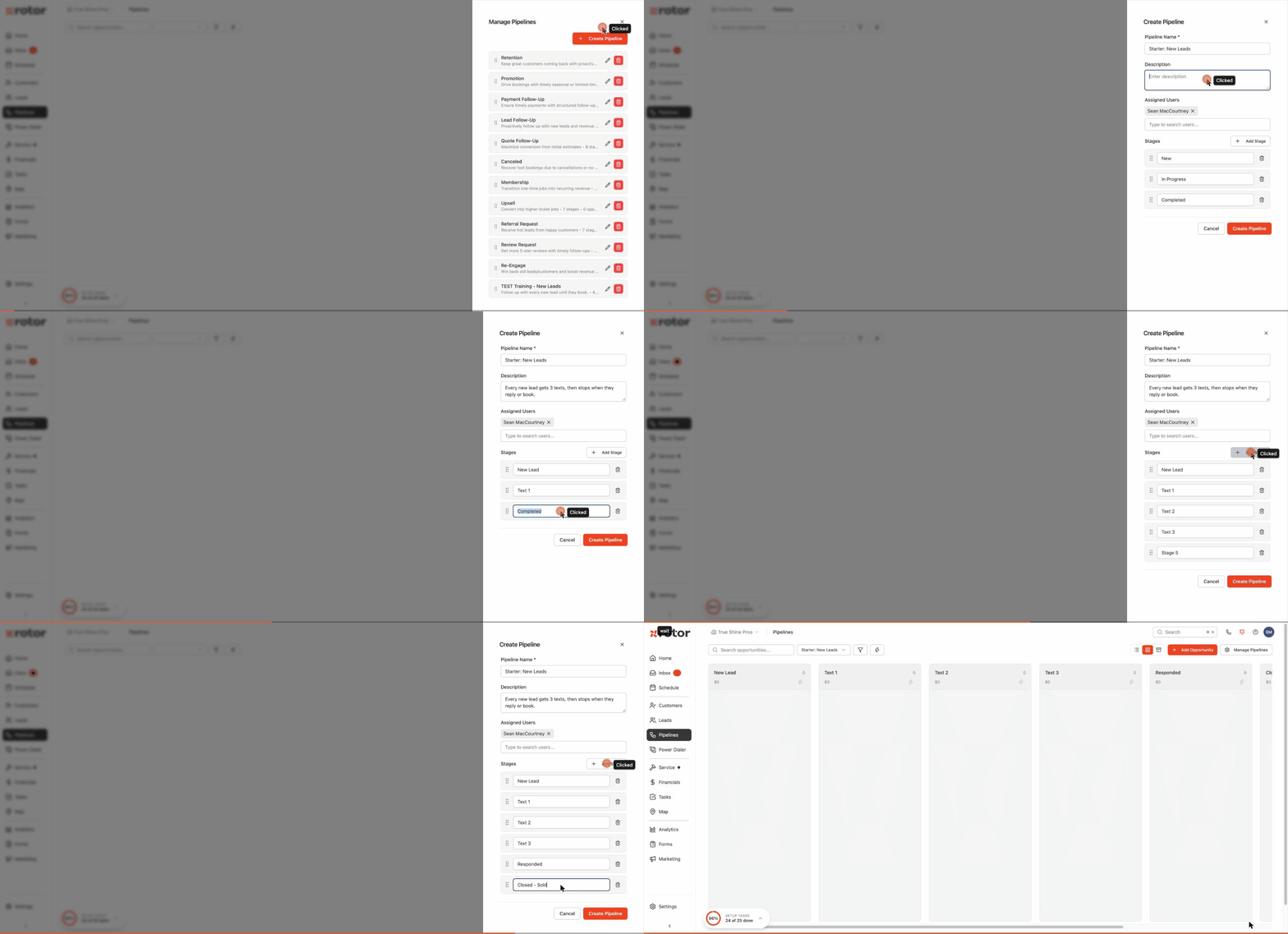
Click Pipelines in the left menu, then Manage Pipelines (top right).
Click Create Pipeline and give it a name, like "New Leads".
Make sure your name is under Assigned Users. Only assigned users see the board.
Rename the stages and use Add Stage for more. A good starting set: New Lead, Text 1, Text 2, Text 3, Responded, Closed - Sold, Closed - Lost.
Click Create Pipeline.
Step 2. Put new leads into the pipeline automatically
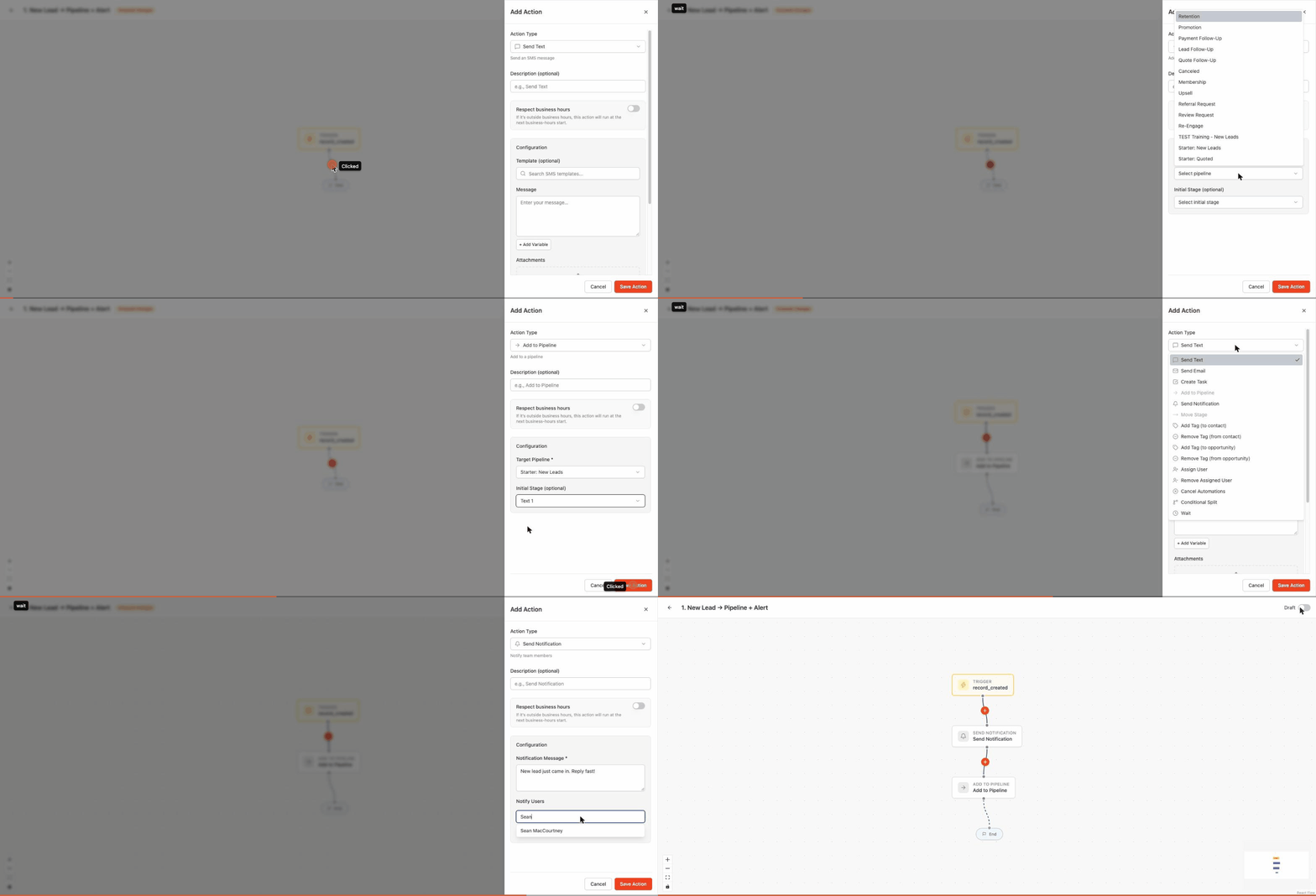
Go to Marketing → Workflows and click New Workflow. Click the title at the top to name it.
Click New Trigger. Apply to: Lead. Trigger Event: Lead Created. To catch only some leads, pick a Lead Source like Meta Ads. Leave it empty to catch every lead. Click Save Trigger.
Click the orange + under the trigger. Action Type: Send Notification. Write a short message and pick who gets it. Click Save Action.
Click the next +. Action Type: Add to Pipeline. Pick the pipeline and the starting stage (for example Text 1). Click Save Action.
Click Save in the top right.
Always pick a stage. A blank starting stage is the most common reason leads never show up on the board.
Different leads in different pipelines (like Christmas lights vs. window cleaning)? Make one workflow per pipeline, each with its own Lead Source or tag. If the lead is already in Rotor, it gets updated, not created, so Lead Created won't fire. Use a Tag Added trigger for those.
Step 3. Send follow-up texts that move on by themselves
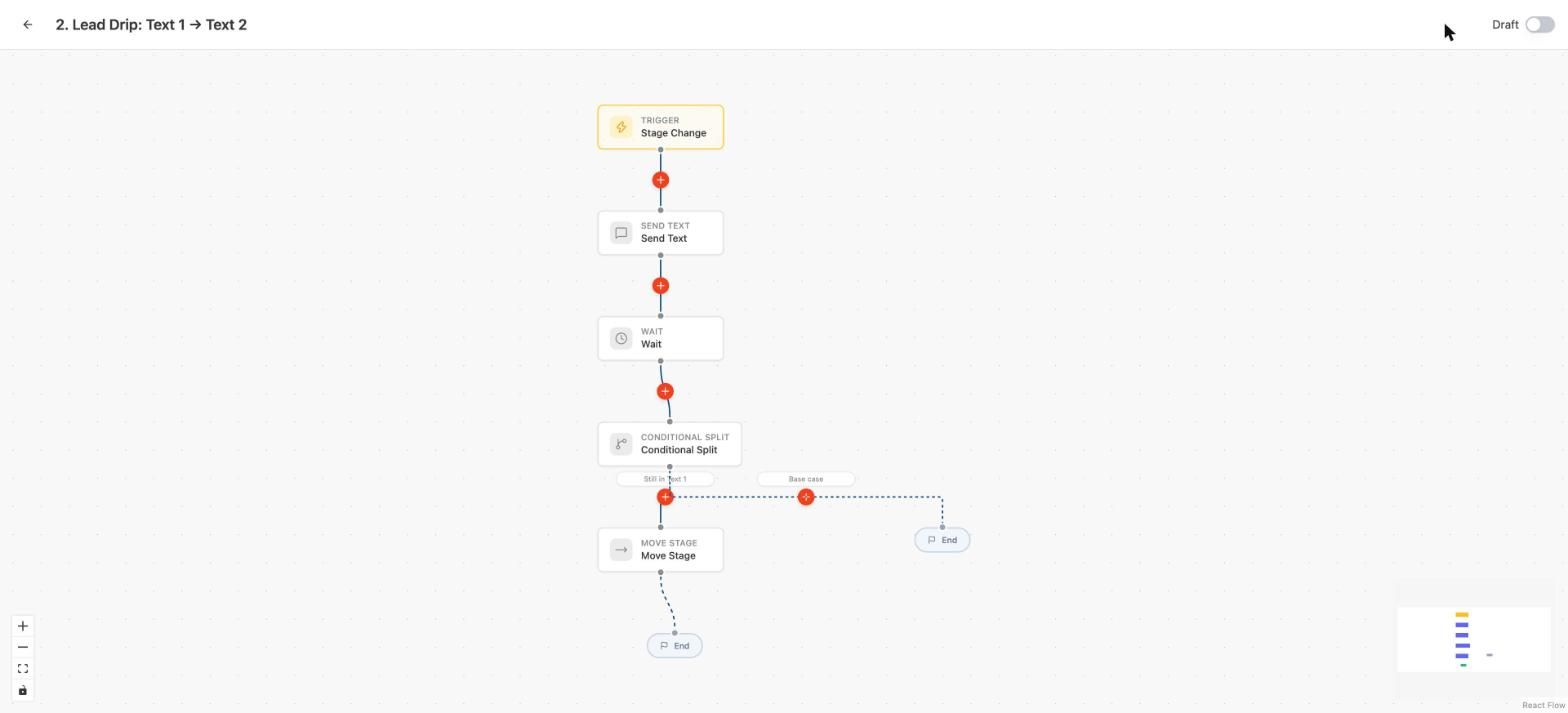
Each workflow has one trigger, so you build one workflow per texting stage. Each one sends a text, waits, and moves the card to the next stage if nothing changed.
New workflow. Trigger: Apply to Opportunity(because once the lead has entered a pipeline, it is considered an opportunity, and same goes for all other entities in a pipeline), Trigger Event Stage Change, your pipeline, stage Text 1.
Add Send Text with your first message.
Add Wait, for example 2 days.
Add Conditional Split. Name the case "Still in Text 1". Condition: Opportunity stage equals Text 1. Click Save Action.
On the "Still in Text 1" branch, click + and add Move Stage to Text 2. If they replied or you moved them, they take the other branch and the texts stop.
Save. Then build the same workflow for Text 2 (moving to Text 3) and Text 3.
Want calls too? Use Create Task actions ("Call Jamie, attempt 2") with Wait steps between them.
Step 4. Stop the texts when they reply, say no, or book
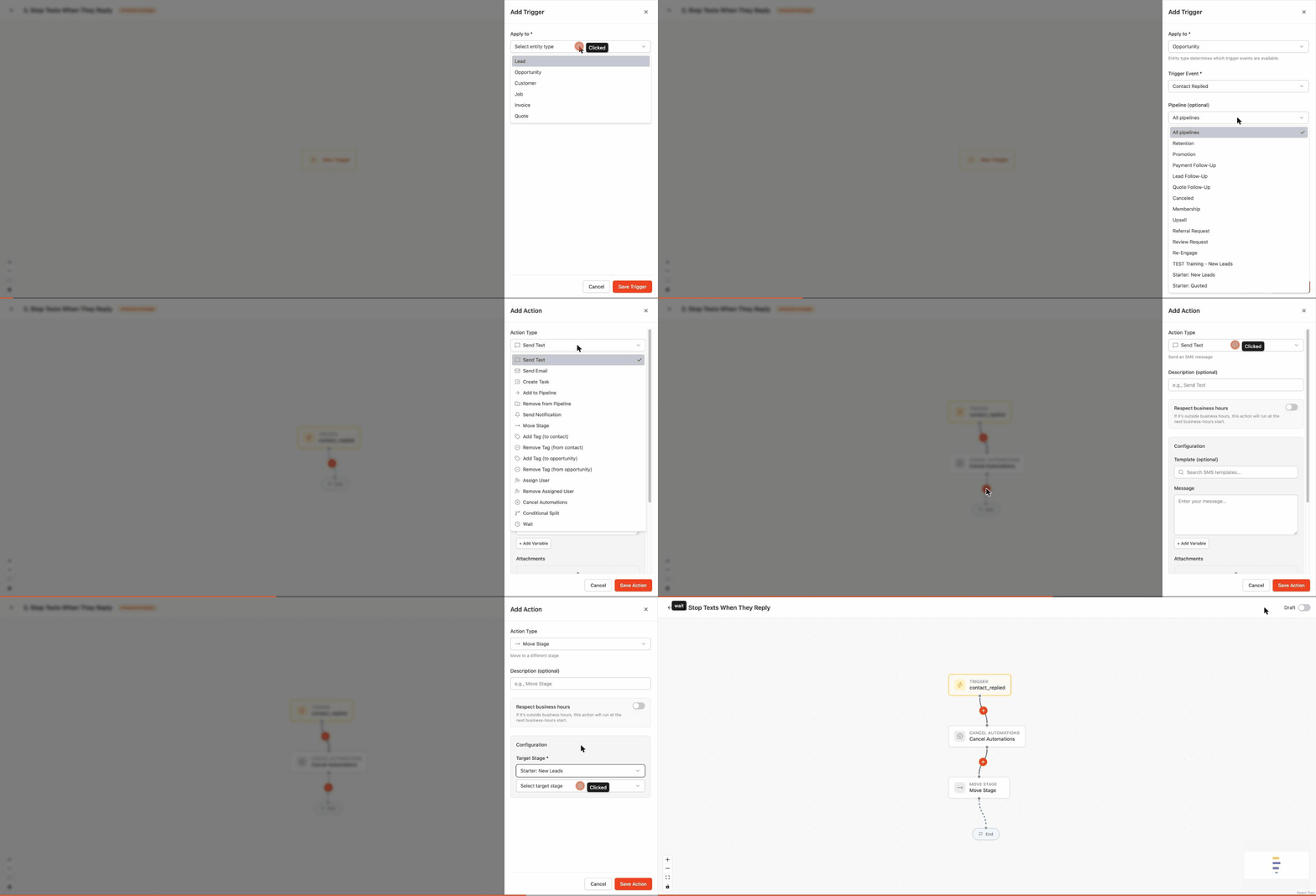
They replied
New workflow. Trigger: Apply to Opportunity, Trigger Event Contact Replied, your pipeline.
Add Cancel Automations. Tick the texting workflows you want to stop. Untick ones that should keep going, like review requests.
Add Move Stage to Responded. Keep the Responded stage free of texting workflows.
Save. Build one of these for each pipeline that sends texts.
Turn on your texting workflows first. Cancel Automations only lists workflows that are already Active. If you turn on a new texting workflow later, come back and tick it here.
You moved them to Closed - Not Interested or Closed - Sold
Make a workflow with trigger Opportunity → Stage Change → Closed - Not Interested (or Closed - Sold). Action: Cancel Automations. Add Remove from Pipeline after it if you want the card gone too.
Their quote was approved, rejected or changed
Make a workflow with Apply to Quote and Trigger Event Quote Approved. Add Cancel Automations, then Add to Pipeline with your quotes pipeline and the Closed - Sold stage. Quote triggers don't have Move Stage, so use Add to Pipeline with the stage instead. Use Quote Rejected and Quote Changes Requested the same way.
Still getting a text after they replied? Check that the reply workflow is Active, the right workflows are ticked in Cancel Automations, and the person has an open card in that pipeline. A text scheduled a minute before they replied may still go out. Archiving a contact or card also stops all workflow messages to it.
Step 5. Ask for a review after every job
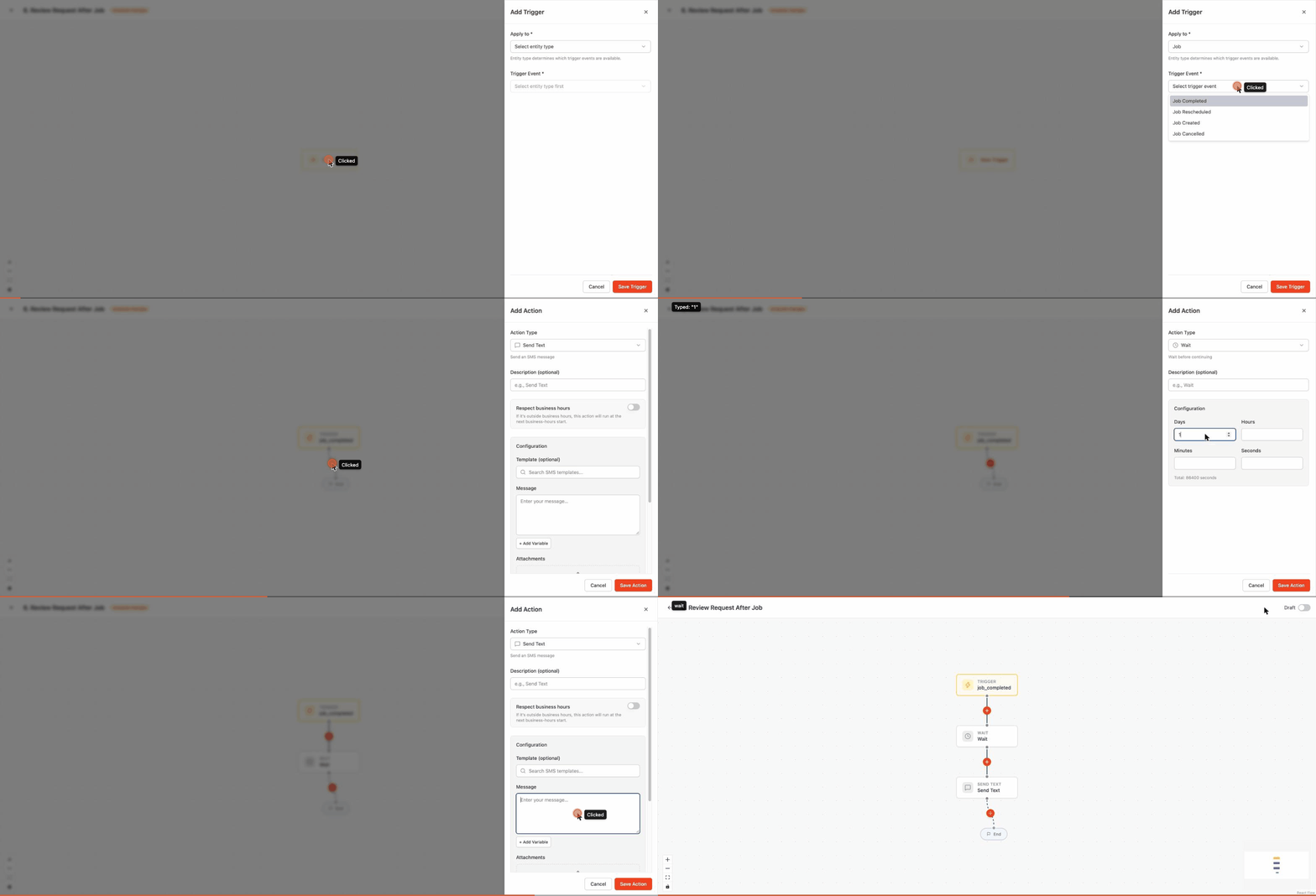
New workflow. Trigger: Apply to Job, Trigger Event Job Completed. Want it after they pay instead? Use Invoice → Payment Completed.
Add Wait 1 day (2 to 3 days for a referral ask).
Add Send Text with your Google review link.
Save. Optional: add a Conditional Split on a "left-review" tag to skip people who already reviewed. Use Add Tag (to contact) to tag the person.
The Reviews tab next to Workflows in Marketing has built-in review requests. Use that or this workflow, not both.
Turn it on and test it
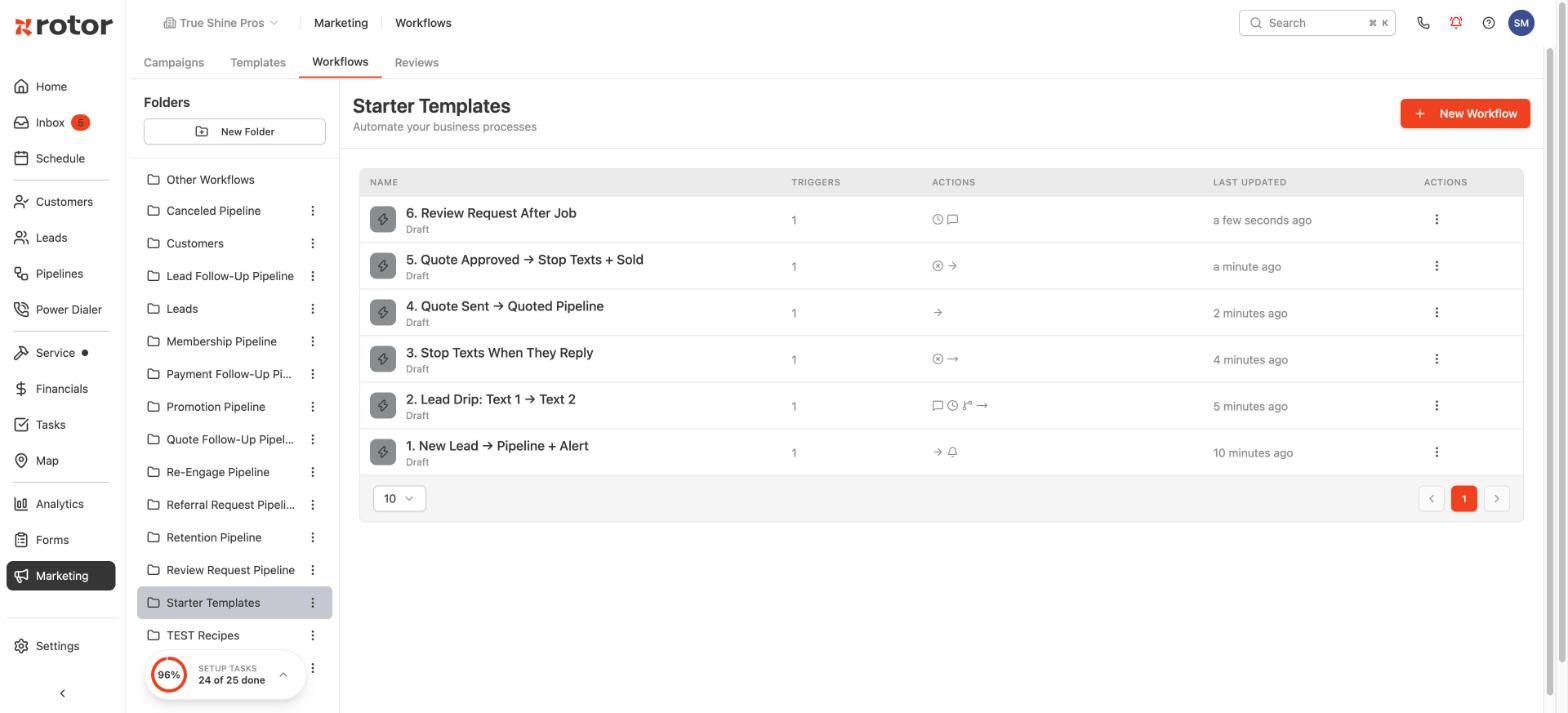
New workflows start as Draft and do nothing until you switch them on.
Open each workflow and flip the switch in the top right from Draft to Active.
Add yourself as a lead with your own phone number.
Check that your card shows up on the board and the first text reaches your phone.
Reply to the text. Your card should move to Responded and the next texts should stop.
"My workflow isn't working"
Almost every case is one of these. Check them in order.
Is it Active? If it says Draft under the name, it is off.
Did you save? An orange Unsaved changes tag next to the name means your edits are not live. Click Save.
Is a stage picked? Add to Pipeline and Stage Change both need the exact stage. "New" is not the same as "New Lead".
Is Respect business hours on? A lead at 9 PM gets the text when your business hours start. Turn it off on the action to send right away. Check your hours and time zone in Settings.
Is Apply to right? Anything about pipeline cards uses Opportunity. A Lead trigger won't fire for a card moving stages.
Is the lightning bolt orange? On the pipeline board, an orange ⚡ on a column means an active workflow is attached. Gray means nothing runs there.
Deleted a workflow and it still sends? Switch it to Draft first, then delete it. If messages keep coming, send us the workflow name.
Which "Apply to" do I pick?
Rule of thumb: if the texts are tied to a pipeline, choose Opportunity for every workflow in that pipeline, including the "stop on reply" one.
Common questions
How do I send a reminder the day before a visit?
That is a setting, not a workflow. Turn it on in Settings → Messaging → Visit Reminders.
Why is the same person on my board two or three times?
Each quote gets its own card, and two workflows adding the same person also makes two cards. Archive the extra cards (⋮ → Archive) or move them to Closed. Archiving a card also stops its texts.
How do I move a lot of cards at once?
On the pipeline, switch to the list view (icon top right). Tick the cards, then More Actions → Change Stage. Any workflow on that stage runs for everyone you move, so check it first. To add many people to a pipeline, go to Leads or Customers, filter, tick them, then Bulk Actions → Add to Pipeline.
I can't see a pipeline someone made.
Open Manage Pipelines, click the pencil on that pipeline, and add yourself under Assigned Users.
Can I tag the customer from a Job trigger?
Yes. Use Add Tag (to contact). A job can't hold a tag, so the tag goes on the person.
Do message templates update my workflows?
Yes, when the workflow action uses a template. If you click Customize from template, that action is no longer linked, so later template edits won't change it.
Still stuck? Message us in the chat or email support@getrotor.com. Include the workflow name and one customer it didn't work for.
Was this helpful?
Still need help? Ask the team