Mobile: KPIs
Track your sales reps' daily activity — doors knocked, conversations, sales — with KPI counters in the Rotor mobile app (More → KPIs), plus where to see the results.
Written By Noah Sanches
Last updated About 3 hours ago
KPIs (key performance indicators) are the numbers that show how your reps are doing day to day — doors knocked, people talked to, quotes given, sales closed. In Rotor, reps create and track their KPIs in the mobile app.
Create a KPI
Open the Rotor mobile app and tap the More tab (far right of the bottom bar).
Tap KPIs (the # icon).
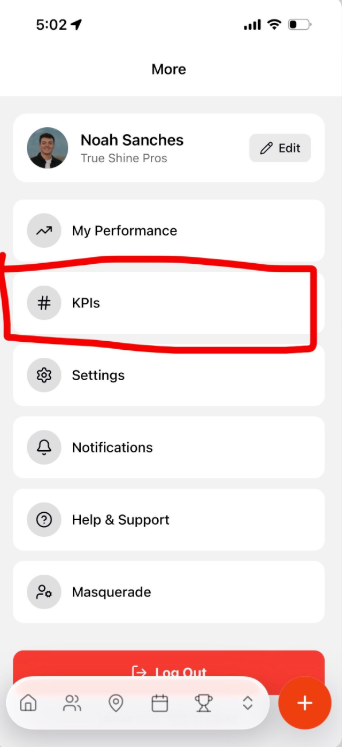
Tap + to add a new KPI.
Give it a clear name, like Doors Knocked or Sales Closed.
Save. The KPI now shows as a counter on your KPIs page.
Create one KPI for each thing you want to count.
Track your day
Tap a KPI to add 1 each time it happens (knock a door → tap Doors Knocked).
Totals reset each day, so every morning starts at zero.
Each day's totals are saved for reporting.
Good KPIs to start with
Doors Knocked
Conversations (someone answered)
Quotes Given
Sales Closed
Cards on File / Agreements Signed
Good to know
KPIs are listed in alphabetical order. To control the order, start names with a number (e.g., 1 Doors, 2 Conversations, 3 Sales).
KPIs can't be renamed yet. To change a name, delete the KPI and create a new one.
More ways to see rep performance
More → My Performance (mobile): See your own results.
Leaderboard tab (mobile): Compare performance across your team.
Map → Lasso tool (mobile): Draw a circle around a neighborhood to see total pins, No Answers, Interested, and sales closed in that area. See Mobile: Maps.
Analytics → Sales Stats (desktop): See new pins per day and sales metrics like Revenue Per Hour.
Service → Service Plans (desktop): Filter by Sold by to see plan revenue per rep.
Tips
Doors → Conversations → Sales gives you each rep's close rate at a glance.
Tap the KPI as soon as it happens — totals reset each day.
Start KPI names with a number to keep them in the order you want.
Pick names carefully: KPIs can't be renamed yet.
Congratulations! You can now create and track rep KPIs in Rotor.
Have additional questions? Our team is ready to help you succeed. Contact us through the chat or drop us an email at support@getrotor.com.
Related articles
Mobile: Maps — use the Lasso tool to see results by neighborhood
Mobile: Quick Guide — find your way around the mobile app
Map, Pins & Territories — how pins and territories work
Service Plans Page Guide and Filters — filter by Sold by to see revenue per rep
Was this helpful?
Still need help? Ask the team