Mobile: Notifications & Troubleshooting
Not getting Rotor push notifications, calls, or message alerts on your phone? Work through this checklist for iPhone and Android to find what's blocking them.
Written By Noah Sanches
Last updated 12 days ago
If you or a team member aren't getting Rotor push notifications, calls, or message alerts on your phone, the cause is almost always one of a few things. Work through this article in order — the first four steps solve the large majority of cases.
Quick Checklist
Step 1: Confirm Push Is Enabled in Rotor
On the Rotor website, click your profile icon in the top corner
Select Notifications
Find the event you're expecting (missed call, SMS received, new lead, etc.) and make sure the Push column is turned on
[NOTE] Only admins and owners can change Admin Notifications, and only owners can change Member Notifications. Member notification settings apply to all non-admin members and can't be set per person. See the Notifications article for the full list of events and channels.
Step 2: Turn On Notifications Inside the Rotor App
Each person also has an in-app notification switch tied to their own login. If it is off, that phone gets nothing even when the website settings and the phone settings are correct. This has to be checked on the device, signed in as that user.
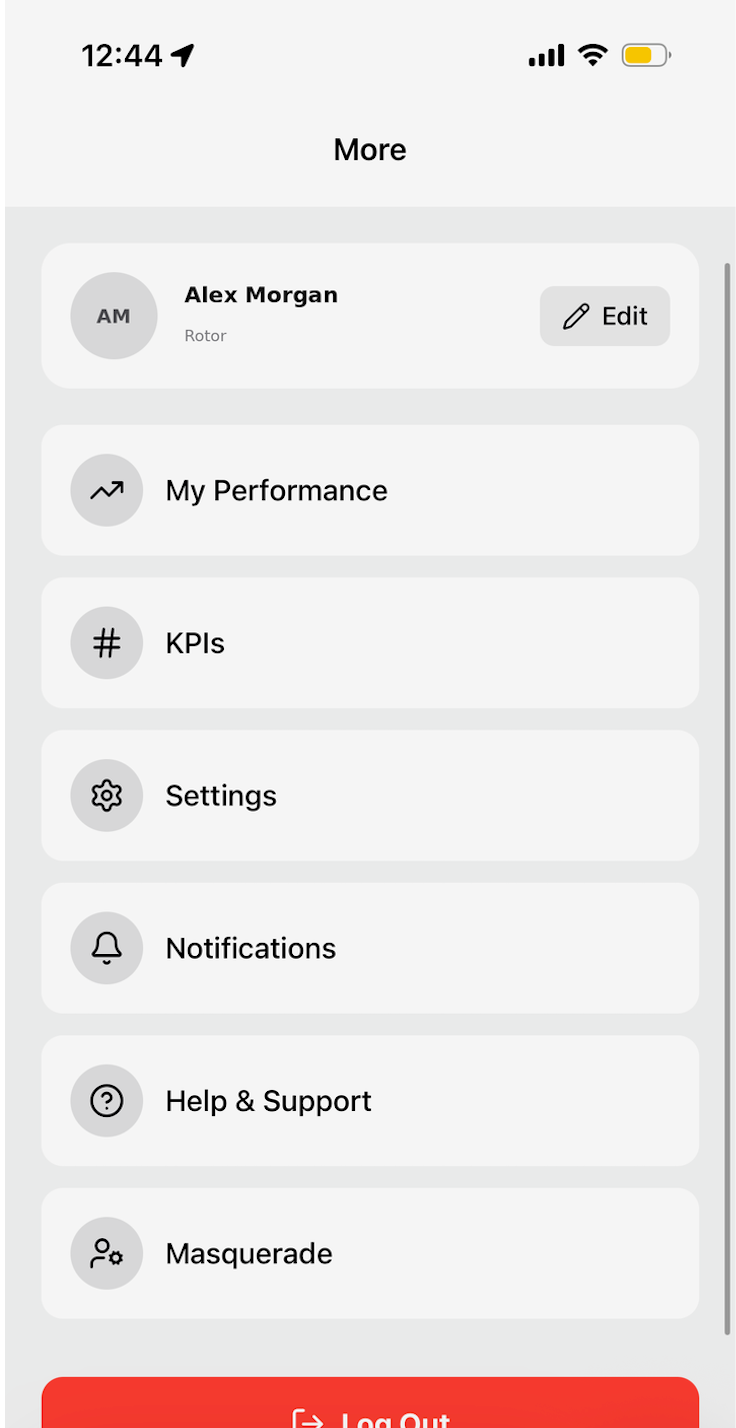
Open the Rotor mobile app and tap More in the bottom navigation bar
Tap Notifications
Turn Enable Notifications on
Under Status, confirm Registration reads Active and Permission reads Granted
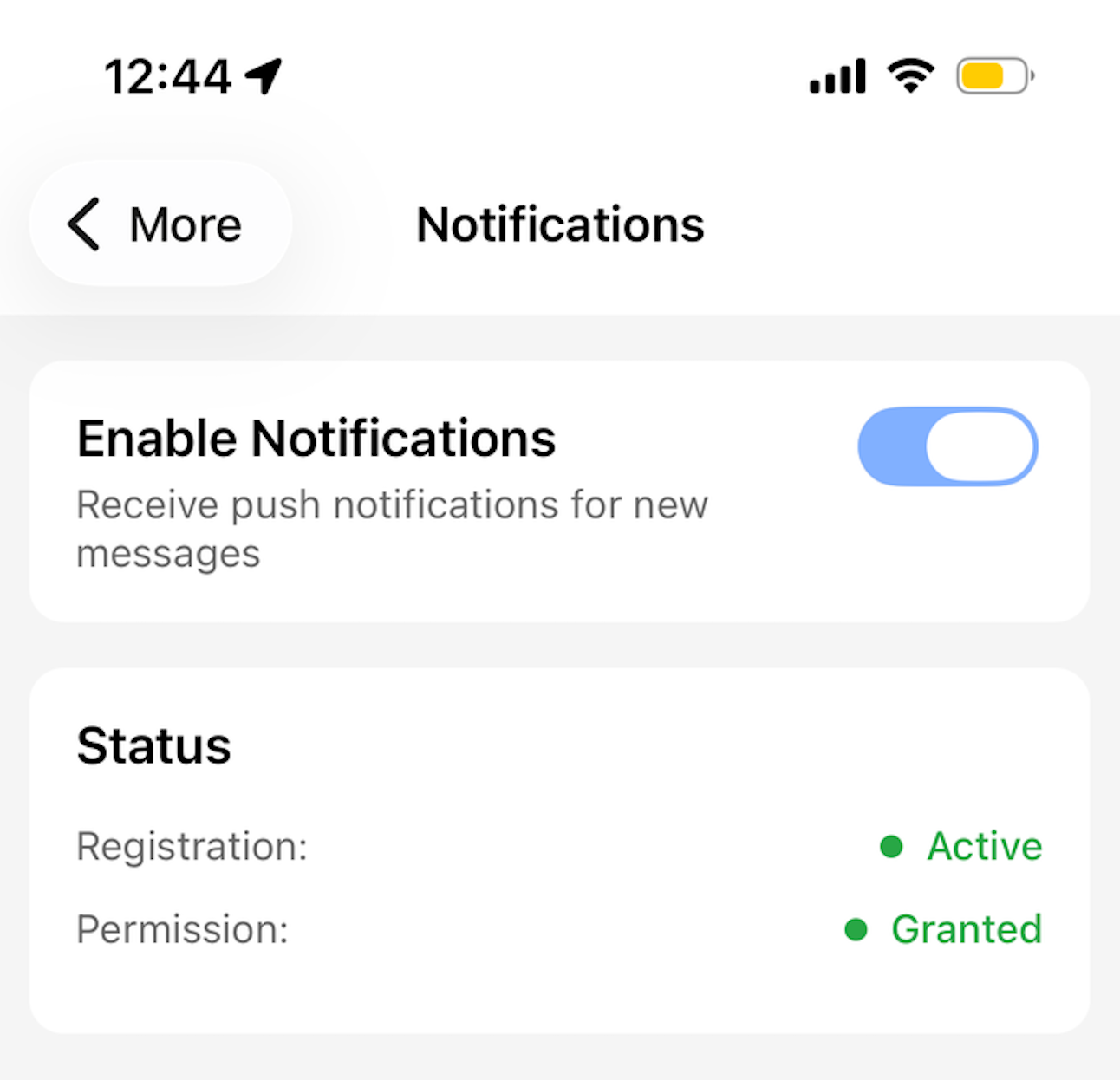
[NOTE] If Permission is not Granted, the phone is blocking notifications at the system level — fix that in Step 3. If Registration is not Active, sign out and back in (Step 7) to re-register the device.
Step 3: Allow Notifications for the Rotor App
iPhone
Open Settings → Apps → Rotor → Notifications (on older iOS: Settings → Notifications → Rotor)
Turn Allow Notifications on
Enable Lock Screen, Notification Center, and Banners
Set Sounds on and Badges on
Under Notification Delivery, choose Immediate Delivery — if Rotor is in the Scheduled Summary, alerts are held and delivered in a batch later
Android
Open Settings → Apps → Rotor → Notifications
Turn All Rotor notifications on
Make sure each notification category listed below it is also on — a single category can be off while the app looks enabled
Check that the category's sound isn't set to Silent, and that Pop on screen / Alerting is selected
[NOTE] If notification permission was declined the first time the app opened, the prompt won't appear again. It has to be enabled here in system settings.
Step 4: Add Rotor to Focus / Do Not Disturb (Most Common Fix)
Focus modes on iPhone and Do Not Disturb on Android silence every app that isn't explicitly allowed. If a Focus is on, Rotor notifications and in-app calls will not come through even though everything in Rotor is configured correctly.
iPhone
Open Settings → Focus
Tap the Focus you use — Work, Do Not Disturb, Sleep, Driving, Personal, or any custom Focus
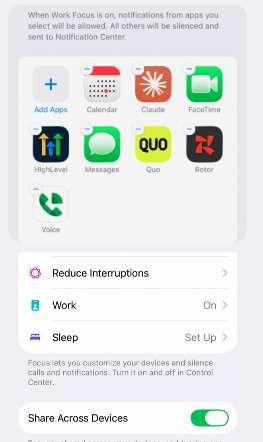
Under Allow Notifications, tap Apps
Make sure the list is set to Allow Notifications From these apps, then tap Add Apps and select Rotor
Repeat for every Focus you turn on — each one has its own separate allowed-apps list
[NOTE] If Share Across Devices is on at the bottom of the Focus screen, turning on a Focus on your iPad or Mac also turns it on for your iPhone. A Focus enabled on a laptop is a common reason a phone goes quiet unexpectedly.
Android
Open Settings → Notifications → Do Not Disturb (on Samsung: Settings → Notifications → Do not disturb)
Tap Apps (or Allow exceptions → Apps) and add Rotor
Enable Calls as an allowed exception if you take Rotor calls on your phone
Check any other Modes or Bedtime mode you use — each has its own exception list
Step 5: Check Battery and Background Settings
These settings don't block notifications outright, but they commonly cause delayed or missing alerts.
iPhone
Settings → Battery → Low Power Mode — turn off, or expect delayed delivery
Settings → General → Background App Refresh — make sure it's on for Rotor
Settings → Apps → Rotor → Cellular Data — must be on if you're away from Wi-Fi
Android
Settings → Apps → Rotor → Battery — set to Unrestricted (not Optimized or Restricted)
Settings → Apps → Rotor → Mobile data — allow background data and unrestricted data usage
Turn off any battery saver or third-party "phone cleaner" app that force-closes background apps
Step 6: If Calls Specifically Aren't Ringing
In-app calls ring through the same push channel as notifications, so anything blocking push also blocks calls. After completing Steps 3–5, check the following:
[NOTE] For full call setup instructions, see the Desktop and Mobile Calling article.
Step 7: Refresh the App's Connection
Push notifications are registered to the device that's signed in. If someone switched phones, reinstalled the app, or was signed out, that registration can go stale.
Update Rotor in the App Store or Google Play
Sign out of the Rotor app, then sign back in
Restart the phone
Trigger a test event — send yourself a text to your Rotor number, or have a teammate create a lead — and confirm the notification arrives
Still Not Working?
Reach out through Help and Support and include the following so we can pinpoint it quickly:
Phone model and OS version (e.g., iPhone 14, iOS 18.2)
Rotor app version
Which notifications are missing — all of them, or only certain types (calls, SMS, new leads)
A specific example with the approximate date and time it should have arrived
Screenshots of your Rotor Notifications settings and your phone's notification and Focus / Do Not Disturb screens
Related Articles
Notifications — the full list of notification events and channels, and how to build custom notifications with workflows
Desktop and Mobile Calling — call routing, voicemail, and the dialing page
Mobile: Quick Guide — getting started in the Rotor mobile app