Option Quoting
Send one quote with multiple options and add optional items customers can keep or remove before they accept.
Written By Sean MacCourtney
Last updated About 2 hours ago
Option Quoting lets you put up to four options on one quote, like Basic, Standard, and Premium. The customer compares them side by side, picks one, and accepts. You can also mark individual line items as optional so the customer can keep or remove add-ons before they accept.
BETA: This new feature is currently in beta and is planned to release soon across the Pro Plan. If you don't see + Add option on a new quote, and would like to use it, reach out to support!
Building a Quote with Options
Go to Service → Quotes → Create Quote. Every quote starts with Option A.
Pick the contact in the right panel (search, or create a new + Customer / + Lead), and confirm the Salesperson.
Name the option. Replace "Option A" with something the customer will understand, like "Basic".
Add line items with + Item. Search your Price Book or choose Custom item. Click an item to edit its name, description, qty, price, or add a photo.
Set Plan & billing for this option: plan template, frequency, service types, tax rate, and deposit. Recurring frequencies also show Service length and Billing (After job, Start of Month, or Cycle).
Click + Add option to add the next option (up to 4) and repeat.
Use the ⋯ menu next to an option name to Duplicate option (fastest way to build a similar tier) or Delete option.
What's per option vs. shared
So you can quote a one-time cleaning in Option A and a quarterly plan in Option B on the same quote.
Recommended Option
Click Mark recommended on the option you want to push. It gets a Recommended badge in the builder and in the customer's view, and it's pre-selected when the customer opens the quote.
Optional Items
Open any line item and turn on Optional for client. The item gets an Optional tag.
Optional items start checked (included) for the customer.
The customer can uncheck them, and the option price, discounts, tax, and total update instantly.
Anything the customer unchecks is left off when the quote converts.
Good for add-ons like screen cleaning, solar panels, or gutter guards.
Sending
Click Save draft anytime, or Review & send when ready. The review screen shows:
Each option with its frequency, item count, and total
Text message and Email toggles, plus Additional email recipients
Auto-advance to service plan agreement (sends the customer straight to sign after they accept)
Preview and Copy link
At least one delivery method (text, email, or an extra email recipient) is required to send. Use Preview as client in the builder to see exactly what the customer gets.
What the Customer Sees
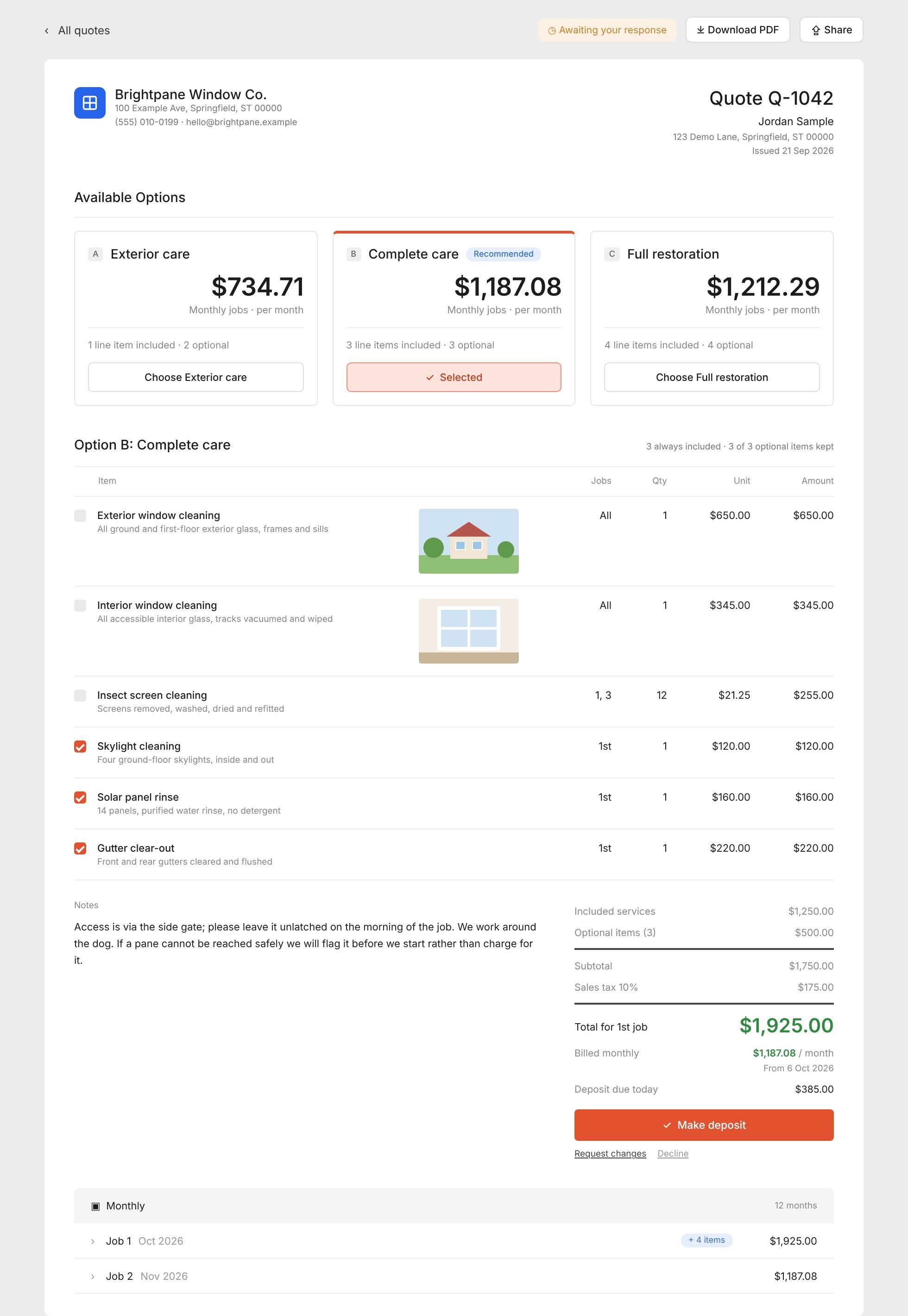
Option cards side by side with price and frequency. The recommended option is pre-selected.
They click Choose [option] to switch. The details below update to that option.
They keep or remove optional items with the checkboxes.
They click Accept quote, Request changes, or Decline. Accepting shows a confirmation with the chosen option and final price.
After accepting, the quote shows "Accepted on [date] — option [X]" and only the chosen option is displayed.
After the Customer Accepts
The quote status changes to Approved and the builder locks. At the top you'll see who accepted and which option, plus two buttons:
Convert to service plan — creates the plan from the accepted option only (its items, discounts, frequency, and salesperson). Removed optional items are not included.
Duplicate as new quote — copies the quote so you can make changes and resend.
If Auto-advance was on, conversion happens after the customer signs the agreement. Like any converted quote, the new service plan starts inactive until you schedule the first service.
Tips
Three options is the sweet spot. Build your middle tier first, then duplicate it up and down.
Recommend the option you actually want them to pick, since it opens pre-selected.
Set Service length on recurring options so the customer sees the full plan term.
Notes are shared, so write them to cover every option.
For the basics of quotes (templates, filters, CSV export), see Quotes: Web.
Still need help? Ask the team