Sub-Accounts and Enterprise Settings
If you run more than one company or location in Rotor, sub-accounts let you keep each business separate while switching between them from a single login. This guide covers how sub-accounts work, enterprise settings, and how to give a team member access to more than one company.
Written By Sean
Last updated 9 days ago
How sub-accounts work
If you run more than one company or location in Rotor, sub-accounts keep each business separate while letting you move between them from a single login.
An enterprise is the umbrella that groups your companies together. Each company under it is a sub-account with its own customers, schedule, and settings.
Your companies sit side by side under the enterprise. They are siblings, not accounts nested inside one another.
One company is marked Primary. That is your main company, and it is the one new sub-accounts are copied from.
Your login is a single user account. Access is granted per company, so you switch companies instead of logging out and back in.
What's separate in each sub-account
Almost everything operational:
Customers, leads, and jobs
Schedule, visits, and crews
Quotes, invoices, and payments
Price book, plan templates, and tax rates
Phone number and inbox — each company needs its own number
Business settings, branding, workflows, and client messaging
Team members and seats
What's shared across the enterprise
Billing — your Rotor subscription covers the enterprise, with seats counted per company
Payment processing and messaging — a new sub-account is set up on the same Stripe connection and messaging registration as your primary company
Starting settings — a new sub-account begins as a copy of your primary company's settings, so you are not configuring from scratch
Reporting is per company today. There is no combined dashboard across sub-accounts yet.
Switch between companies
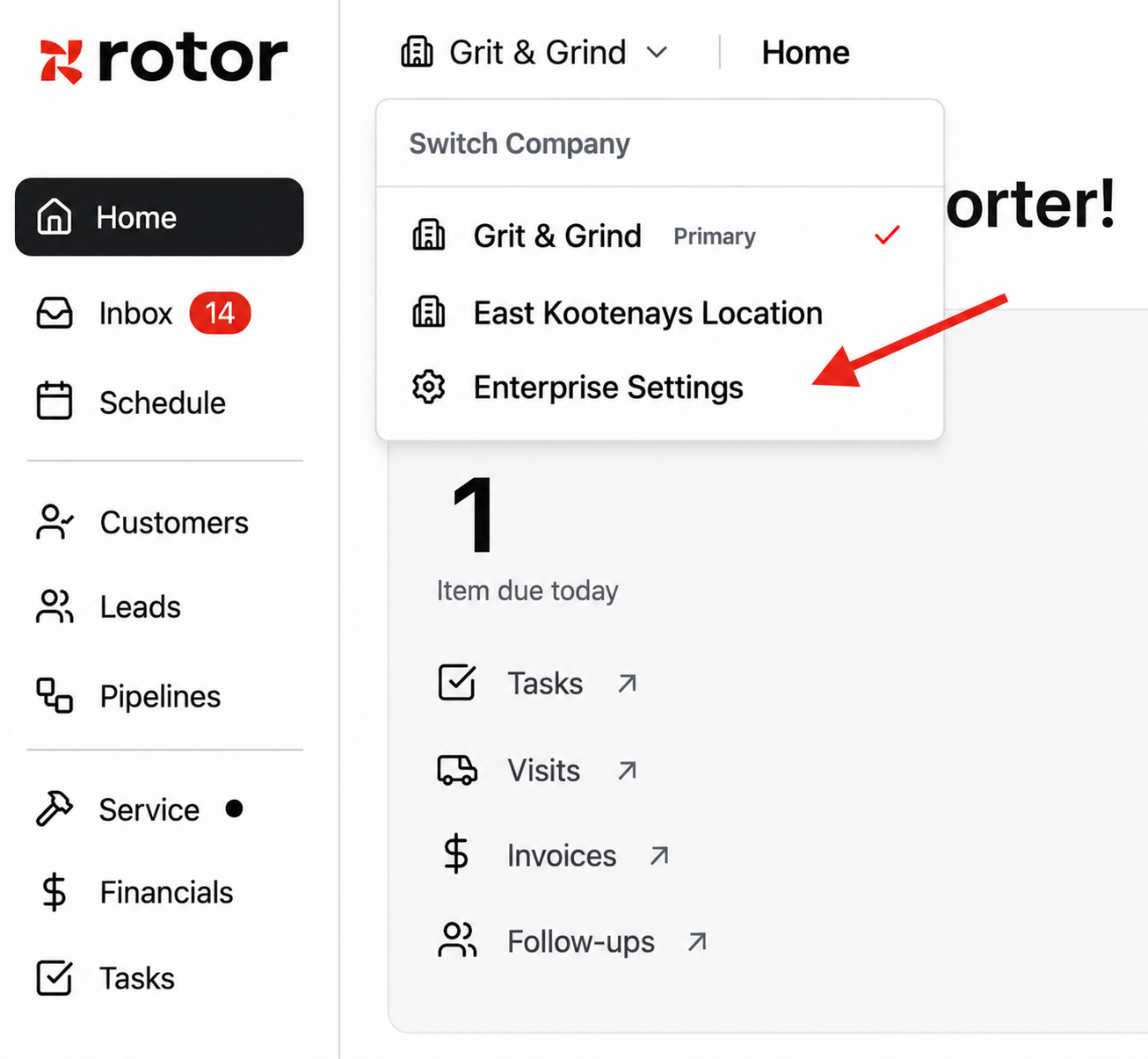
Click your company name in the top-left corner of the web app.
Under Switch Company, choose the company you want to work in.
The checkmark shows the company you are in now. Primary marks your main company.
Everything you see after switching — schedule, customers, financials — belongs to that company only.
Enterprise settings
From the same dropdown, click Enterprise Settings. There are three tabs:
Companies — every company in your enterprise, listed with the internal name it was set up under
Admins — your enterprise admins, who can see and manage every company
Users — everyone with access to any company in the enterprise, and which companies they are in
Give a team member access to another company
Go to Enterprise Settings → Users.
Review the Users Across Companies list to see who has access to what.
Click Add User to Company, then pick the user and the company.

A few things to know:
One email, one user. The same person keeps one login and gains an entry in their company switcher — do not create a second Rotor account for them.
Roles are set per company. Someone can be an Admin in one company and a Member in another.
Seats are per company. Adding a user to a company uses one of that company's seats; seats are not pooled across the enterprise.
If you are adding someone who already has a Rotor login elsewhere and the invite does not go through, reach out to support and we will add them directly.
Enterprise admins vs. company admins
Make someone an enterprise admin only if they oversee the whole operation. Managers who run a single location should be company admins there instead.
Add a new sub-account
Your plan covers a set number of companies. To add another, contact us in chat or at support@getrotor.com and we will create the company, copy your primary company's settings into it, and update your billing.
Helpful to have ready:
The company name, plus the internal name you want to recognize it by in the switcher
Its business address
The phone number it will use, or whether you need a new one
A new sub-account takes a short time to finish setting up before it appears in your company switcher.
Tips for running multiple sub-accounts
Use an Internal Name. Navigate to Settings → Business to set this. This allows the client-facing business name to remain the same while having more clarity which account is which internally.
Check which company you are in before you create anything. A job or customer created in the wrong company has to be recreated, not moved.
Set up each company's phone number so calls and texts route to the right team.
Keep enterprise admins to a small group — that role sees every company's data.
Review the Users tab periodically to catch access that is no longer needed.
Have additional questions? Our team is ready to help you succeed. Contact us through the chat or drop us an email at support@getrotor.com.