Agreements
This guide walks through how to create and manage agreement templates in Rotor so you can collect signatures when signing customers up for service plans—either in person on a mobile device or remotely via text and email.
Written By Jeffrey Rose
Last updated 8 months ago
Overview
Agreements are used when enrolling a customer in a service plan. Once set up, the correct agreement will automatically appear based on the service and frequency selected during signup.
Step 1: Navigate to Agreements
If service plans are enabled on your account:
Open the Forms section from the left sidebar
Select Agreements
This is where you can create, edit, and manage all agreement templates.
Step 2: Review Logo and Branding
When creating or editing an agreement:
If you have a logo saved in Business Settings, it will automatically appear on the agreement
You can replace the logo if needed
If the logo doesn’t display well (for example, due to contrast issues), you may want to upload a transparent version
Step 3: Confirm Service and Frequency Settings
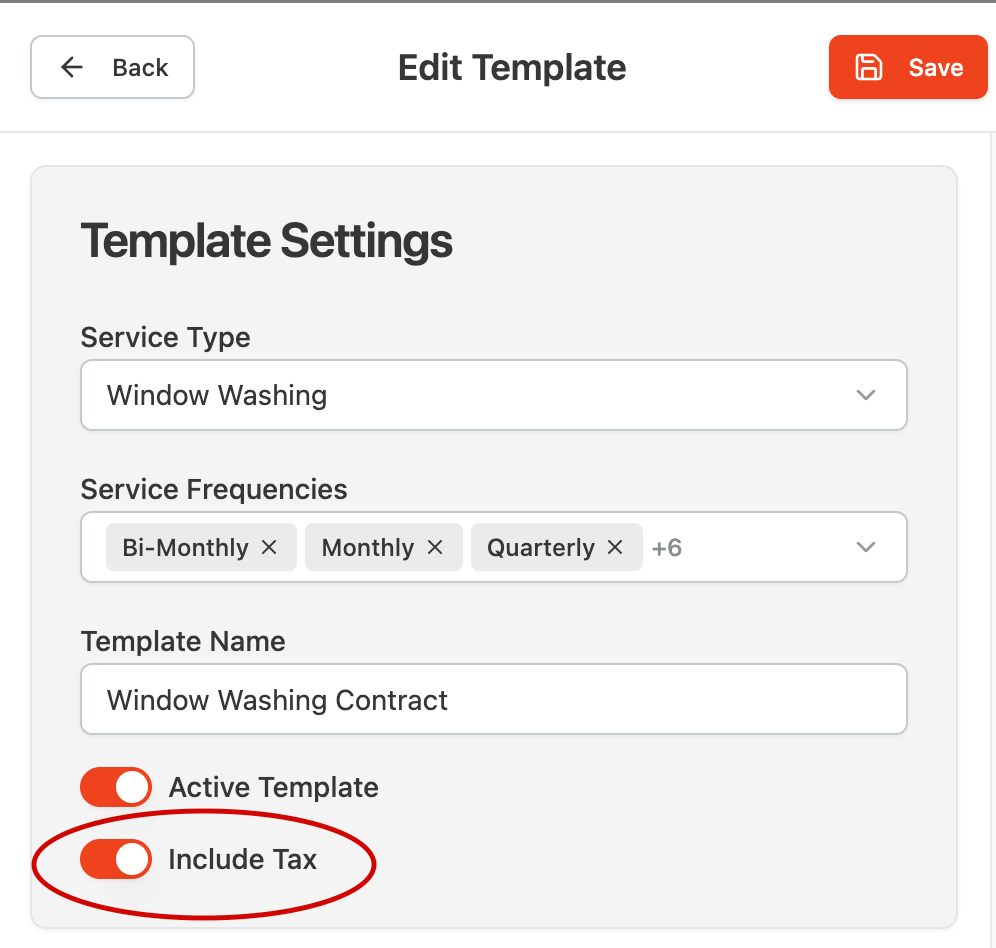
At the top of the agreement, you’ll see:
The service or service type the agreement is tied to
The frequencies that trigger this agreement
The template name
An Active Template toggle
An Include Tax toggle, which determines whether taxes are built into the displayed pricing or added separately
For example, a specific agreement may appear when signing someone up for Window Washing on a Tri-Annual plan or other selected frequencies. When you’re at the door enrolling a customer for one of those options, this is the agreement they’ll see.
Step 4: Customize Appearance and Business Information
You can customize:
Accent color (often pulled from your logo)
Business information, which appears in the top-right corner of the agreement
Below that, you’ll edit the agreement’s content sections.
Some sections are required and cannot be removed, as they’re essential to the agreement.
Step 5: Configure Optional Sections
Additional Service Types
You can choose whether to display other service types that the customer is not signing up for.
For example, if the customer isn’t enrolling in pressure washing or gutter cleaning, you may choose you still want to enable this section to show those services would be offered at an additional cost.
Step 6: Set Up Guarantees
Guarantees are a key part of the agreement.
Examples include:
A weather guarantee
A satisfaction guarantee
Often, companies find success with creating similar agreements with varying guarantees depending on the frequency selected.
For example:
A cleaning company may offer free hard water treatment only on Quarterly plans
In this case, creating a separate agreement without that guarantee applied to Tri-Annual offerings and below would be most effective
Step 7: Edit Terms and Conditions
At the bottom of the agreement, you can modify the terms and conditions section.
This is where you add:
Cancellation policies
Fees
Any additional fine print
This helps set clear expectations for both you and your customers.
Once finished, save the agreement.
Step 8: Duplicate Agreements for Different Frequencies
If you want a similar agreement with different guarantees or frequency rules:
Duplicate the existing agreement
Adjust the selected frequencies
Modify guarantees or terms as needed
This allows you to generate different agreements automatically based on the service plan selected.
Step 9: Create Agreements for Other Services
You may see additional agreement templates for other services, such as:
Pressure washing
Gutter cleaning
A common use case is creating a completely separate agreement for seasonal services like holiday lighting, which may require:
A different logo
Different colors
Unique terms and conditions
Each service can have its own dedicated agreement template.
Step 10: Using Agreements During Service Plan Creation
When creating a service plan on a customer profile:
Set the service type, frequency, and line items
Navigate to the Agreement section
If no agreement appears, it usually means no agreement exists for the selected service type and frequency
Once generated:
All relevant information is automatically filled in
You can sign in person or generate a link to send via text or email
More detail on this process is covered in the service plan walkthrough.
Final Thoughts
Agreements ensure a smooth, professional signup experience when enrolling customers in service plans. By tying agreements to specific services and frequencies, Rotor automatically presents the correct document at the right time—whether you’re signing in person or sending a link remotely. Once agreements are created, they automatically appear when applicable during service plan setup, though a quick refresh of the mobile app may be required for recent changes to show. Properly configured agreements help set clear expectations, reduce confusion, and protect both your business and your customers.
Tips for Using Agreements Effectively
Create separate agreements for different services or frequencies to ensure guarantees and terms are always accurate
Duplicate existing agreements to save time when creating variations for different plans
Review logos, colors, and business information to keep agreements consistent with your branding
Clearly define guarantees, cancellation policies, and fees to avoid misunderstandings
Test agreements by switching service frequencies during service plan creation to confirm the correct template appears
Congratulations! Your team is now ready to use Rotor agreements to streamline service plan signups, collect signatures seamlessly, and deliver a polished customer experience—both in person and remotely.
Have additional questions? Our team is ready to help you succeed. Contact us through the chat or drop us an email at support@getrotor.com.