Crew Scheduling
Instead of relying solely on traditional “Jobs,” the platform uses a Visits and Crews system. This approach allows businesses to better track technician performance, support complex team structures, and automate recurring service plans more effectively. This guide walks through how to set up your team, manage technician availability, organize crews, and use the new scheduling tools to keep your operations running smoothly.
Written By Noah Sanches
Last updated 3 days ago
Jul 25 2026 new updates:
Understanding the Core Logic
Before working with the schedule, it’s important to understand how the system organizes work and team roles.
Jobs vs. Visits
Visits
Visits represent the actual appointments on the calendar.
A single job can contain multiple visits.
Examples include:
Re-service visits
Multi-day projects
Follow-up work
Time Tracking
Technician efficiency is tracked at the visit level.
This provides a more accurate view of field performance.
Team Roles & Positions
You can assign roles and permissions to team members by navigating to the Team page.
Technician
Can have visits scheduled on their calendar
Appears on the schedule view
Salesperson
Can be assigned territories
Appears in sales reporting
Office Staff
Designed for administrative users
Handles scheduling, billing, and support tasks
User Permissions
Permissions determine how much control a user has within the system.
Owner
Full system access
Can manage settings and users
Admin
Can update most system settings
Can manage scheduling and operations
Member
Limited permissions
Can only view or edit assigned work
Managing Availability & Crews
The new scheduling system provides detailed control over when technicians are available and how crews are organized.
Setting Technician Schedules
To configure technician availability:
Navigate to Scheduling → Technicians.
From here you can set several availability options.
Weekly Patterns:
Define a technician’s standard work hours.
Example:
Monday–Friday
8:00 AM – 5:00 PM
Custom Gaps
Add blocks of unavailable time within the workday.
Common examples include:
Lunch breaks
School schedules
Split shifts
Exceptions
Use Add Exception to override the normal schedule for specific dates.
Examples:
Vacation days
Sick days
Extended hours for busy periods
Weekend overtime
Organizing Crews
By default, each technician is treated as their own crew. However, you can group technicians together for larger jobs.
Crew Assignment
You can rename crews to match your team structure.
Examples:
Alpha Crew
Delta Crew
Truck 1
Truck 2
This helps align your schedule with real-world teams or vehicles.
Using a Crew Without Technicians
By default, a crew gets its availability from its technicians, so a crew with no techs assigned won’t show up when scheduling. If you want to set up crews as trucks and assign techs day by day, give the crew its own hours:
Go to Settings → Crews and select the crew.
Turn on Use crew schedule so the crew uses its own hours instead of inheriting availability from its technicians.
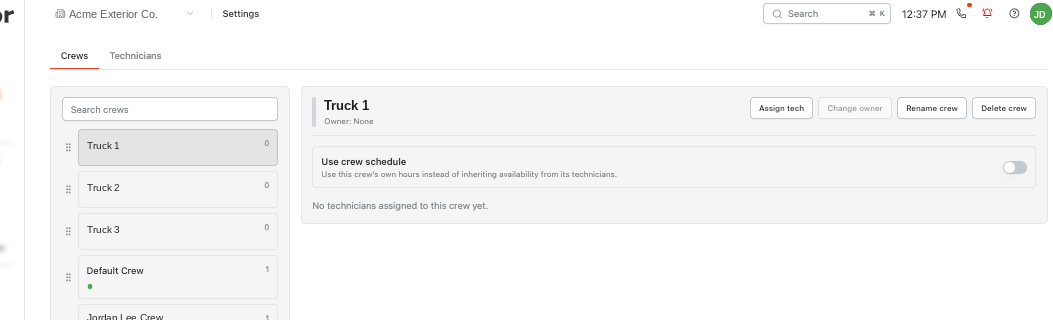
Set the crew’s hours.
Use Assign tech to add technicians to the truck each day.
Once the crew has its own hours, it will appear when scheduling even if no technicians are assigned to it yet.
Temporary Reassignment
If a technician needs to assist another crew, you can use the Temporary Reassignment tool to move them away from their typical crew for a set duration or for specific visits.
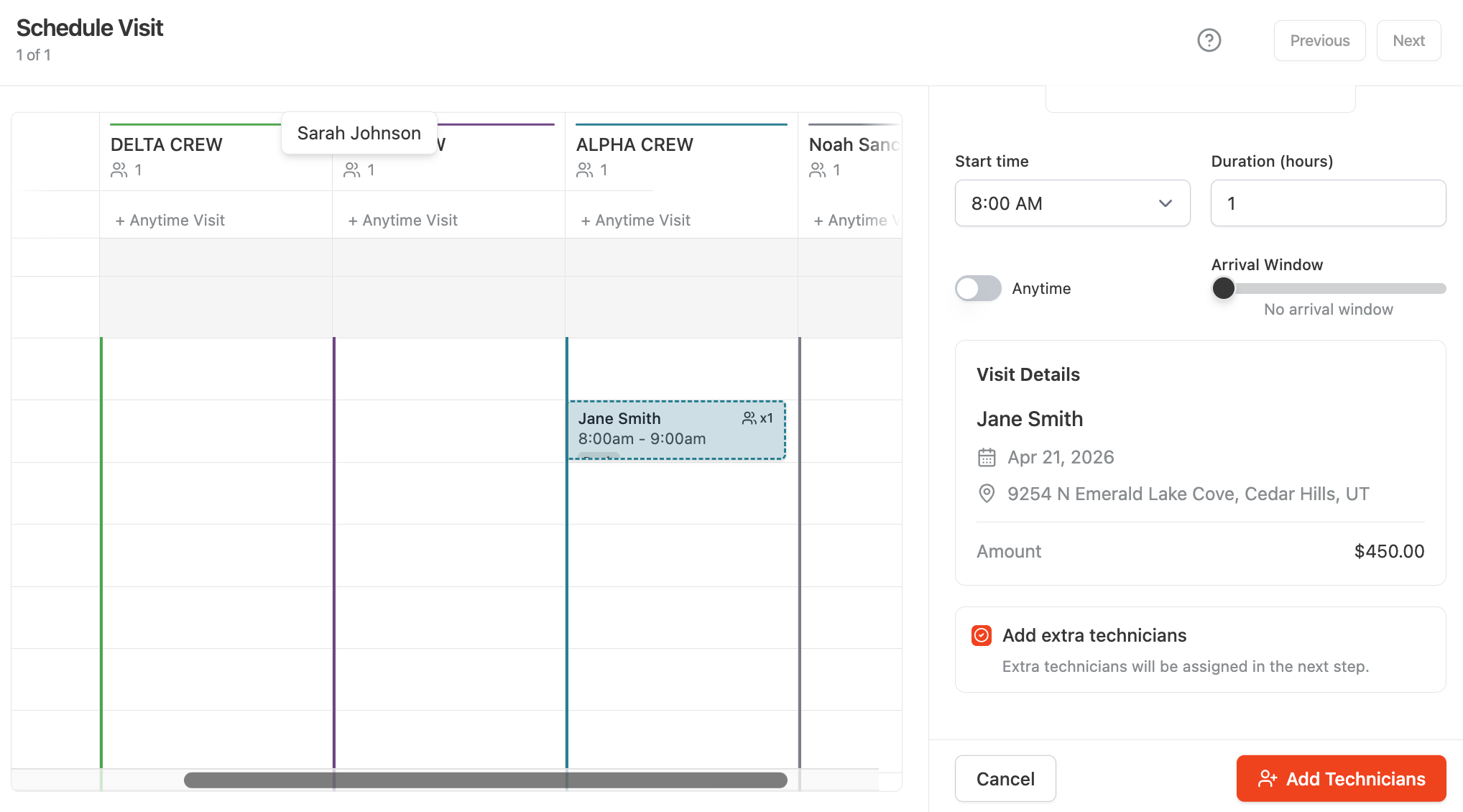
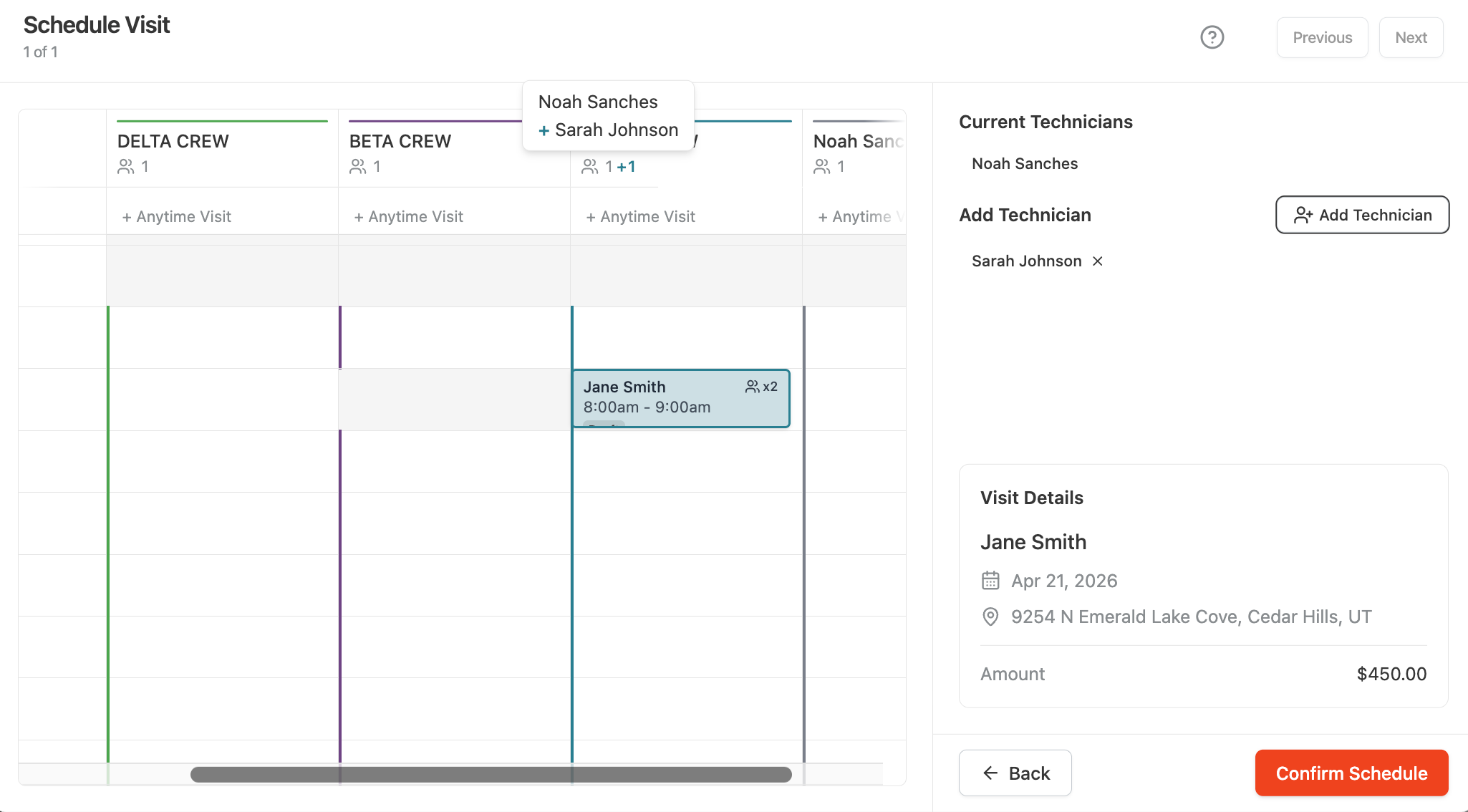
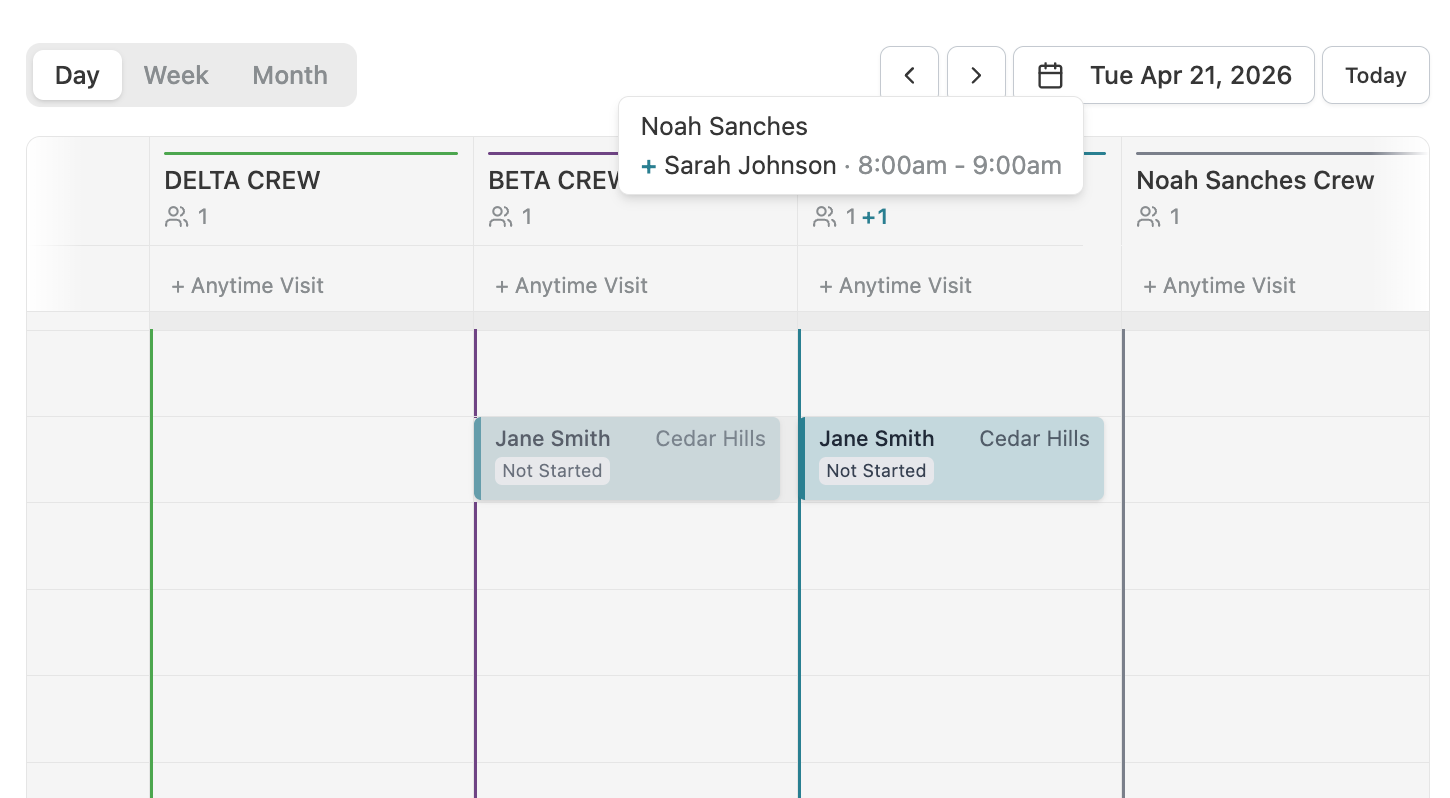
These can be added and managed under the Schedule Settings however more commonly, it will be utilized as part of the scheduling flow to make it more automatic during the booking process and is showcased below:
Say for this example, we are trying to add Sarah who normally works solo on her crew called “BETA CREW” to help Noah on this visit for Jane Smith. Noah typically works solo on his crew called “ALPHA CREW.”
Web / Desktop:
Mobile:
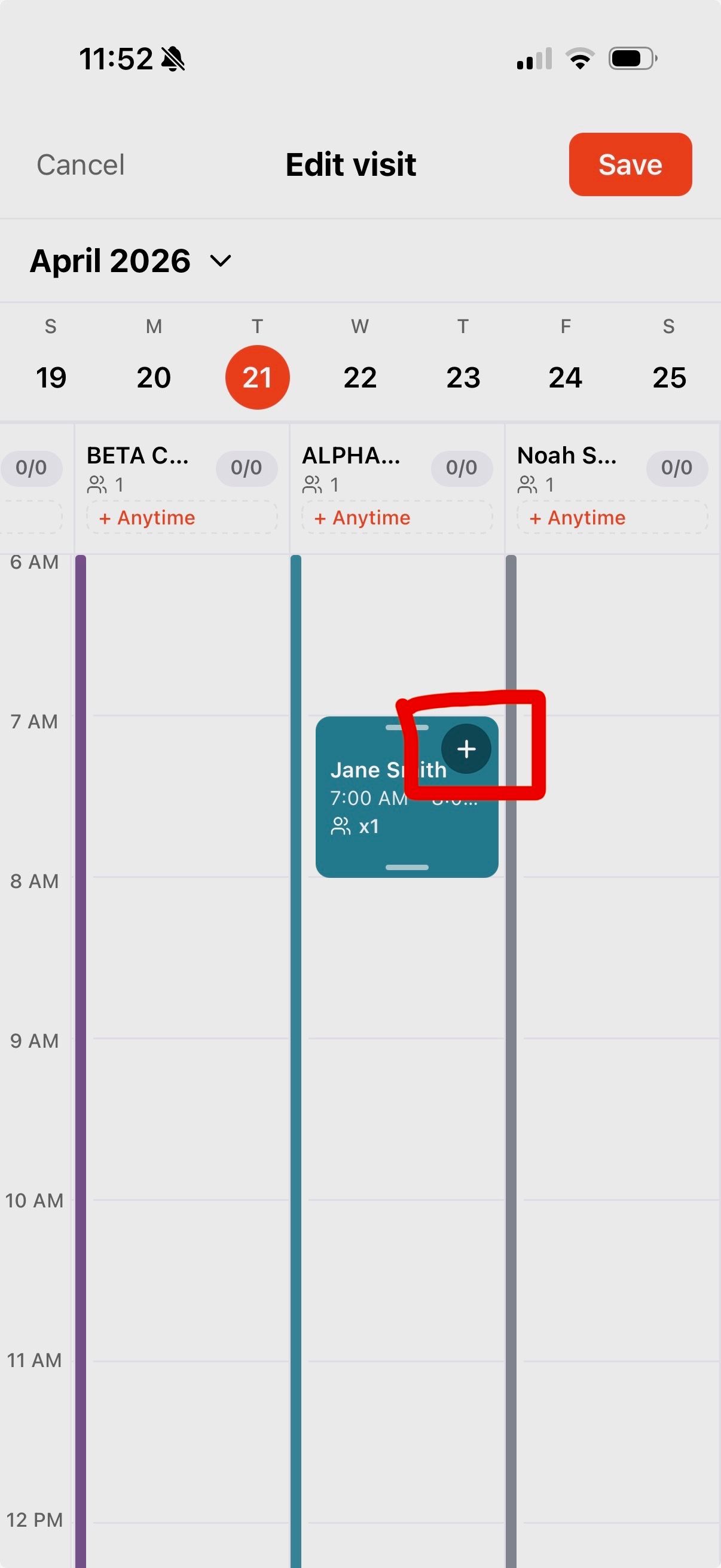
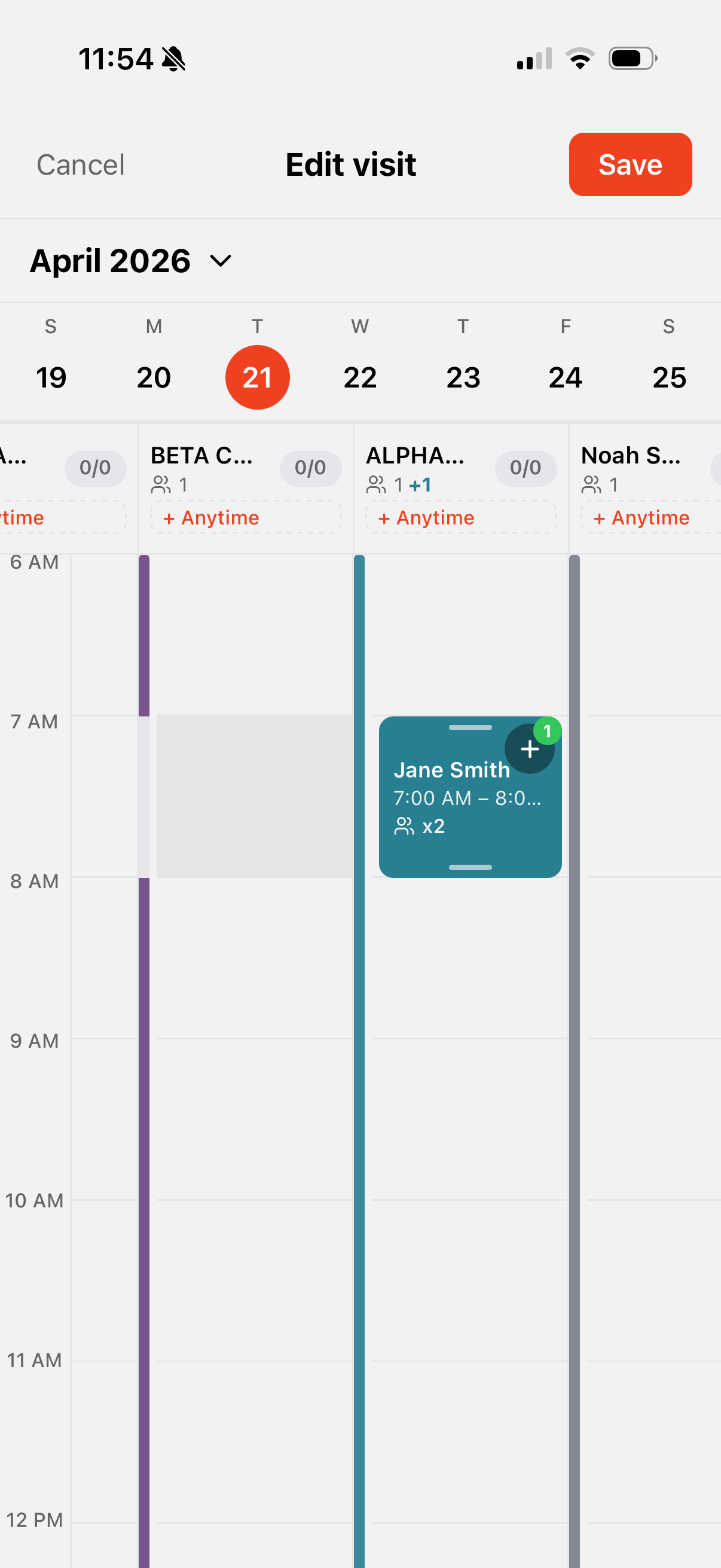
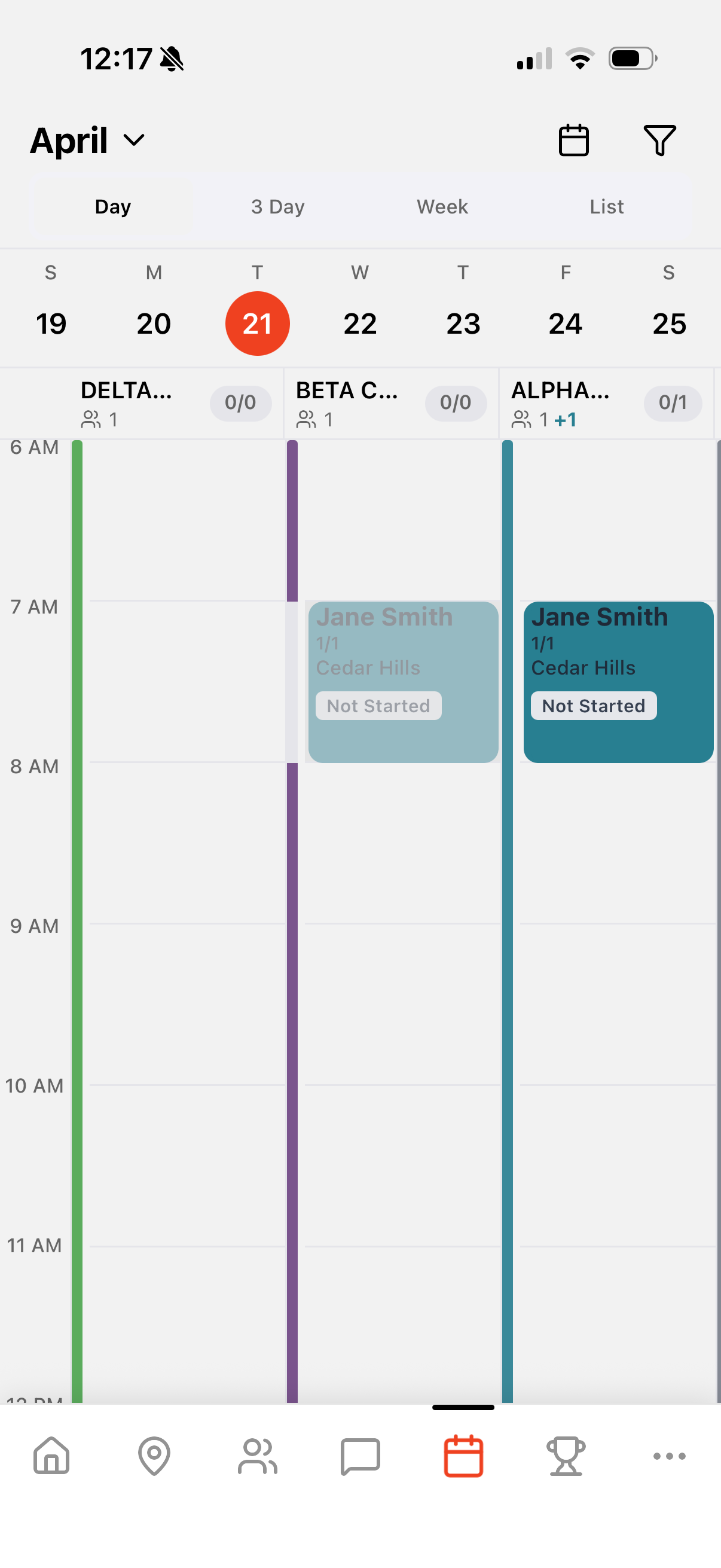
This is useful for:
Large projects
Staff shortages
Training new technicians
Using the Schedule
The Schedule page acts as your operational command center.
It uses color-coded availability lines based on technician schedules to help you quickly see:
Available hours
Booked visits
Open scheduling gaps
Managing Visits
Completing a Visit
When a visit is finished:
Mark the visit as complete.
Choose one of the following options:
Add another visit (for re-service)
Mark the entire job as complete
Invoicing
Completing a job will prompt you to create a draft invoice immediately.
This helps ensure:
Jobs are not forgotten
Billing is handled quickly
Revenue is captured efficiently
Rescheduling Visits
To move a visit:
Click the visit on the calendar.
Drag it to a new time slot.
Or drag it to a different technician.
The system will automatically:
Update the technician assignment
Preserve the visit duration
Setting Up Service Plans (Recurring Work)
Service Plans allow you to automatically schedule recurring work such as quarterly cleanings.
Creating a Service Plan
When setting up a plan:
Step 1: Schedule the First Job
Choose the initial appointment date and time.
Step 2: Set Recurring Logic
Define how often the service repeats.
Examples:
Every 3 months
Every 6 months
Third Friday of every quarter
Step 3: Use the Pending Queue
If you are not ready to schedule future visits yet, send them to the Pending Queue.
This allows you to keep future work organized without filling the calendar prematurely.
Booking from the Pending Queue
When viewing future months:
Open the Pending sidebar.
You will see customers due for service.
Drag them directly onto the calendar to schedule the visit.
This makes planning future routes fast and flexible.
Filters & Scheduling Tools
To keep the schedule view organized, use the Filters menu in the top-right corner.
Hide Weekends
Toggle this option to:
Hide Saturday and Sunday
Focus only on weekday availability
Technician Filter
Use this filter to:
Focus on one technician
View a specific crew
Reduce clutter on the calendar
Time Blocks
Use More Actions → Time Blocks to create company-wide unavailable periods.
Examples include:
Team meetings
Company events
Holidays
Training days
Final Thoughts
The transition from Jobs to Visits creates a more scalable scheduling system designed for long-term growth.
By understanding crew assignments, visit tracking, and the Pending Queue, you can:
Optimize technician routes
Improve scheduling accuracy
Track team performance more effectively
Manage recurring services with less manual work
Tips for Scheduling Effectively
Use Anytime Visits
For customers who do not require a specific time window. This will be especially useful with future route optimization tools.Color Coordinate Technicians
Assign unique colors so you can quickly recognize technician assignments across the schedule.Deactivate Service Plans Instead of Deleting Jobs
This preserves historical data and keeps your reporting accurate.Review the Pending Sidebar Weekly
Check both Overdue and Pending sections to ensure no recurring services are missed.
Congratulations! You are now ready to use the 2026 Crew Scheduling system to manage technicians, track visits, and scale your operations efficiently.
If you have questions about the new scheduling logic or want help setting up your workflow, reach out to our support team—we’re happy to help.