Billing Cycles
Build custom billing cycles, whether it's monthly or quarterly, or every 6 weeks. Whether it's a fixed price or rollup all jobs, it can now be done in Rotor!
Written By Sean MacCourtney
Last updated About 1 month ago
A billing cycle charges a customer on a repeating schedule — monthly, quarterly, every six weeks, whatever you set — instead of raising an invoice every time a job is finished. It is how you turn a recurring service plan into predictable recurring revenue.
Cycles live on the customer, and can attach to service plans. A quarterly window-cleaning plan can be paid for in three monthly instalments; a monthly maintenance plan can be settled in one quarterly bill. The work schedule and the payment schedule no longer have to match.
Choosing how a plan gets billed
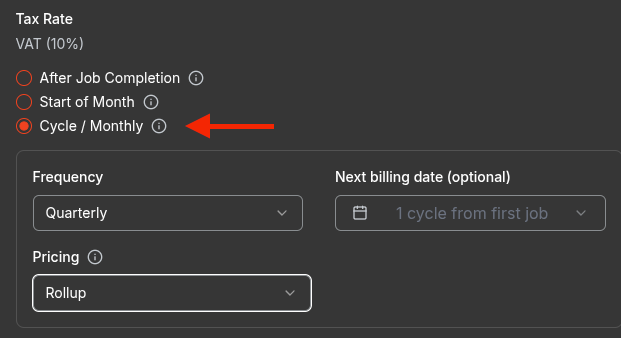
Every service plan has a Billing setting with three options:
After Job Completion — each job is billed once it is marked complete. If auto-pay is on, the card on file is charged automatically; if not, you are prompted to mark payment as received. No cycle involved.
Start of Month — jobs are billed in full on the 1st of the month the job falls in. The first job is still billed after it is marked complete. This only works if the customer has a valid payment method on file and auto-pay enabled.
Cycle / Monthly — the first job is billed after it is marked complete, and from then on the customer is billed on the cycle you define. If the customer has no auto-pay or no valid card on file, Rotor sends them an invoice instead of charging.
Picking Cycle / Monthly reveals the cycle settings underneath it.
— The billing options on a service plan, with Cycle / Monthly selected and its cycle settings expanded.
Setting up a cycle
You can create a cycle from the service plan editor, or directly on a customer under Billing Cycles → New cycle.
— The New cycle dialog.
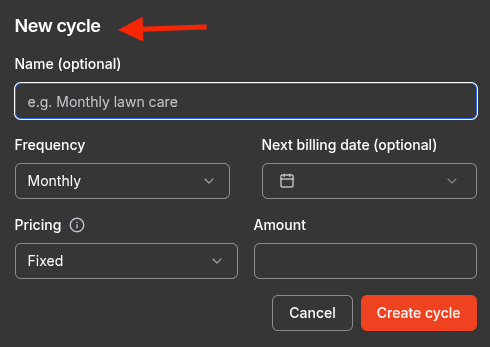
Name — optional, only for your own reference (e.g. "Monthly lawn care").
Frequency — Monthly, Quarterly, or Custom. Custom lets you bill every N days, weeks, months or years, so "every 6 weeks" or "every 4 months" are both fine.
Next billing date — optional. Leave it blank and the cycle anchors itself one full cycle after the plan's first completed job.
Day — on a monthly cadence you can pin the charge to a fixed day of the month. Leave it blank and Rotor uses the day from the next billing date.
Pricing — Fixed or Rollup. See below.
Amount — the per-charge price, for Fixed cycles only. If it does not divide evenly into the plan price Rotor warns you, so a $780/yr quarterly plan billed monthly nudges you toward $65.00.
Fixed vs Rollup — the important choice
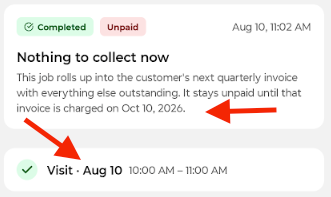
A Rollup cycle gathers all outstanding items in its scope — not just the current period. That means every unpaid invoice on the linked plans, plus every completed job that still has a balance. It folds them into a single invoice and voids the individual ones, so nothing is billed twice.
The first job is billed directly
On a Fixed cycle, the plan's very first job is invoiced on its own and the cycle takes over from the second job onward. This is deliberate — it means you collect something at the door rather than waiting a full cycle for the first payment. The job page says so explicitly.
— The first job on a plan: collect this one directly, the cycle takes over on the date shown.
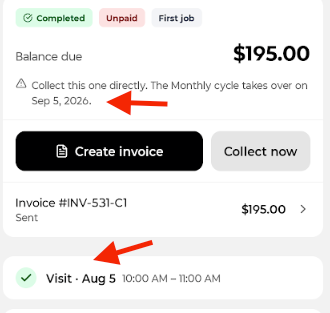
Renewed plans skip this: their cycle has been running all along, so job 1 of a renewal is covered like any other.
Rollup cycles have no exception — they gather the first job along with everything else.
What your crew sees on a job
Once a job is marked complete, the top of the job page tells whoever is standing there exactly what to do about the money.
— A job covered by a Fixed cycle. The plan's prices show as "Included in price" and there is no invoice to raise.
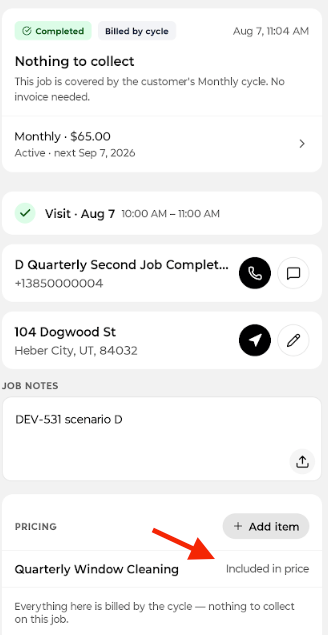
— A job on a Rollup cycle. It stays unpaid on purpose until the rollup invoice is charged on the date shown.
Extras are never covered by a cycle
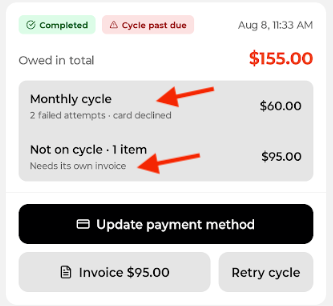
Anything a tech adds on top of the plan — an upsell line item — is outside the cycle and always needs collecting separately. The job shows the plan work as covered and the extra as its own balance.
When a payment fails
A declined charge puts the cycle into Past due and starts a short, predictable recovery sequence:
First failure — the cycle is marked Past due and one retry is scheduled for the next day. The billing period does not advance, so nothing is skipped.
The retry declines too — the cycle stays Past due, stops retrying for that period, and moves its next billing date forward one interval so it rejoins its normal cadence.
Any successful charge — clears everything: the cycle goes back to Active and the failure count resets to zero.
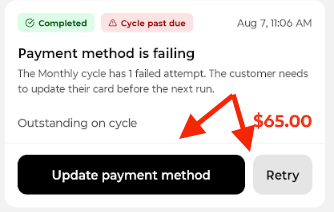
While a cycle is past due, every job on that plan flags it, whether or not today's work is done — a failed charge is owed either way.
— A past-due cycle on the job page, with the outstanding amount and the two actions that fix it.
When a past-due cycle and an uncovered extra are both owed, the job shows them separately so nothing gets missed.
— Two debts at once: the failed cycle charge, and an upsell that needs its own invoice.
Pausing, resuming and cancelling
Pause — the cycle stops charging and any pending retry is dropped. Because nothing is collecting the plan work any more, its jobs go back to owing their full price.
Resume — the cycle returns to Active, its billing date walks forward past the gap, and the plan price comes off its jobs again.
Cancel — the cycle never bills again and its jobs carry their own price from then on. Cancelling a service plan cancels its cycle too.
Keeping an eye on the schedule
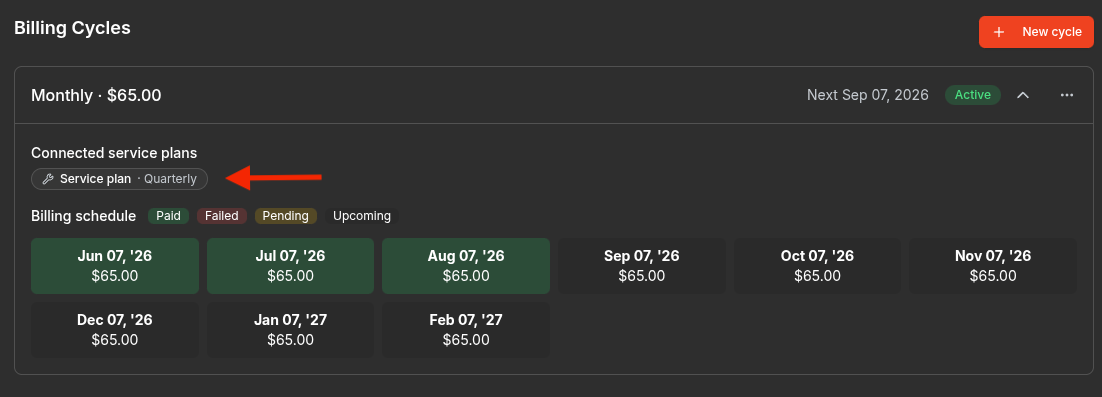
Each cycle on a customer shows its cadence, amount, status and next charge date, with the full billing schedule underneath — colour-coded Paid, Failed, Pending and Upcoming — so you can see at a glance where a customer is in their plan.
— A customer's billing cycle with its connected service plan and full billing schedule.
Across the business
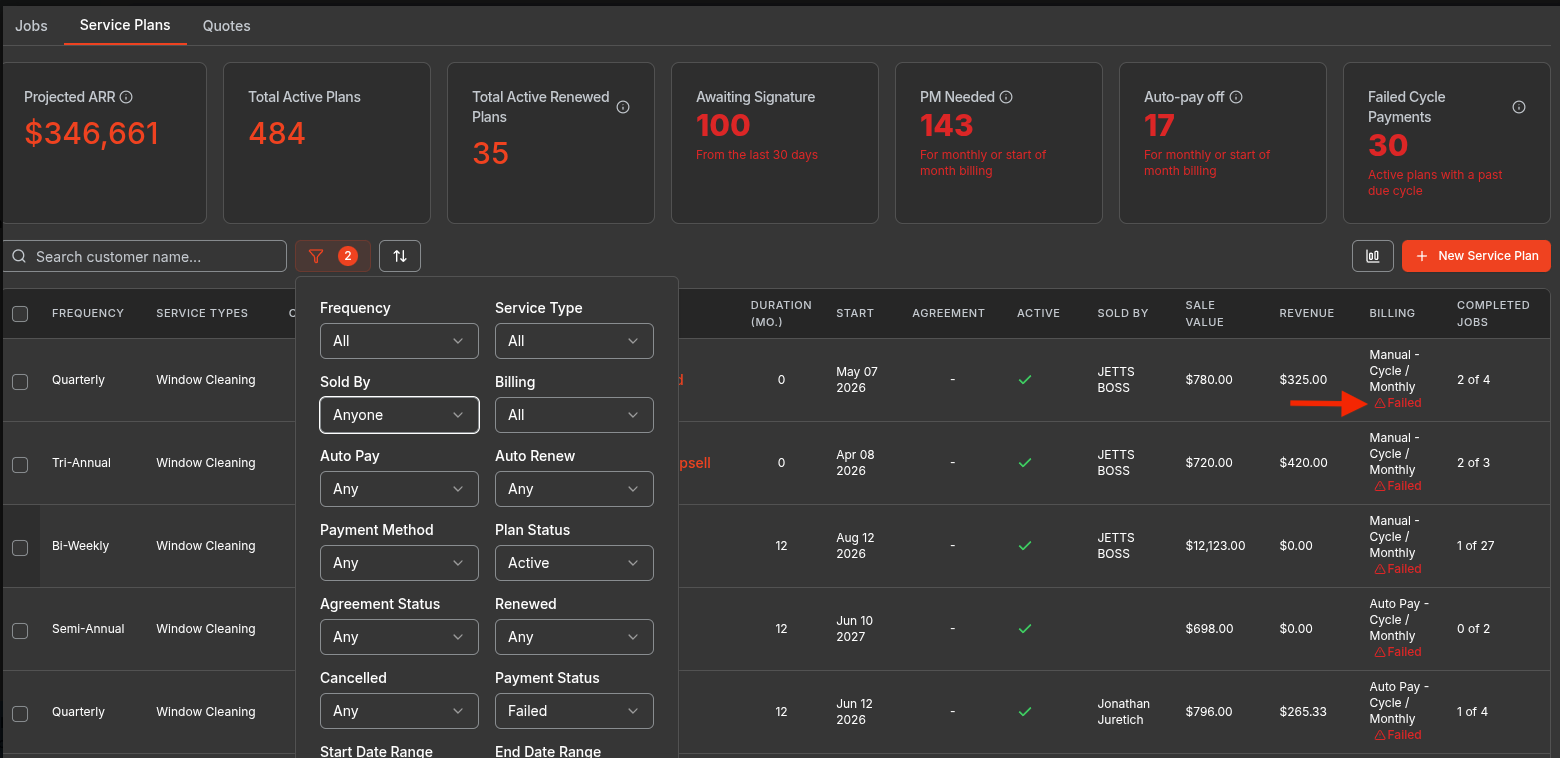
On Service Plans, the Failed Cycle Payments tile counts active plans carrying a past-due cycle, and PM Needed and Auto-pay off catch the plans that will fail next because there is no way to charge them. You can filter the list by Billing and by Payment Status to work through them.
— Service Plans, filtered to plans with failed cycle payments.
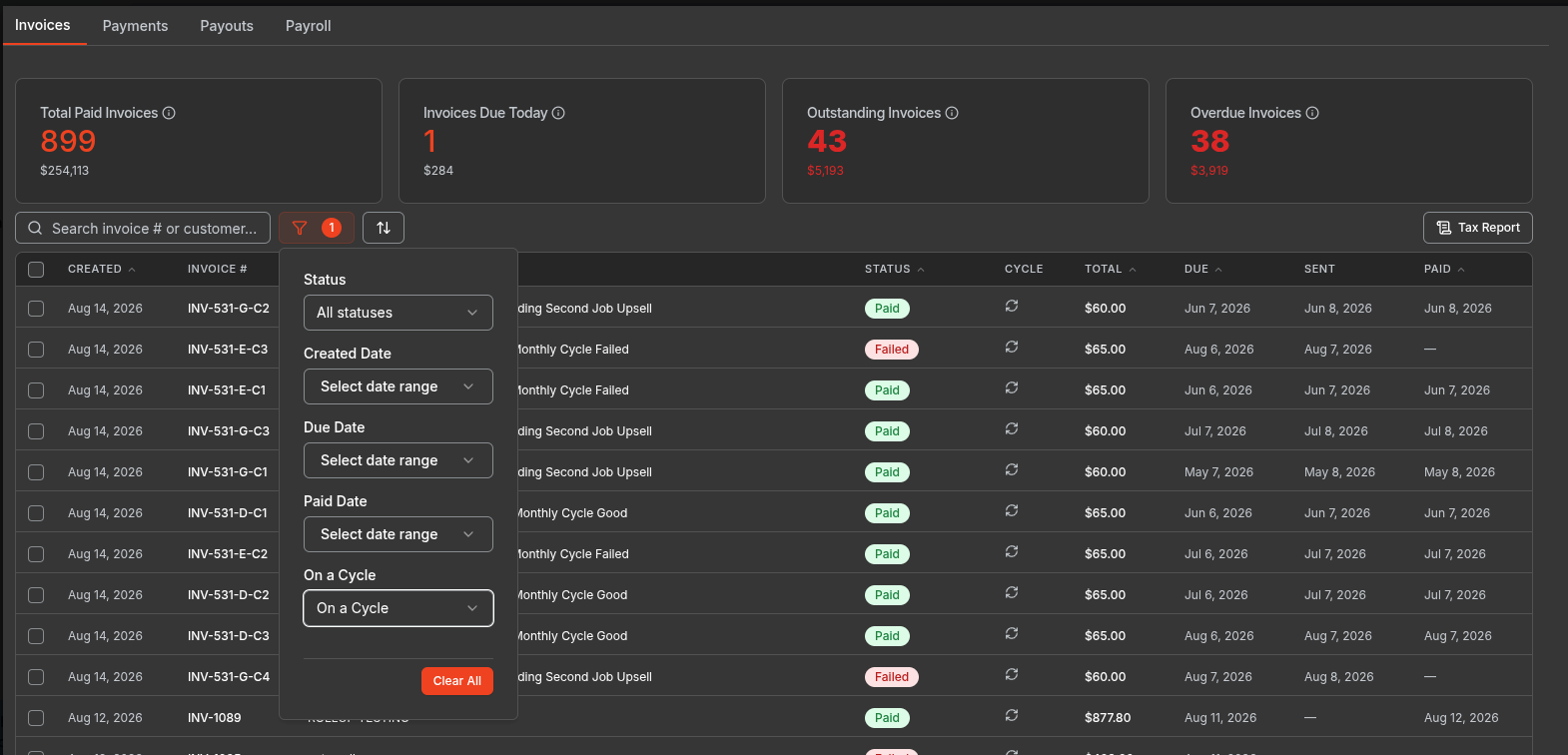
On Invoices, the Cycle column marks every invoice a cycle raised, and the On a Cycle filter narrows the list to just those.
— Invoices filtered to cycle-generated charges.
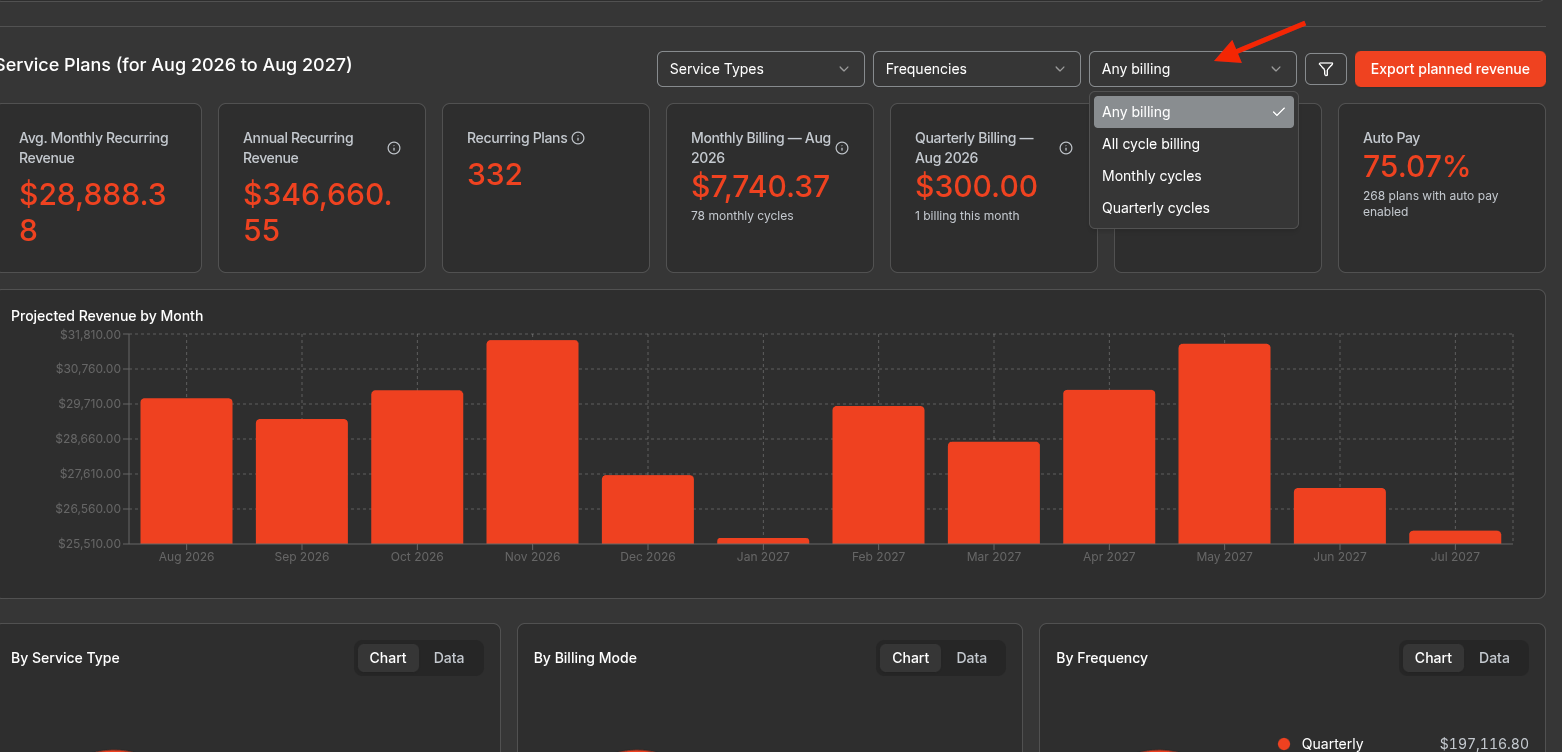
In Reports, cycles feed recurring revenue directly. You can break projected revenue down by billing mode and split it into monthly and quarterly cycles to see what is actually landing each month.
— Projected revenue, filtered by cycle billing.
Things worth knowing
A cycle needs a card on file and auto-pay to charge automatically. Without one it still raises the invoice and sends it — the money just is not collected for you.
Changing a cycle's amount or cadence affects future charges only; invoices already raised are untouched.
A paused or cancelled cycle collects nothing, so its jobs immediately owe their full price again.
Tips and taxes are never counted as payment toward a job's own balance.