Klarna Payments
How to switch Klarna on in the client portal, what your customer sees when they split an invoice into installments, what it costs per transaction, and when it's worth using.
Written By Sean
Last updated 3 days ago
Klarna is now available in Rotor. When it's on, a customer paying an invoice through the client portal can split the total into installments instead of paying it all at once — and you're still paid the full amount up front. It's off by default, so nobody sees it until you turn it on.
Turning Klarna on
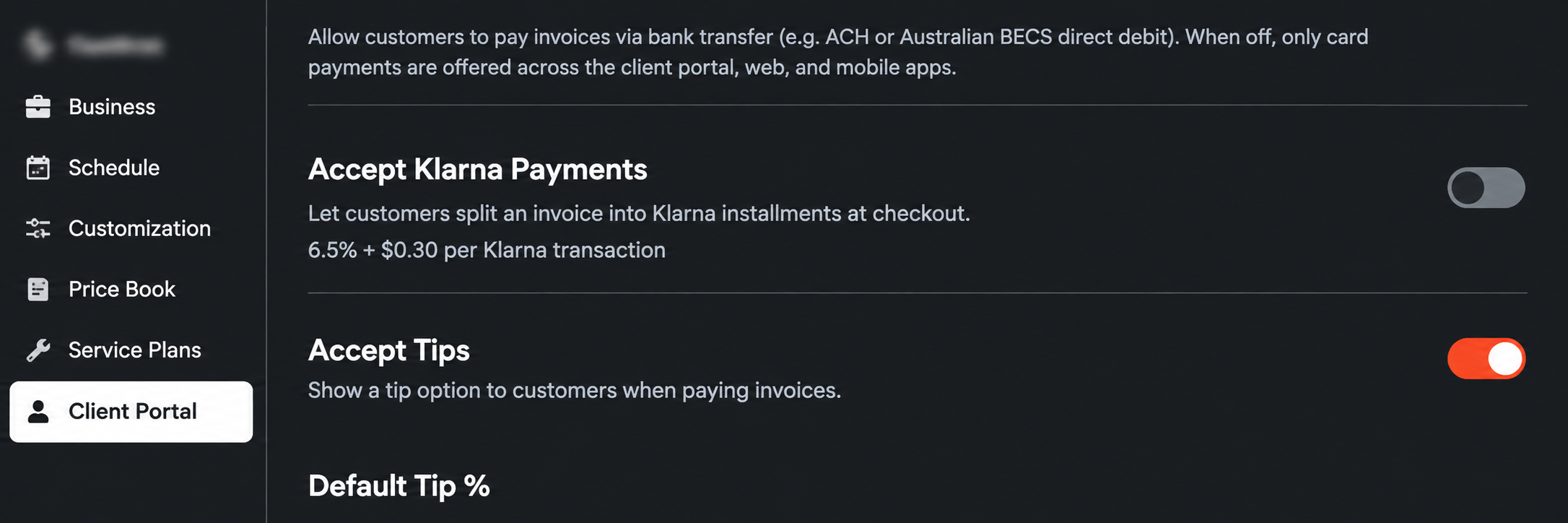
Go to Settings → Client Portal and switch on Accept Klarna Payments.
Scroll to the very bottom of the page and press Save. The toggle does not take effect until you save, and this is the step people miss. Reload the page afterwards to confirm the toggle stayed on.
What your customer sees
On the invoice page in the client portal, Klarna appears as a payment option alongside Card and any wallets — with a one-line preview of the installment amount, for example "Pay now, in 4 interest-free payments of $63.25, or over 3–12 months."
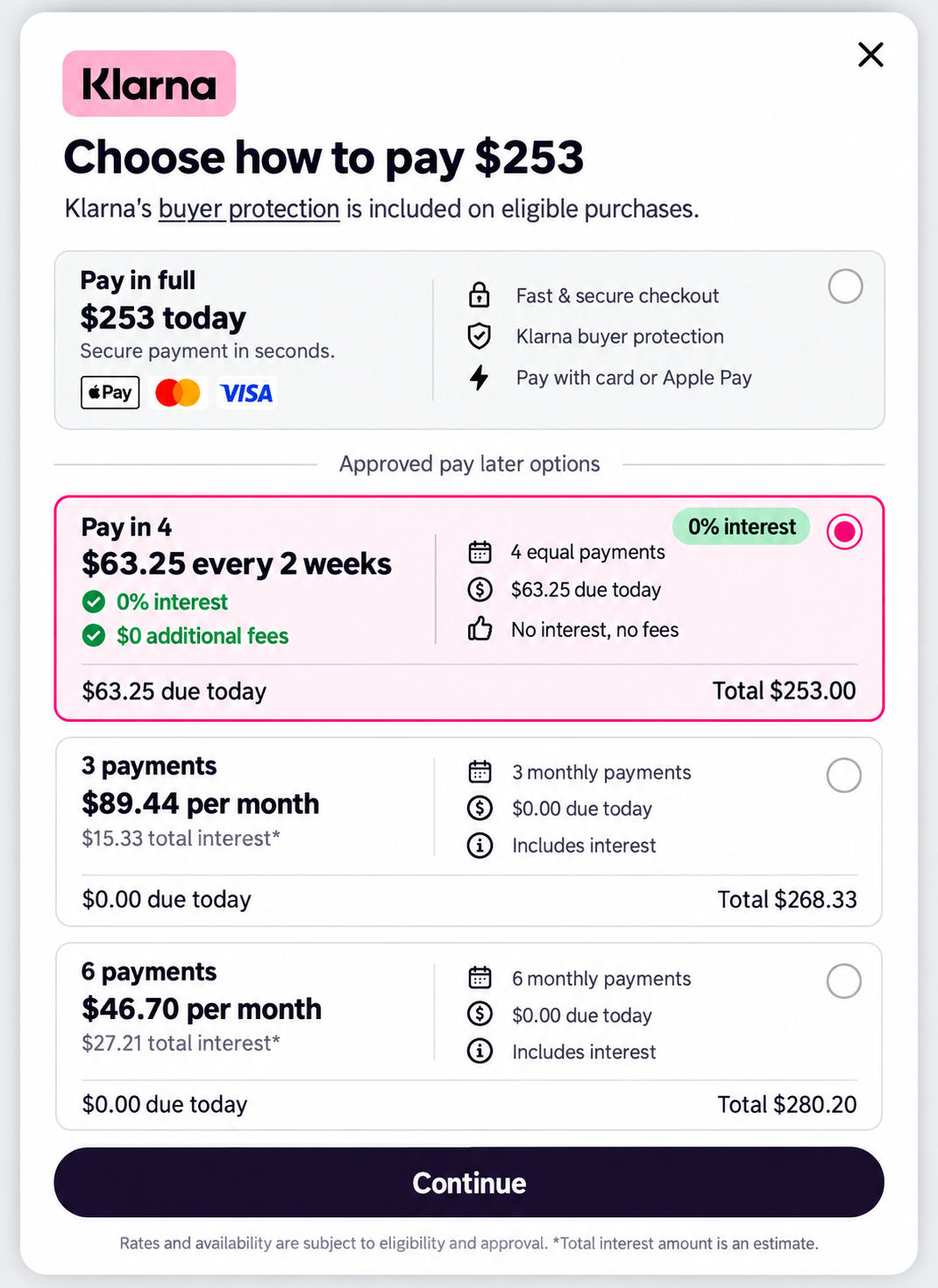
They select Klarna, press Pay, and a Klarna window opens where they choose how to pay:
Pay in full today — the whole amount, right now.
Pay in 4 — four interest-free payments, two weeks apart, with the first due today.
3, 6, or 12 monthly payments — nothing due today, interest applied by Klarna and shown to the customer before they commit.
Klarna decides which of those options a given customer is offered, based on their own approval and the invoice amount. Neither you nor Rotor controls that.
After they confirm, Klarna returns them to their invoice in the portal. The invoice shows the payment as submitted and processing, then flips to paid once it settles — and the receipt goes out the way it does for any other payment.
How you get paid
The installment plan is between Klarna and your customer. On your side it behaves like any other payment: the invoice is paid in full, the money lands in your normal payout, and you never chase the remaining installments.
What it costs
6.5% + $0.30 per Klarna transaction. That is meaningfully more than a card, and it comes out of the payout the same way every other processing fee does — it is never billed to you separately.
$200 invoice → $13.30 by Klarna, against $6.10 on a Visa.
$1,000 invoice → $65.30 by Klarna, against $29.30 on a Visa.
The fee only applies to invoices actually paid with Klarna. Turning the option on costs nothing, and customers who pay by card still pay card rates. See Stripe Fees for the full rate card. Rates are Subject to Change.
When it's worth it
The math changes with the size of the job. On a $150 recurring service, 6.5% is a lot to pay for a convenience the customer didn't need. On a $2,500 install, roof wash, or holiday lighting package, an interest-free "four payments" option is often the difference between a signed quote and a stalled one — and the fee is cheaper than the job not happening.
A reasonable pattern: leave Klarna on for the big-ticket work, and keep card or bank payment as the default everywhere else. Bank payments remain the cheapest way to collect on large invoices if the customer isn't asking to split the cost.
Worth knowing
The fee is charged on the full amount — work, tax, and tip included.
Klarna availability depends on your Stripe account and your customer's location. If the option doesn't appear at checkout after you've saved the setting, contact support before promising it to a client.
Approval is Klarna's call. A customer can be declined, or offered fewer plan choices than another customer on the same invoice amount.
Turning it off is the same path — Settings → Client Portal, switch Accept Klarna Payments off, and press Save at the bottom. Invoices already paid through Klarna are unaffected.
Congratulations! Your customers can now split a large invoice into payments while you get paid in full, up front.
Have additional questions? Our team is ready to help you succeed. Contact us through the chat or drop us an email at support@getrotor.com.