Service Plan Updates: Renewals, Job Generation, and Line Item Timing
What changed with service plans: auto-renew now continues the same plan, jobs generate 12 months ahead, new jobs can be auto-scheduled or pending, new line item and discount timing options, and a new Initial Period filter.
Written By Sean MacCourtney
Last updated About 4 hours ago
We've made several changes to how service plans renew, generate jobs, and apply line items and discounts. This article covers what changed and what it means for your plans.
Auto-Renew Continues the Same Plan
Auto-renew no longer creates a second service plan when the agreement term ends. The plan simply keeps going past the agreement length with the same configuration.
One plan per customer service, start to finish. No more duplicate "renewed" plans to track.
Existing plans that had already renewed into two periods have been combined into one plan, keeping the most recent configuration.
Jobs Generate 12 Months Ahead
Service plans now keep generating jobs on a rolling basis, 12 months in advance of when the work happens. As the plan continues through auto-renew, new jobs keep appearing so the next year of work is always visible.
Auto-Schedule or Create as Pending
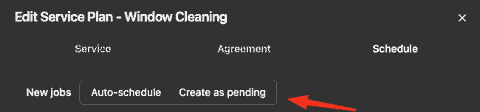
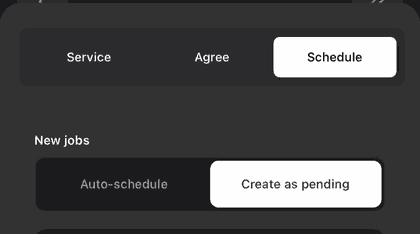
Each plan now has a New jobs setting on the Schedule tab:
Auto-schedule — new jobs go straight onto the schedule.
Create as pending — new jobs land in your pending list so you can schedule or route them later.
When you create a plan, this is set by how you schedule it: if you schedule the jobs, new jobs auto-schedule; if you leave them pending, new jobs are created as pending. You can change it anytime from Edit Service Plan → Schedule.
On mobile, the same setting is on the plan's Schedule tab:
Pending jobs show a Schedule button and a Delay button right in the plan's job list.
New Line Item and Discount Timing
With Apply to all jobs turned off, each line item and discount now has four timing options:
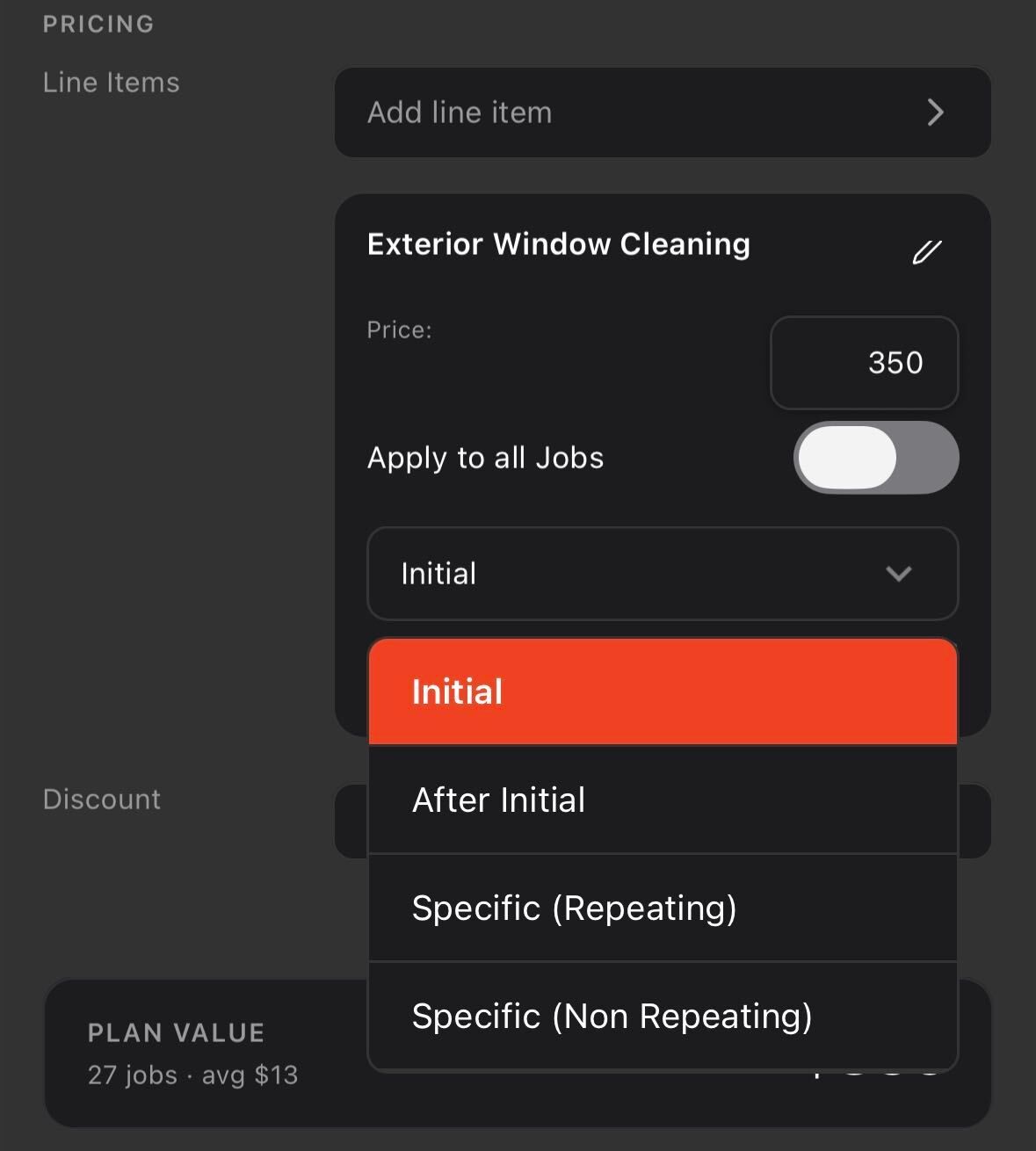
Example: A first-time deep clean at $399 set to Initial Job, plus a $199 maintenance clean set to After Initial. The $399 happens once and isn't counted as recurring revenue; the $199 is.
New Initial Period Filter
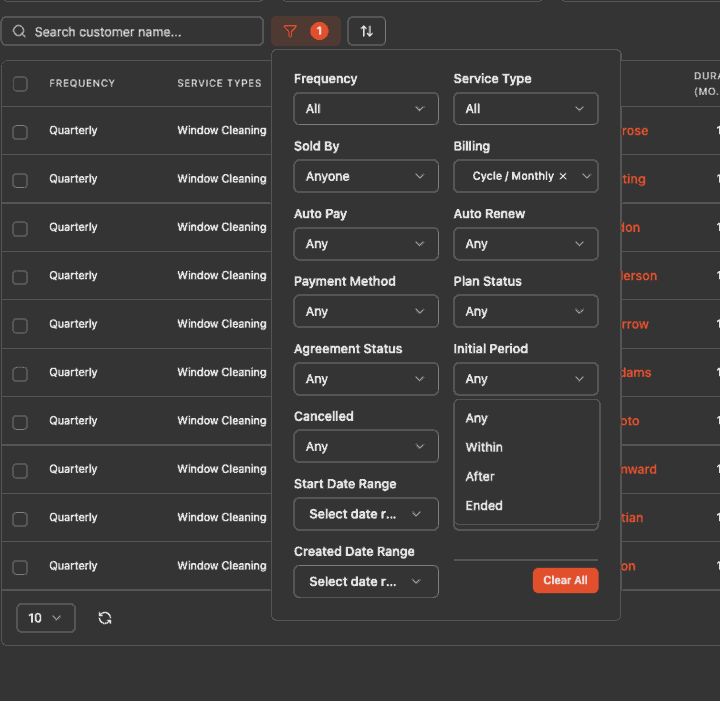
On the Service Plans page, the old renewed / not renewed filter has been replaced with Initial Period:
Within — plans still inside their original agreement term
After — plans that have continued past their original term through auto-renew
Ended — plans whose initial period has ended
Tips
Use Initial Job for one-time setup or first-clean charges so they don't inflate ARR or repeat after renewal.
Use Create as pending if you route jobs or confirm dates with customers before booking.
Filter by Initial Period → After to see which customers are now on auto-renewed terms.
Have additional questions? Contact us through the chat or email support@getrotor.com.
Related articles
Was this helpful?
Still need help? Ask the team