The Job Page on Mobile
Running a visit from your phone: start and finish the work, price the job, add upsells, and collect what is owed — all from one screen.
Written By Sean MacCourtney
Last updated 9 days ago
The job page is where your crew spends the day. Everything a tech needs on site is on one screen: when the visit is, who the customer is, how to get there, what the work is worth, and what to do about the money once it is done.
Open a job by tapping it on your Schedule, or from the customer's record.
Running the visit
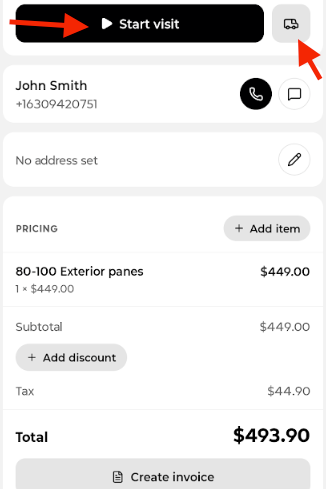
A job starts as Not Started. The card at the top shows the day and time window, and gives you the two things you need before you arrive: Start visit, and the truck button to send the customer an On my way message.
— A job before the visit begins.
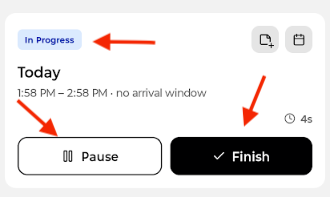
Tap Start visit and the job moves to In Progress. A timer runs while you work, and the buttons become Pause and Finish.
— A visit in progress, with the running timer.
When you tap Finish, Rotor asks what happens next — because a finished visit does not always mean a finished job.
Mark job as complete — the work is done. This is what moves the job to Completed and opens up billing.
Add another visit — the job needs a return trip. The job stays open.
Dismiss — decide later.
— The prompt after finishing a visit.
Adding a visit note
A visit note belongs to one visit. Job notes cover the whole job. Use a visit note to record what happened on a specific trip.
Open the job and find the visit details card at the top.
Tap the note icon (the page with a plus).
Type what happened on the visit.
Tap Save.
Rescheduling a visit
In the visit details card, tap the calendar icon.
Pick the new date and start time.
Change the duration or arrival window if needed, or turn on Anytime if there is no set time.
Add or remove assigned technicians to hand the visit to someone else.
Tap Confirm Schedule.
Already finished the visit? Swipe left on the visit row and tap Schedule instead (see below).
Customer, address and notes
Under the visit card you get the customer with one-tap call and message buttons, and the property address with a directions button that opens your maps app. The pencil lets you correct an address on the spot.
Job notes sit below that, and take photos as well as text — the upload button in the corner attaches pictures to the job, which is the fastest way to record before-and-after or a problem you found.
Pricing the job
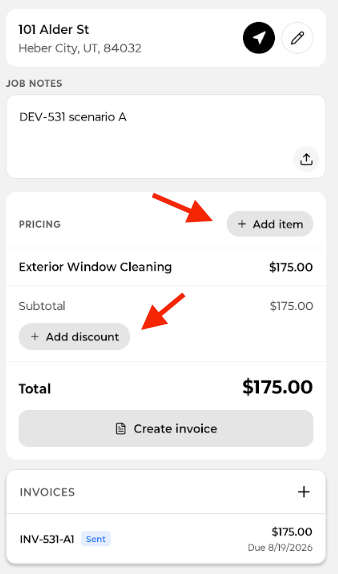
The Pricing section lists every line item on the job and totals it up.
Add item — add work that was not on the plan. Anything added here is an upsell, credited to whoever added it and shown as "upsold by" on the line.
Add discount — take a fixed amount or a percentage off the subtotal.
Tax — applied automatically from the plan's tax rate.
— Pricing, totals and the job's invoices.
If the job has checklists, the black button floating above the pricing shows how many items are still outstanding. Tap it to work through them.
What to do about the money
Once the job is Completed, the card at the top changes to answer one question: what is owed, and what should I do about it? Each state offers at most one obvious action, so there is never a disabled button inviting a tap.
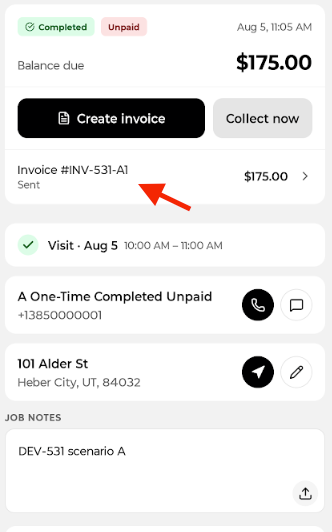
Balance due
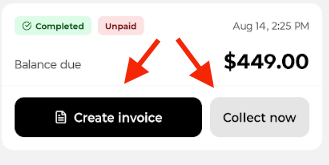
The normal case. The card shows the balance and offers Create invoice or Collect now to take payment on the spot.
— A completed job with a balance to collect.
Any invoices already raised are listed underneath with their status, so the paper trail is right there.
— The same card once an invoice has been sent.
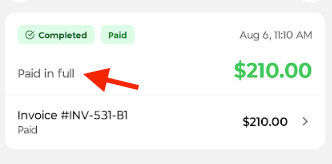
Paid
Nothing owed. The card says Paid in full and offers no action at all.
— A job that has been paid.
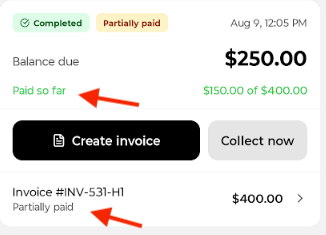
Partially paid
Some money has come in. The card shows what is left and what has been taken so far, so a tech can collect the remainder without doing arithmetic.
— A job with a part payment against it.
Upsells on a plan job
When a job belongs to a service plan, extras a tech added are billed separately from the plan work. The line is marked with who upsold it.
— A plan job with an added-on item.
Billed by a cycle
If the customer is on a billing cycle, the plan work may already be paid for. The card says Nothing to collect, the plan's line items read "Included in price", and there is no invoice to raise. If the cycle is behind, the card says so instead and offers to update the payment method or retry the charge.
See Billing Cycles for how these states are decided.
Reopening or rescheduling a finished visit
Once a visit is finished, the visit row under the status card looks like a read-only summary. It is not — its actions are hidden behind a gesture. Swipe left on the visit row to reveal them.
Schedule — opens the scheduling controls for that visit, where you can move the date, change the arrival window, and change who is assigned.
Reopen — puts the finished visit back in progress, so the timer and the Pause and Finish buttons come back.
— Swiping left on a finished visit reveals Schedule and Reopen.

Nothing on the screen hints that the row is swipeable, so it is worth showing new hires directly. If a tech says they cannot move a visit or hand it to someone else once it is finished, this is almost always what they are missing.
The … menu covers similar ground for the job as a whole; the swipe acts on the individual visit.
Other actions
The … menu in the top right holds the rest: rescheduling, editing the arrival window, adding a visit, reverting a completed job, and deleting.
Tips
Marking the job complete — not just finishing the visit — is what triggers billing. A job with a finished visit that was never completed will not invoice or auto-charge.
Add upsell items before completing the job so they land on the first invoice.
A red dollar sign on your schedule means that job needs money collected: either a balance on completed work, or a customer whose cycle payment has failed.
A finished visit is not locked. Swipe left on the visit row to reschedule it, change who is assigned, or reopen it.
Photos attached to job notes are visible to the office immediately.