Review Requests
Ask customers for a review by text and email, collect ratings on your Rotor review page, follow up on low ratings, and track your team on the Reviews page and Leaderboard.
Written By Sean MacCourtney
Last updated 15 days ago
Rotor asks your customers for a review by text and email, collects their star rating on a branded Rotor review page, and sends happy customers on to your public review site (like Google). Lower ratings stay private so you can follow up.
Permissions: Owners and admins set it up and manage reviews. Any team member can request a review. Customers rate from a personal link — no login needed.
How It Works
A job is completed (or an invoice is paid), or someone taps Request Review.
The customer gets a text and/or email with their personal review link.
They pick 1–5 stars and can leave a comment.
Ratings at or above your threshold (4 stars by default) are offered a Leave a public review button that goes to your public review link. Lower ratings are saved as private feedback and flagged Needs follow-up.
You see every rating in Marketing → Reviews and on the customer's Activity tab, and the team gets a Review received notification.
Set Up Review Settings
Go to Settings → Messaging. The Reviews card is at the top. You can also get there from the Review settings button on the Reviews page.
The card has three parts:
1. Public Review Link
Paste the URL where you want happy customers to post a public review — usually your Google Business Profile review link. Click Save.
If left empty, your company website is used.
Tip: in Google Business Profile, use Ask for reviews to get a link that opens the review box directly. Test it on your phone first.
Regular messages can still use
{{review_link}}to drop in this URL. Review requests use a personal link instead,{{review_request_link}}.
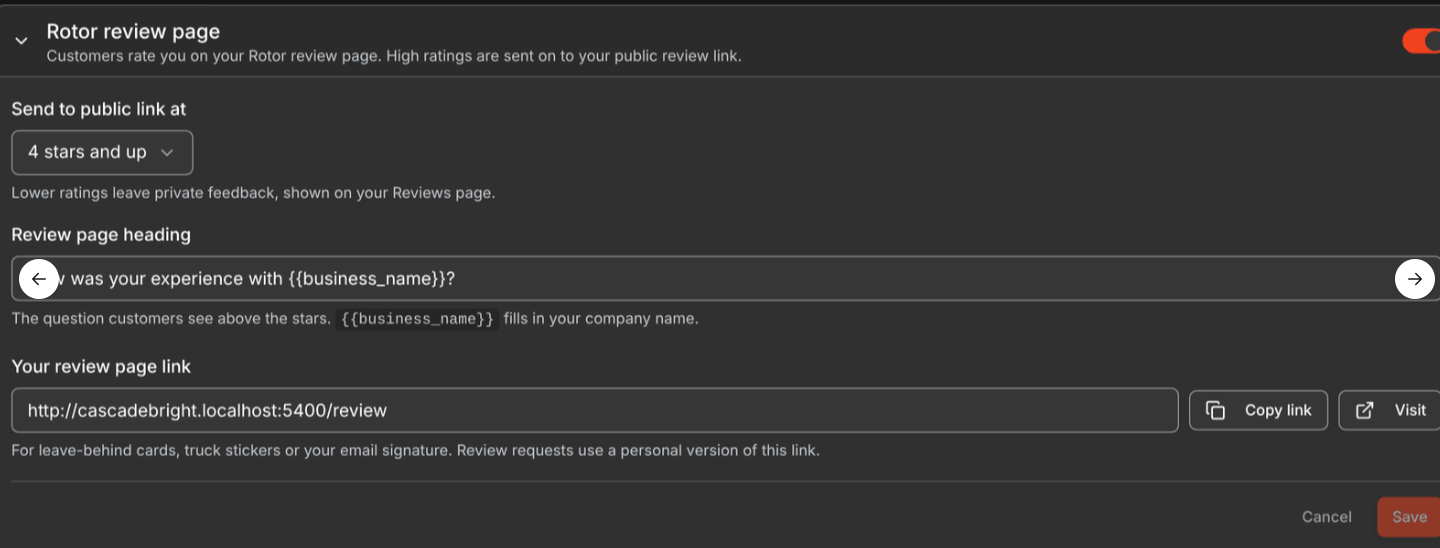
2. Rotor Review Page
This is the branded page your customers rate on. It's on by default.
The shareable review page link is great for business cards, truck stickers, QR codes, and email signatures. Anyone can leave a review there, more than once. Those reviews show as Unknown customer until you link them to a customer. You need a customer portal address set up to get this link.
If you turn the Rotor review page off: requests link straight to your public review link, no ratings are recorded in Rotor, and reminders don't send.
3. Review Requests
This controls when and how customers are asked. It's off by default — flip the switch to turn it on.
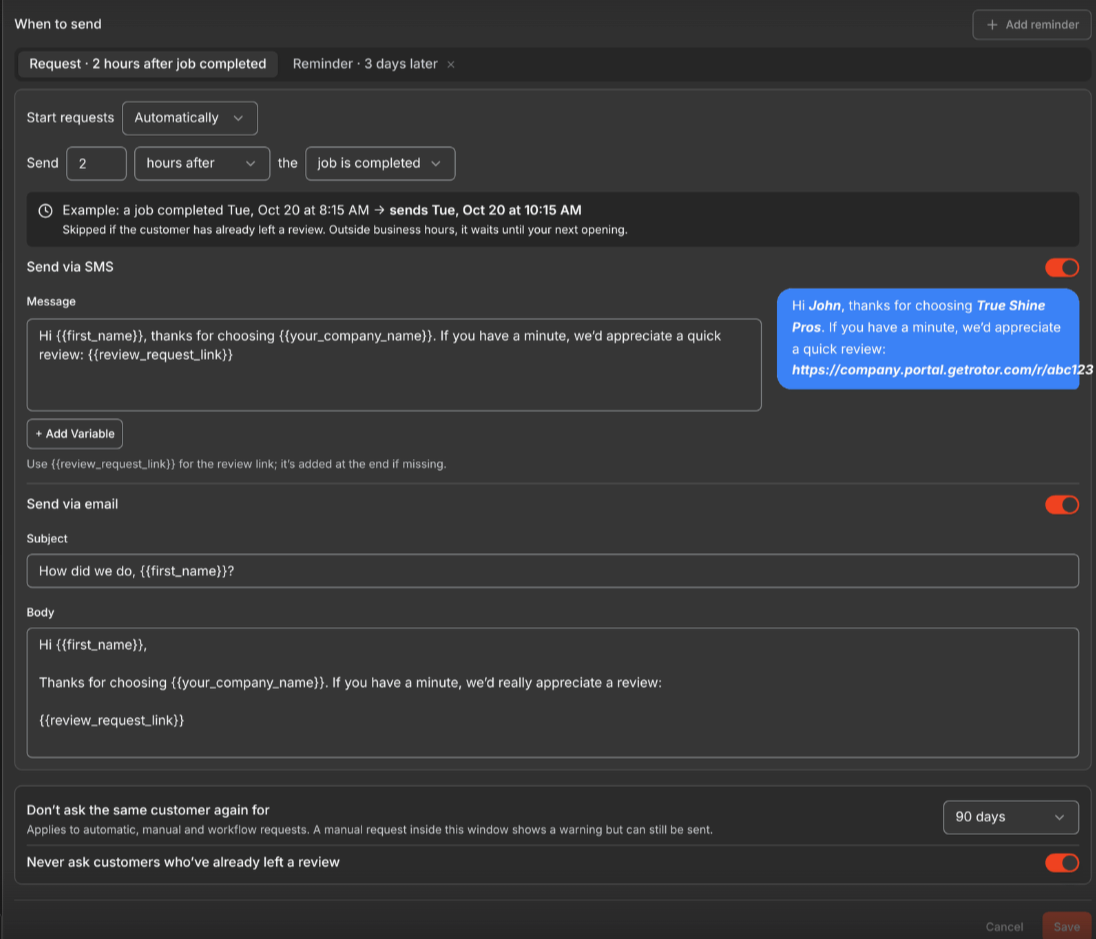
Click Save on the row when you're done. The on/off switches save right away.
Good to know:
Business hours are respected. The delay counts from the trigger, then waits for your business hours. A job finished at 7 PM with a 2-hour delay sends the next morning.
Saving creates a workflow named "Review requests" in Workflows. Switching to Manually or turning requests off pauses it and cancels any requests still waiting to send.
The link is added for you. If your message doesn't include
{{review_request_link}}, Rotor adds it at the end.Emails are branded with your logo, theme colors, and contact footer.
If both SMS and email are on and the customer has both, they get both.
Default SMS:
Hi {{first_name}}, thanks for choosing {{your_company_name}}. If you have a minute, we'd appreciate a quick review: {{review_request_link}}
Request a Review Manually
You can ask any customer at any time, even if automatic requests are off:
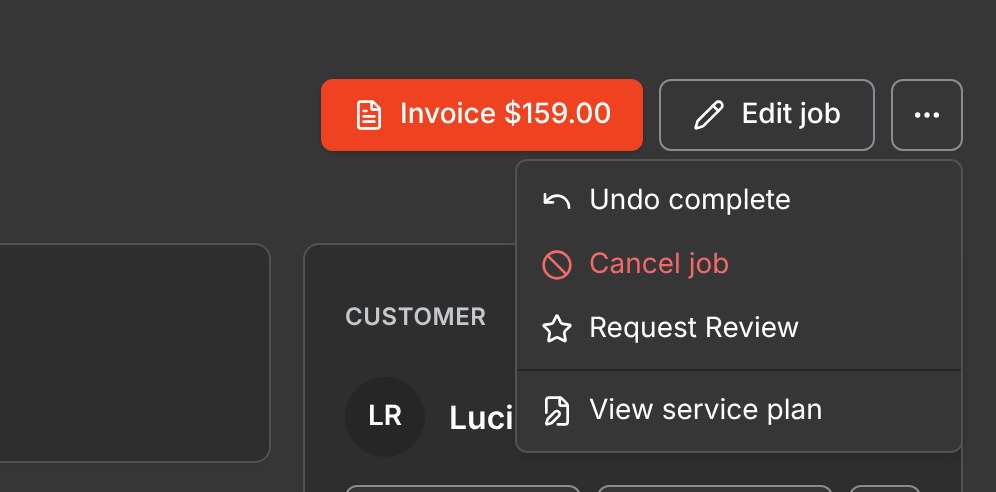
Job page (web): open the job's more-options menu → Request Review.
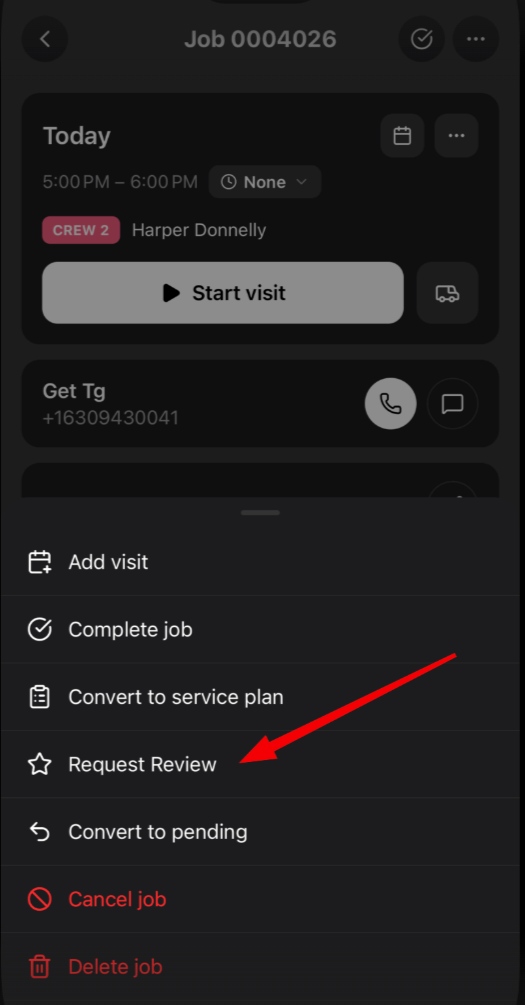
Job (mobile app): tap the more-options menu → Request Review.
Customer page: on the Activity tab, click Add Item → Request Review.
Requests sent from a job are tied to that job, so the technicians on it get credit for the review. The person who sends a manual request also gets credit.
If the customer was asked recently, you'll see "This customer was asked for a review on [date]. Send anyway?" Send anyway skips the waiting window — but it won't send to a customer who already reviewed or is marked as reviewed.
Manual requests use your saved channels and messages, and send right away (they don't wait for business hours).
Ask at job completion: if the Job Completed message uses Prompt Mode, you can save a Review option that includes {{review_request_link}}. Your team then picks it when they complete a job that went well. Set it up in Client Messaging Settings.
Use It in a Workflow
Add the Send review request action to any workflow. It uses the messages, channels, reminder, and re-ask rules from your Review settings — there's nothing extra to set up in the step.
Who Gets Asked (and Who Doesn't)
These rules apply to automatic, workflow, and manual requests. A request is skipped when:
Muted customers are skipped by automatic and workflow requests, but a manual request still goes out.
Mark as Reviewed
Rotor can't see reviews left directly on Google or other sites. If a customer already reviewed you somewhere else, go to their Activity tab → Add Item → Mark as Reviewed. Nothing is sent, and they'll never be asked again (any pending reminder is cancelled too). Web only.
Reminders
If the customer hasn't rated yet, a reminder goes out after your chosen delay (during business hours). It's skipped if they've already rated, were marked as reviewed, or the reminder or Rotor review page was turned off since. Reminders only work when the Rotor review page is on.
What Your Customer Sees
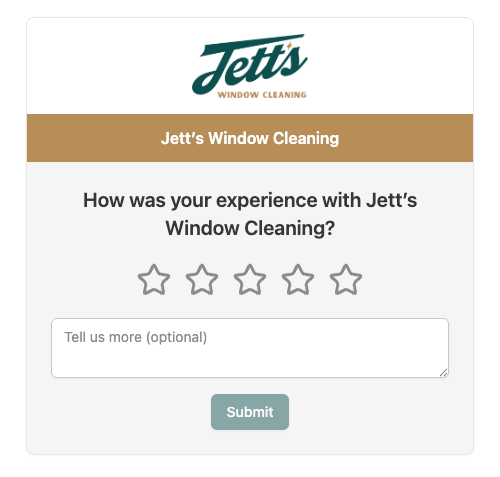
The personal link opens a page with your logo and brand colors, your heading, five stars, and an optional comment box. Submit unlocks once they pick a star.
At or above your threshold: a thank-you page with a Leave a public review button to your public review link.
Below your threshold: the comment box asks "Tell us what we could do better," then shows a thank-you page. The feedback stays private.
Each personal link takes one review. Opening it again just shows the thank-you page.
Review Received Notifications
When a customer submits a rating, admins get notified, plus any team member credited on that review. Push and in-app are on by default; text and email can be turned on per person.
Example: "New 5★ review from Sarah" or "Needs follow-up: 2★ review from Sarah"
The Reviews Page
Go to Marketing → Reviews (owners and admins with Marketing access).
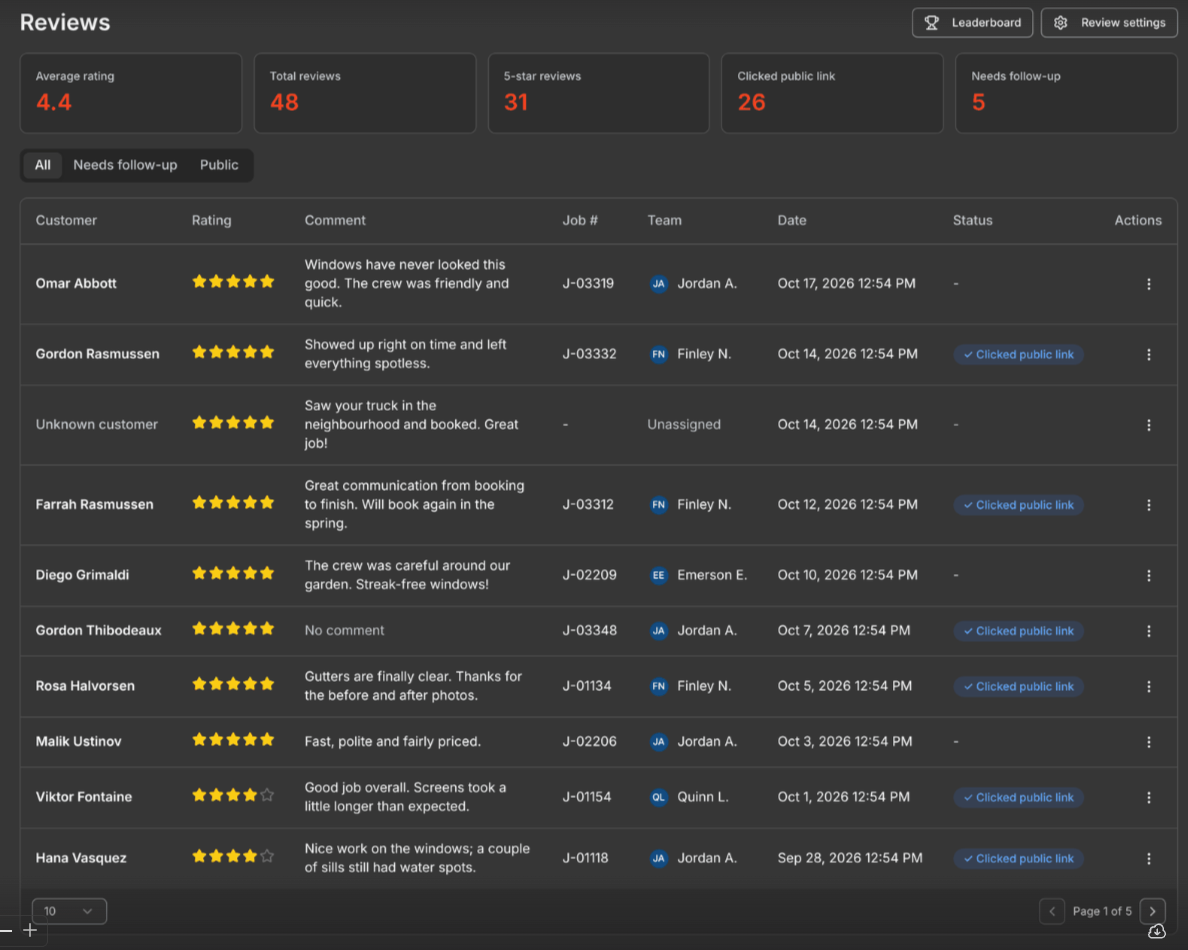
Summary Tiles
Across the top: Average rating, Total reviews, 5-star reviews, Clicked public link, and Needs follow-up. These always count all reviews, no matter which tab you're on.
Tabs
All — every review, newest first.
Needs follow-up — ratings below your threshold that haven't been resolved.
Public — customers who clicked through to your public review link.
Columns
Customer, Rating, Comment, Job #, Team, Date, Status, and Actions. Show 10, 25, or 50 rows per page.
Status
Needs follow-up — the rating was below your threshold when it came in.
Resolved — someone followed up and marked it done.
Clicked public link — the customer went on to your public review site.
Changing your threshold later doesn't re-flag older reviews.
Follow Up on Low Ratings
Open the Needs follow-up tab.
Reach out to the customer (click their name to open their page).
Click the check button on the row to mark it Resolved.
Need to reopen it? Use the row menu → Reopen Follow-up.
Row Actions
Open the row menu on any review:
How Team Credit Works
A review from a job's request credits every technician assigned to any visit on that job (crews included).
A manual request also credits the team member who sent it.
No job and no sender? The review shows as Unassigned — use Change Employees or Link Job to fix it.
The Leaderboard
Click Leaderboard next to Review settings on the Reviews page.
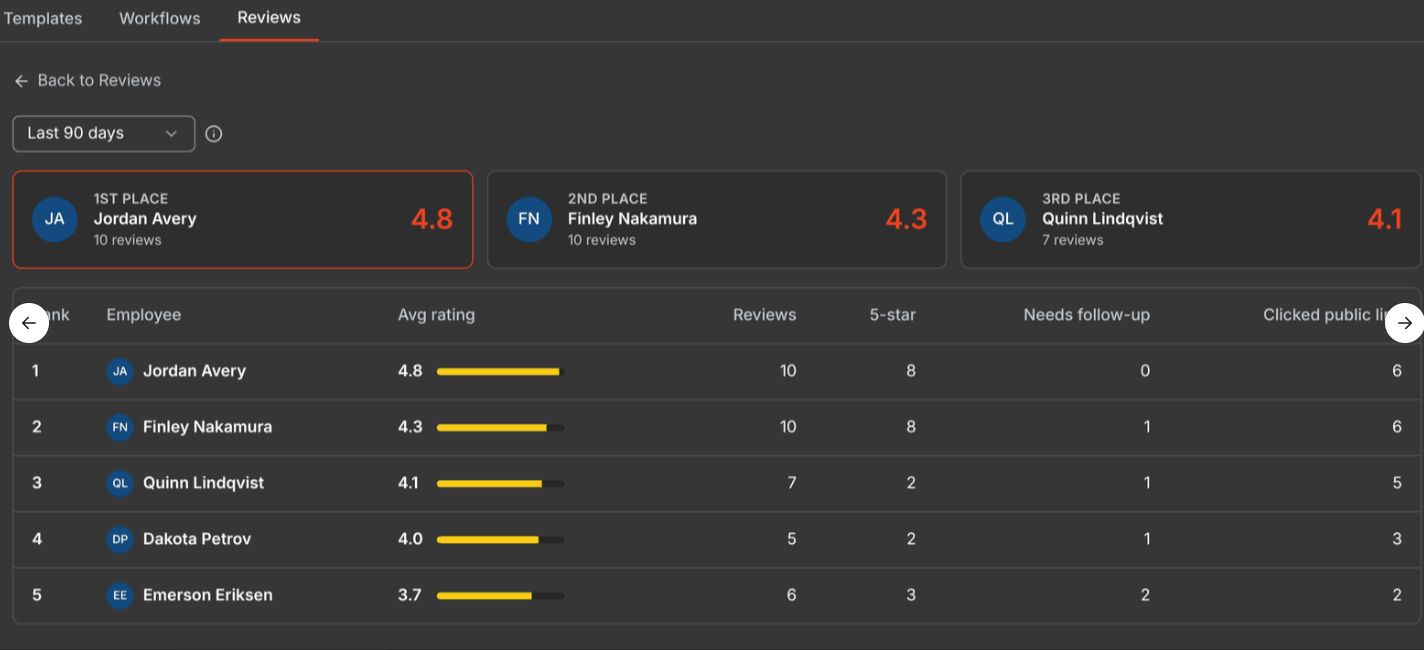
For each credited employee you'll see their average rating, number of reviews, 5-star count, Needs follow-up count, and Clicked public link count.
Period: Last 90 days (default), Last 30 days, This year, or All time.
Ranking: by average rating, then by number of reviews.
Minimum: 5 reviews in the period to be ranked. Others are listed below as "(not ranked yet)".
The top 3 get podium cards.
Each credited employee gets full credit for the review — a 5-star review on a 3-person job counts as a 5-star for all three.
Reviews on the Customer Page
On a customer's Activity tab you'll see:
Review requested — how it was sent (SMS/email), whether it was automatic or manual, and the job.
Review reminder sent
Review received — stars, comment, and whether it was private feedback or they clicked the public link.
Review follow-up resolved — and who resolved it.
The Last review card in the left panel shows their most recent rating, date, and status.
Additional Notes
Ratings and comments can't be edited by staff.
Deleting a job keeps its review — it's just no longer linked to the job.
Changing employees on a review doesn't send a new notification.
Dates show in your browser's time zone.
If your account is suspended, automatic requests and reminders stop. Manual requests still work.
On mobile, only Request Review on a job is available. Settings, the Reviews page, the Leaderboard, and Mark as Reviewed are on web.
Have additional questions? Our team is ready to help you succeed. Contact us through the chat or drop us an email at support@getrotor.com.
Related articles
Client Messaging Settings — where Review settings live
Message Templates — variables you can use in review messages
Workflows & Automations — add a Send review request step
Was this helpful?
Still need help? Ask the team