Desktop and Mobile Calling
This guide walks you through verifying your setup, configuring inbound call routing, and making and receiving calls directly from the Rotor desktop and mobile app.
Written By Noah Sanches
Last updated About 1 month ago
Getting Started
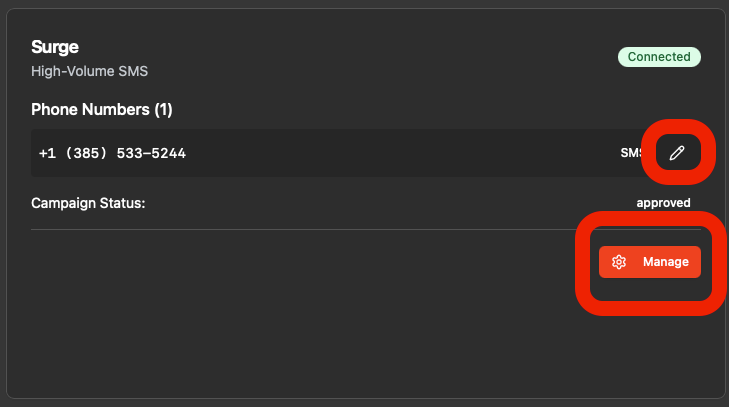
To verify that Mobile Calling is available on your account, navigate to Settings → Engagement on the Rotor website and confirm that you have a number listed under the Surge provider. Click Manage and check that the status reads "Mobile calling is enabled."
[NOTE] Mobile Calling is available on all most Rotor plans. If you are on an older or discounted plan and do not see this feature, you may need to upgrade to access it. Reach out through the Help and Support channel and we will help find the best option for you. If the feature appears but does not seem to be enabled, try pressing the Refresh button next to the status first.
Configuring Inbound Call Routing
Once your number is confirmed, you will need to set how inbound calls are handled. Exit the Manage menu and click the pen icon on the same line as your number. From here, you have several routing options:
Route to personal number: Calls forward to your personal phone, just as before.
Route in-app to Rotor user: Calls ring directly inside the Rotor website and mobile app for whichever team members you select. This is the new recommended option for teams using the mobile app.
You will also find options to enable voicemail and call recording for both inbound and outbound calls. When setting up voicemail, you can type a message to be read aloud to callers, and configure how long the line rings before sending them to voicemail. You can also choose to instead send them to a voicemail audio greeting which can be uploaded here.
The Dialing Page
A Dialing Page is available in the mobile app under the Inbox tab. Tap the phone icon at the top to access it. On desktop, this is accessed form the phone icon in the top right. From here you can:
Call any number, even if they are not a saved lead or customer.
View your full call history.
Access your voicemails.

Making Outbound Calls
There are three ways to place outbound calls on Rotor:
From the contact card of a lead or customer: Tap the phone icon. On mobile, if Mobile Calling is enabled, this will always use the in-app calling feature.
From the details view of a lead or customer: Tap the contact's phone number to choose between in-app calling or your phone's native dialer on mobile.
From the keypad: Tap the phone icon to access this. On desktop, it is in the top right. On mobile, this is within the messages page.
Known Issues & Upcoming Improvements
We are actively working on the following:
A dial pad for use during active calls on mobile.
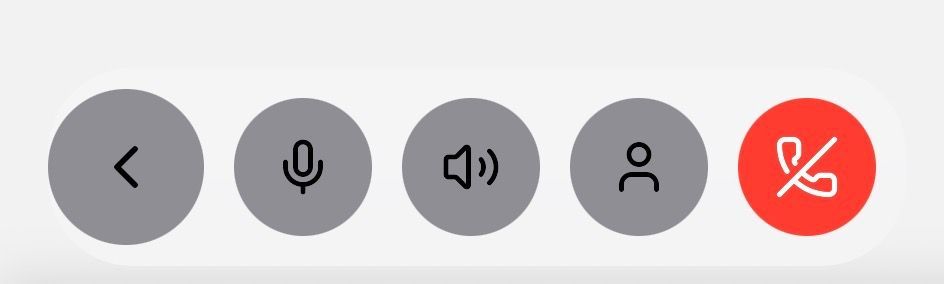
Call controls that don't automatically dismiss after a call ends — for now, you may need to clear them manually.
Call controls not appearing when a call is started from inside a lead or customer's details view — navigating back to the list view will display them.
Mobile Calling is currently iOS only. Android support is in progress.
Congratulations! You are now ready to start making and receiving calls directly from Rotor desktop or mobile app. Start by testing a call with a teammate, check your routing settings, and enjoy a more seamless way to stay connected with your customers on the go!
Have additional questions? Our team is ready to help. Reach out through the in-app chat or email us at support@getrotor.com